
Guide to Changing the System Language in ATZ CRM
This guide explains how to change the system language in ATZ CRM to personalize your user experience.
Available Languages
Section titled “Available Languages”ATZ CRM supports the following 10 languages:
- English
- French
- Dutch
- Spanish
- Polish
- German
- Portuguese
- Japanese
- Chinese
- Italian
- Swedish
Steps to Change the System Language
Section titled “Steps to Change the System Language”1. Access the Profile Section
- Click your Profile icon in the top-right corner of the ATZ CRM interface.
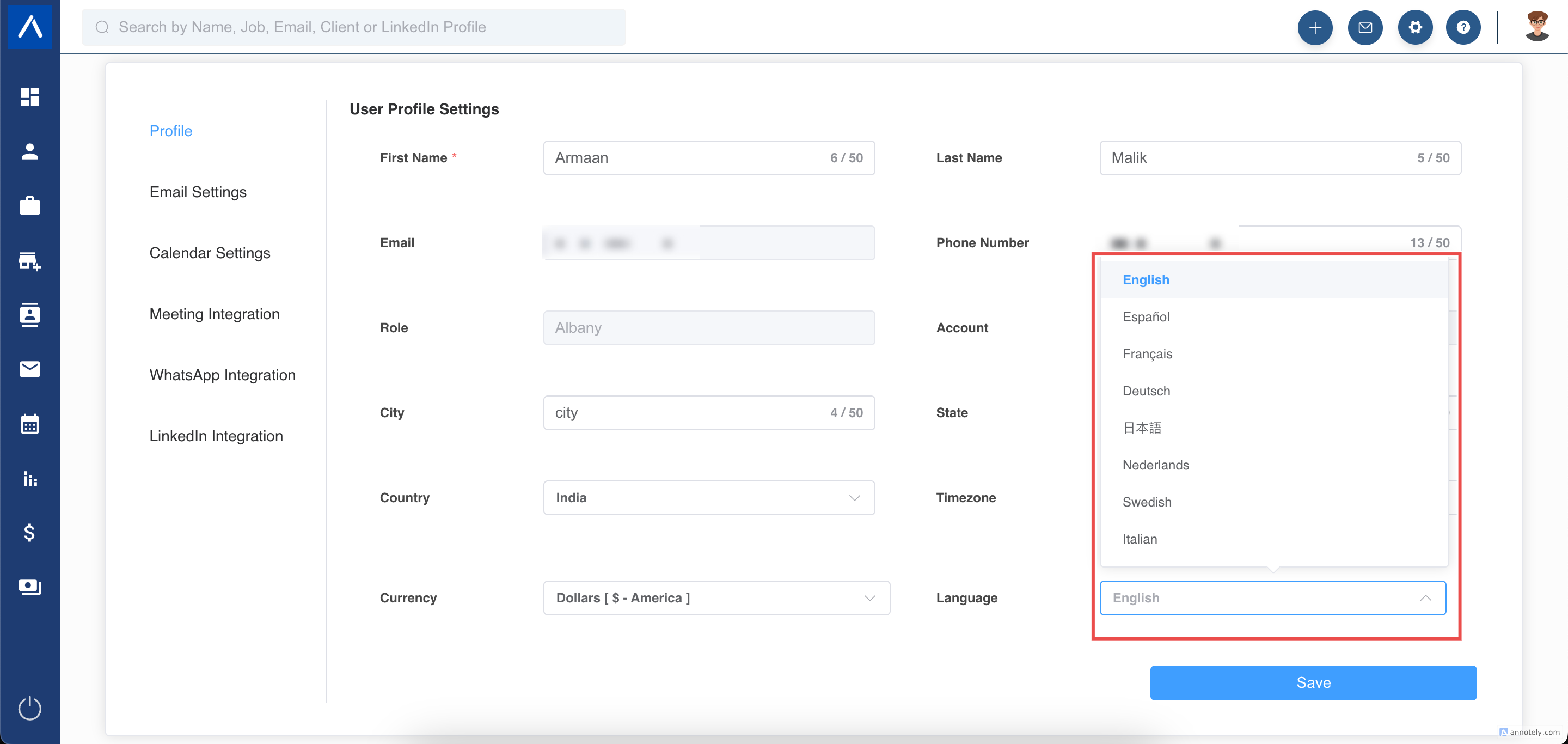
2. Select Your Preferred Language
- Scroll to the Application Language section.
- Choose your desired language from the dropdown list.
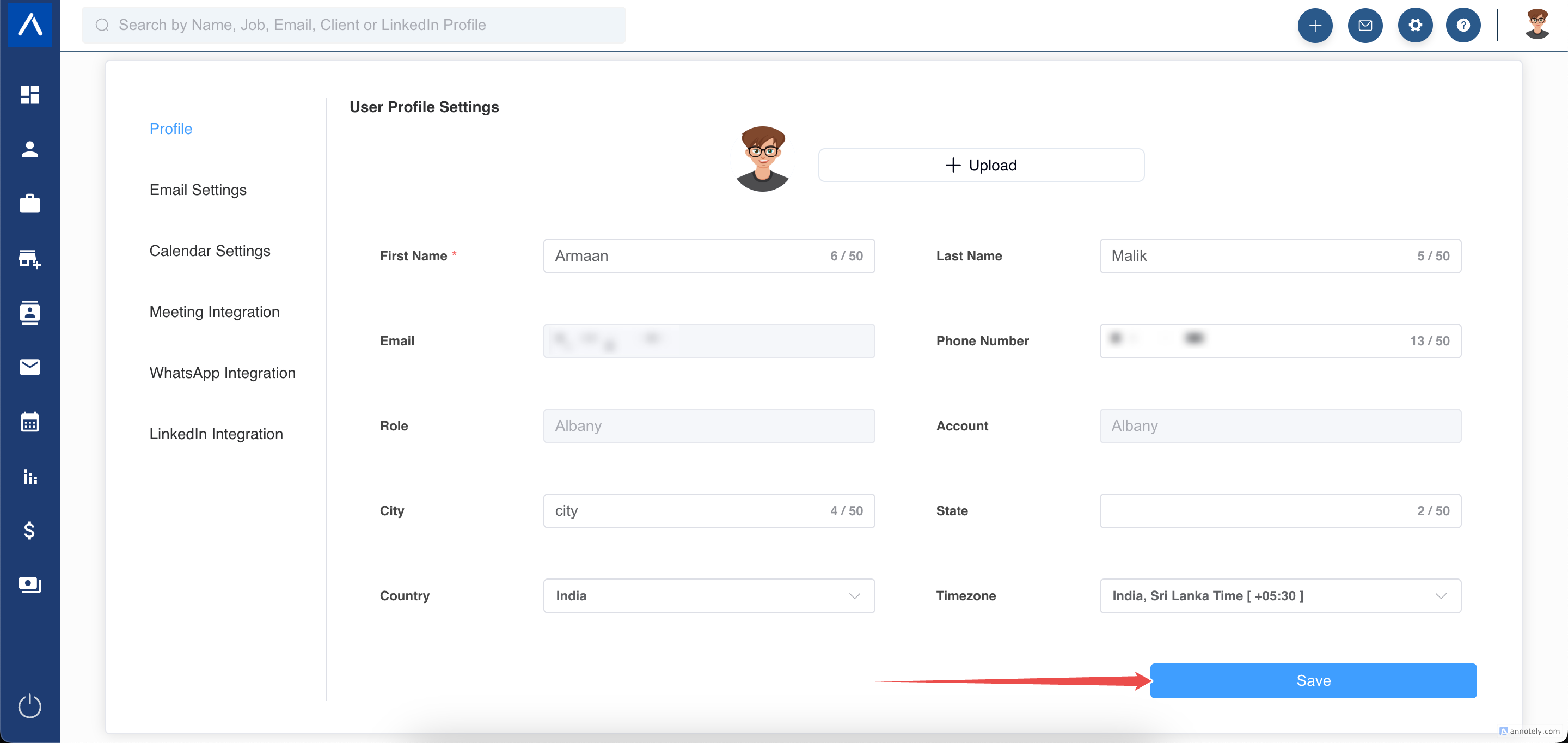
3. Save Changes
- Click the green Save Profile button.
Completion
Section titled “Completion”Your ATZ CRM interface will now display in the selected language.
Translating External Forms
Section titled “Translating External Forms”The external forms label will also get translated.
Support
Section titled “Support”For assistance, visit the ATZ CRM Help Center or contact ATZ CRM support.