
Add an Organization Manually in ATZ CRM
TABLE OF CONTENTS
- Step 1: Log in to ATZ CRM
- Step 2: Open the ‘Add Organization’ Form
- Step 3: Fill in the Organization Details
- Step 4: Click ‘Create’ to Save the Organization
Step 1: Log in to ATZ CRM
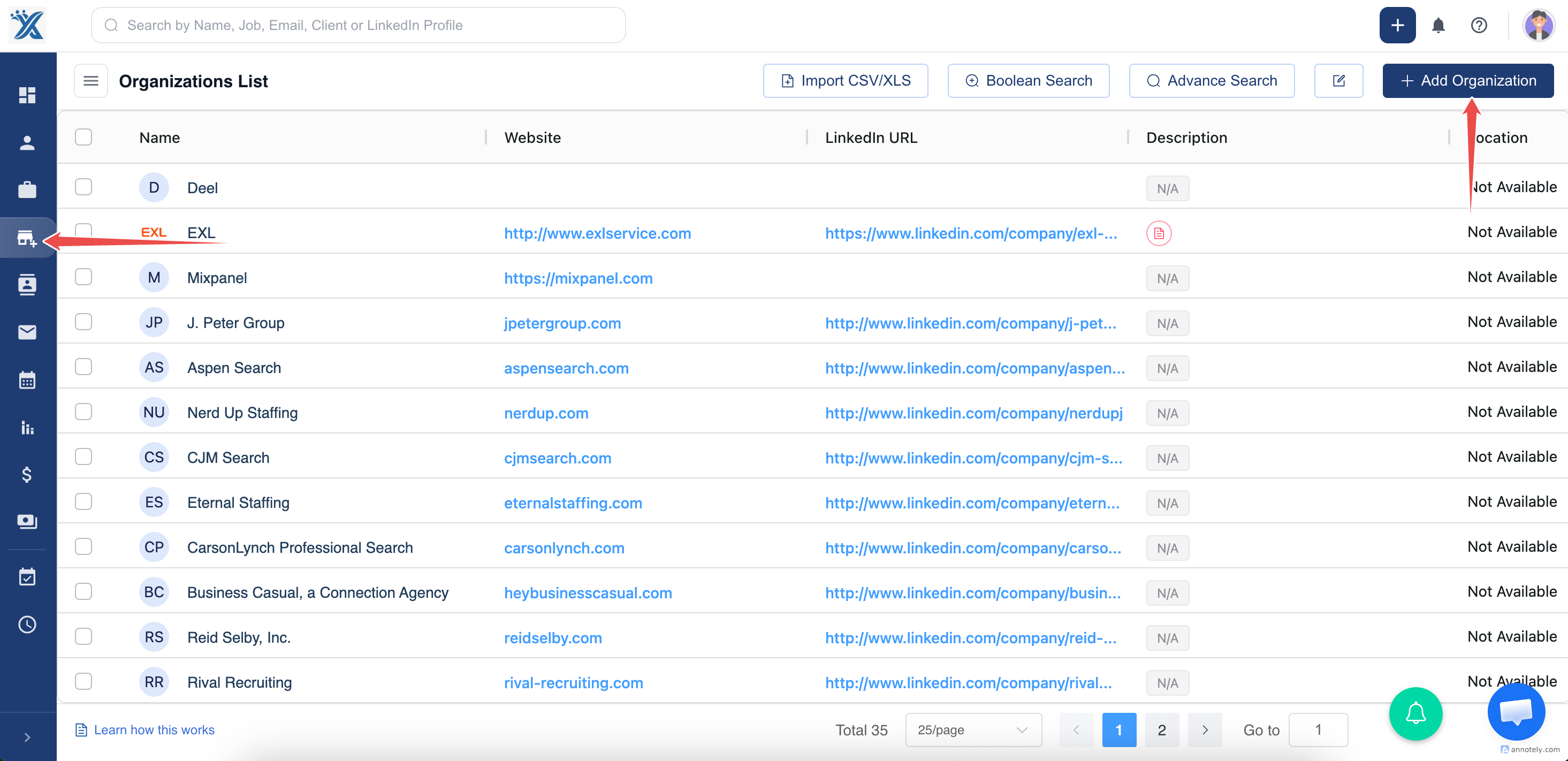
Section titled “Step 1: Log in to ATZ CRM”First things first—log in to your ATZ CRM account. Navigate to the Organizations section on your dashboard.
Step 2: Open the ‘Add Organization’ Form
Section titled “Step 2: Open the ‘Add Organization’ Form”Click on the ‘Add Organization’ button to launch the form where you’ll input the company details.
Step 3: Fill in the Organization Details
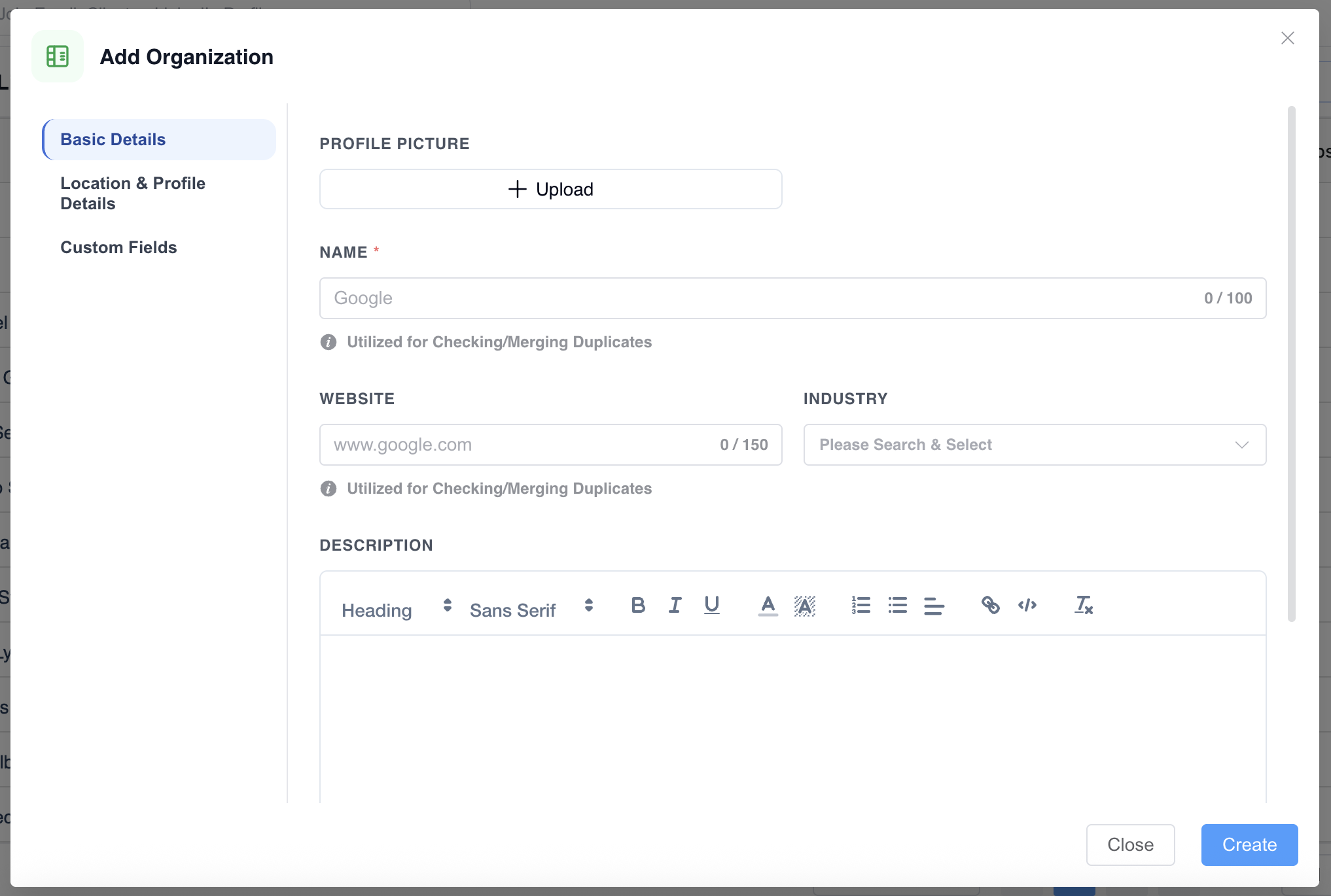
Section titled “Step 3: Fill in the Organization Details”Start by entering the organization’s name. Make sure the spelling is accurate to avoid duplicates.
Step 4: Click ‘Create’ to Save the Organization
Section titled “Step 4: Click ‘Create’ to Save the Organization”Once all fields are complete, review your entries. When everything looks good, click the ‘Create’ button to finalize the organization’s profile.
With ATZ CRM, adding organizations to your database is a breeze. Follow these steps, and you’ll be managing company profiles like a pro in no time!