
Assigning & Unassigning a Candidate to a Job
`
Guide to assigning a Candidate from a Job in ATZ CRM
To assign a candidate to a job in ATZ CRM, you would typically follow these steps, though the exact steps may vary slightly depending on the specific interface or features of your version. Here’s a general guide based on CRM systems and the ATZ CRM platform:
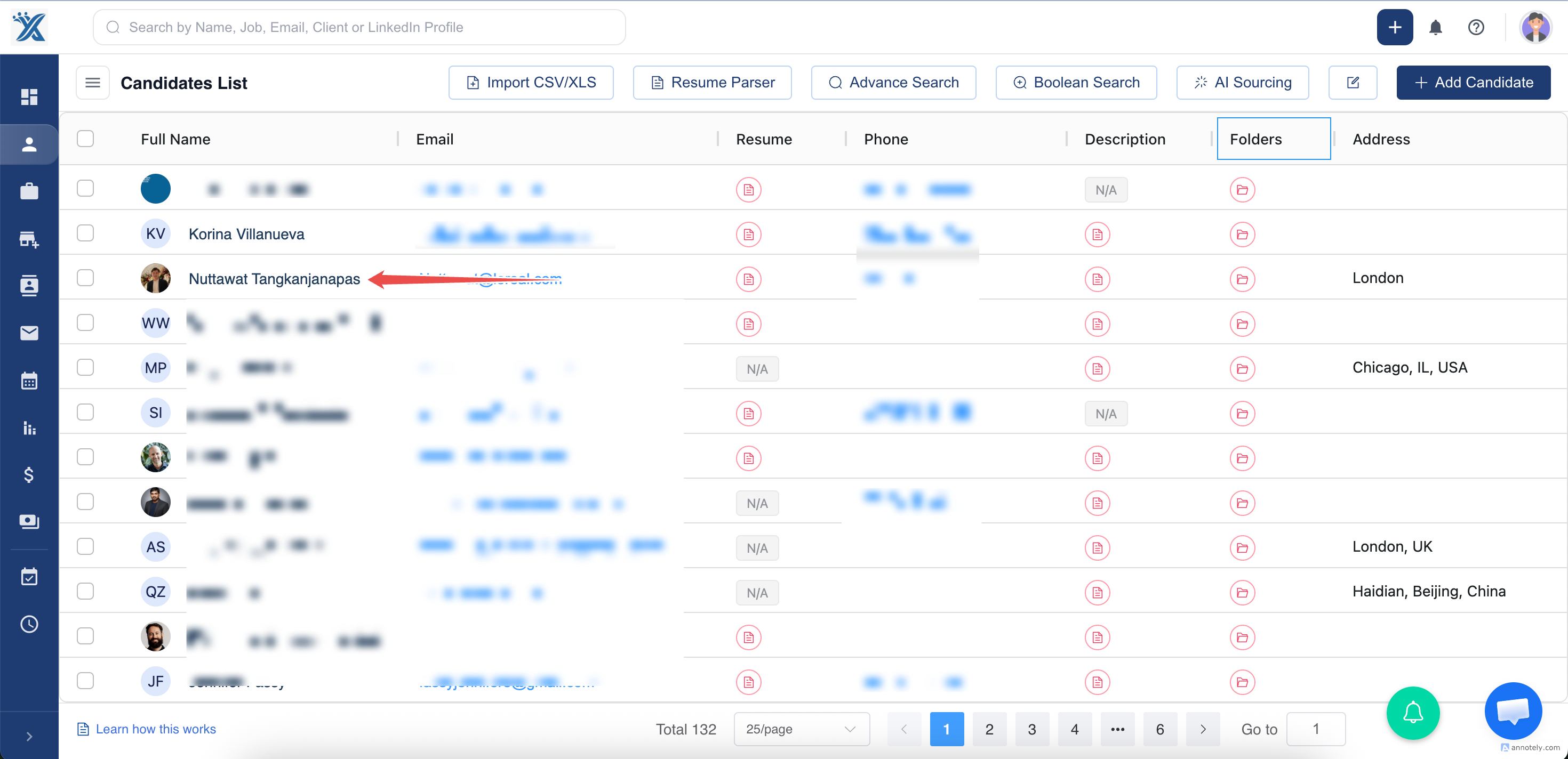
- Navigate to the Candidate section: Go to the “Candidates” module from the main dashboard.
- Search for the Candidate Profile: Use filters (e.g., name, email, phone, etc) to locate the candidate.
- Open Candidate Details: Click on the candidate’s profile to view their information.
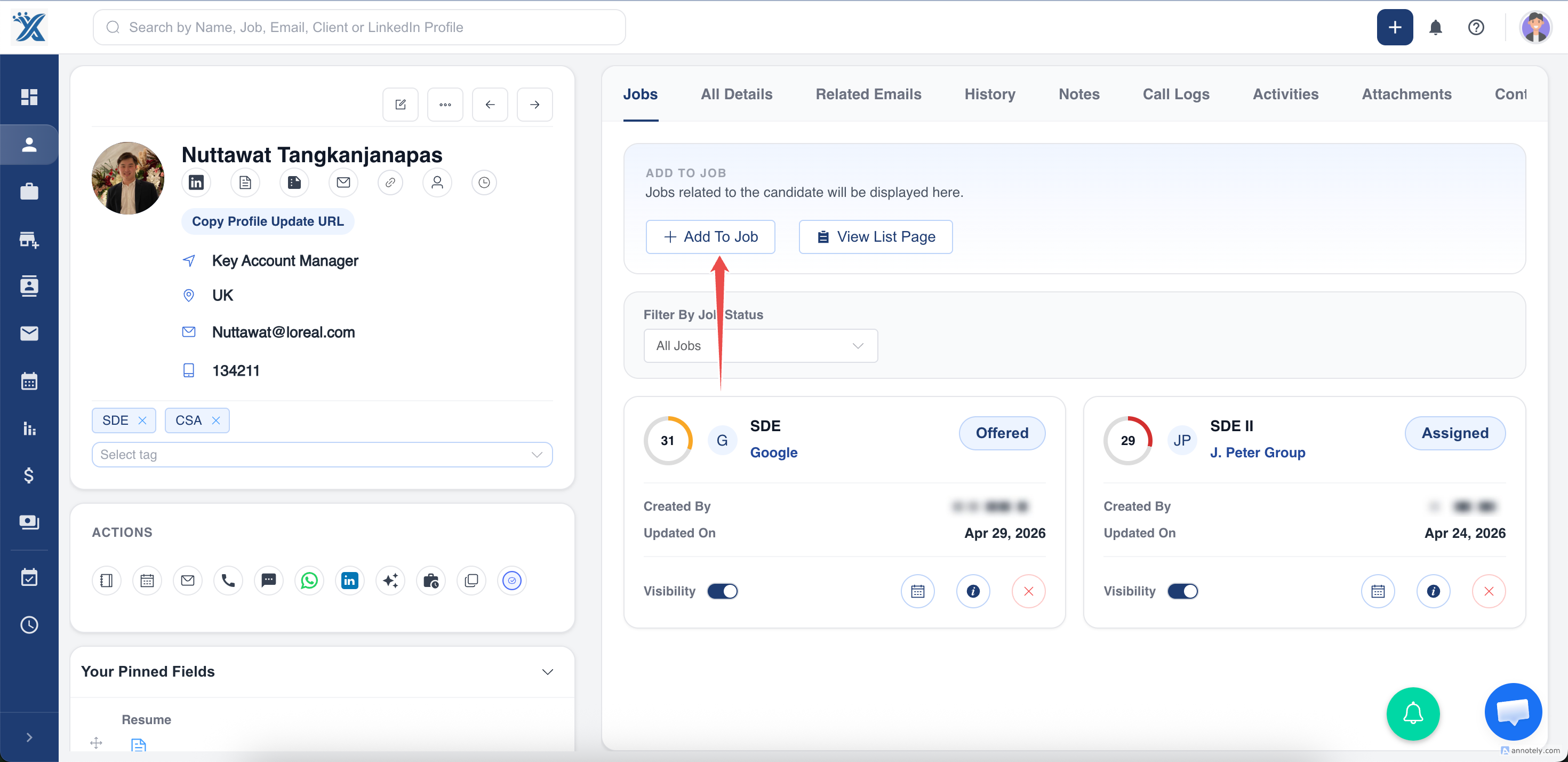
- Click on Add To Job button, under the Jobs tab for assigning the candidate to a Job
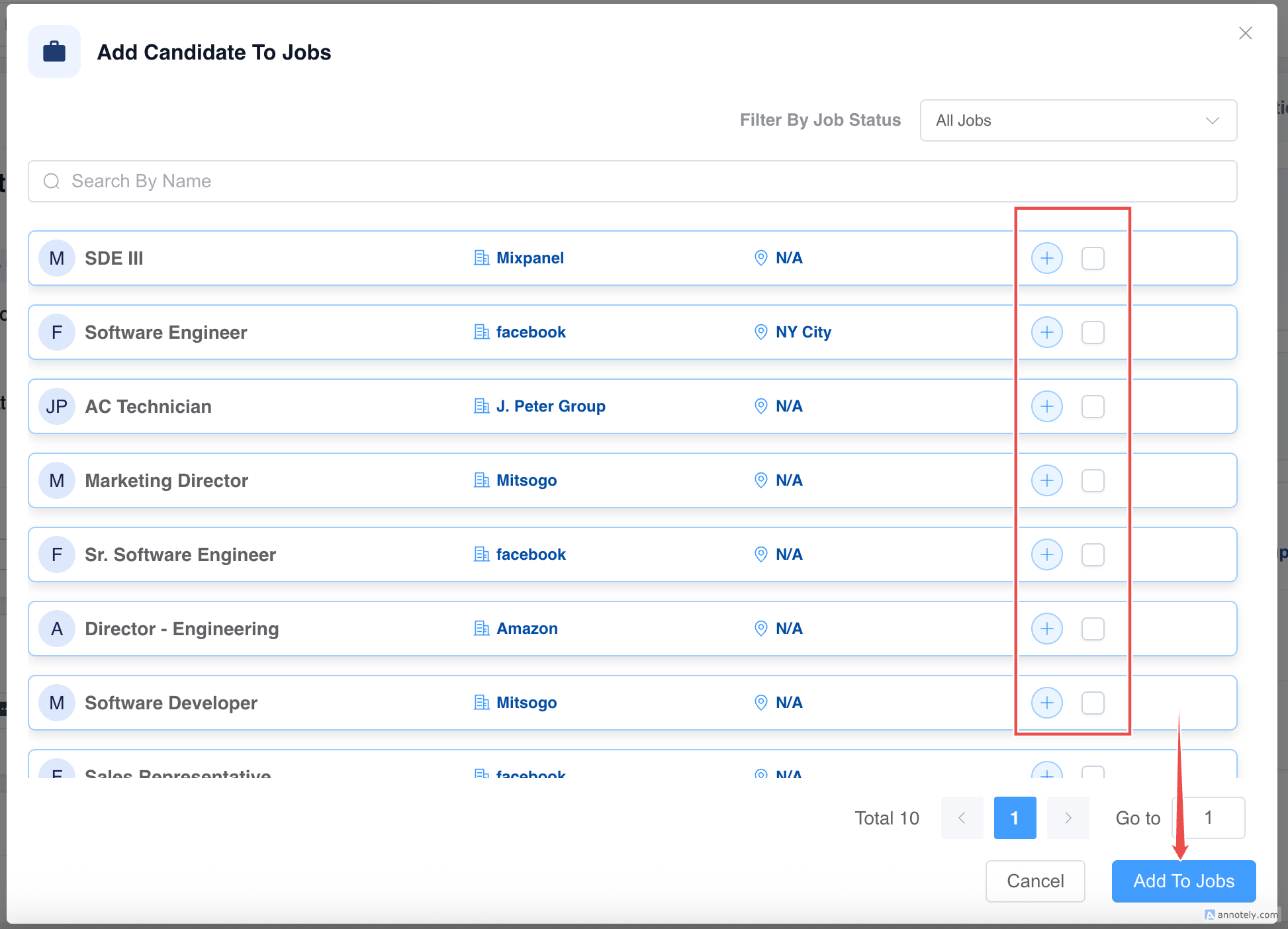
- Search, Filter and Select the Jobs. Click on Add Jobs to add candidate to the selected Jobs.
Done, you have assigned a candidate to the job in ATZ CRM successfully!
Guide to Unassigning a Candidate from a Job in ATZ CRM
Section titled “Guide to Unassigning a Candidate from a Job in ATZ CRM”Unassigning a candidate from a job in ATZ CRM is a simple process. By following these steps, you can efficiently manage your candidate assignments.
This guide will walk you through the steps to un-assign a candidate in ATZ CRM.
Step 1: Go to the Jobs section.
Step 2: Select the specific Job Role from which you want to unassign the candidate
Step 3: Locate the candidate you wish to unassign.
Step 4: Click on the Unassign(remove) button.
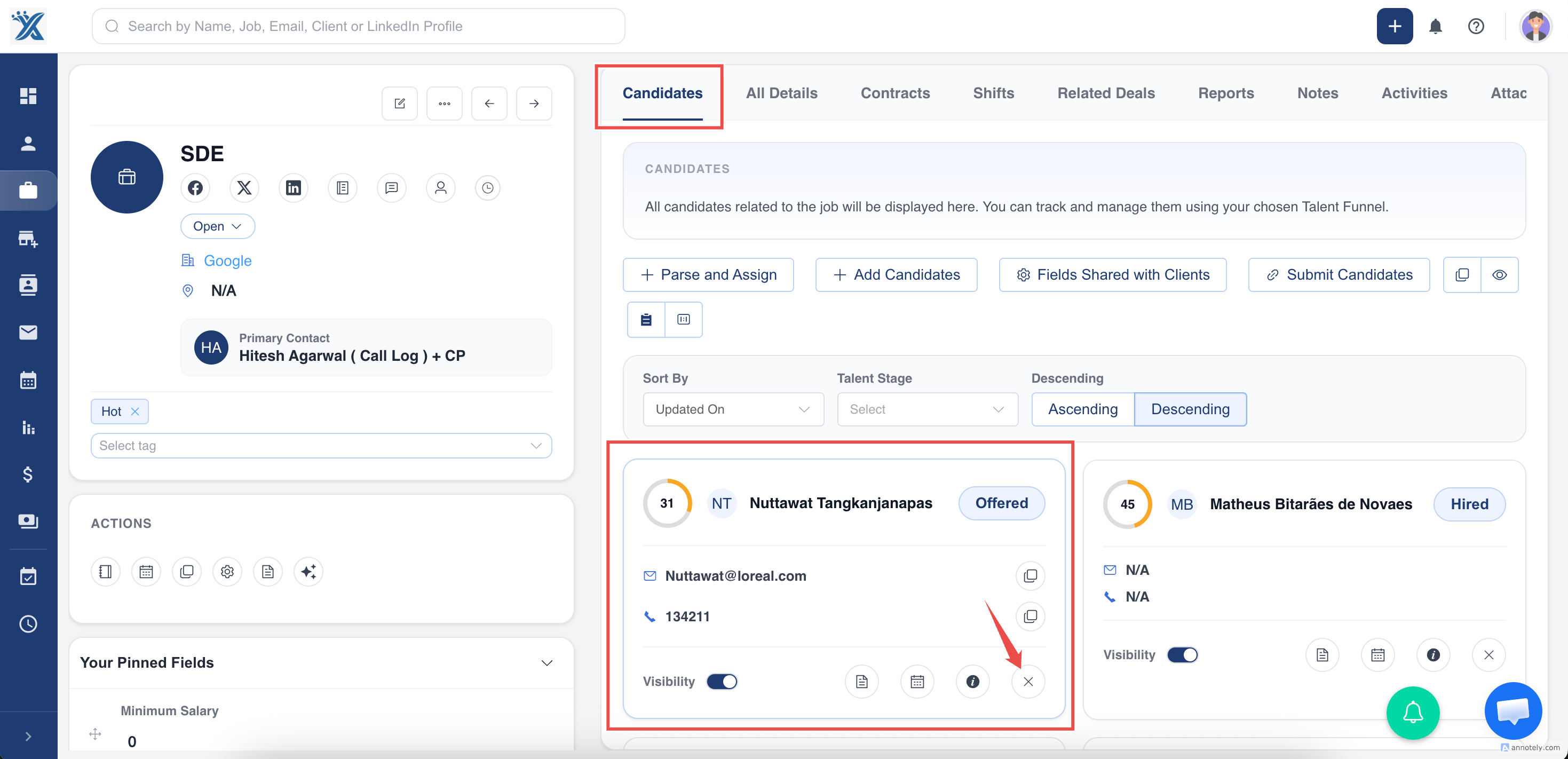
Done, you have Unassigned a candidate from a job successfully