
Cloning or Duplicating a Job in ATZ CRM
This guide will help you clone or duplicate a job in ATZ CRM. Cloning a job allows you to create a new job with all the data pre-filled, saving time and ensuring consistency.
Steps to Clone or Duplicate a Job
Section titled “Steps to Clone or Duplicate a Job”Step 1: Navigate to the Job Section
From the main menu, click on the Job section to access the job list.
Step 2: Open the Job You Wish to Duplicate
Browse the job list or use the search bar to locate the job you want to clone.
Click on the job to open its details.
Step 3: Click on the thee dots option from the Menu
Locate the three-dot menu (•••) next to the job details.
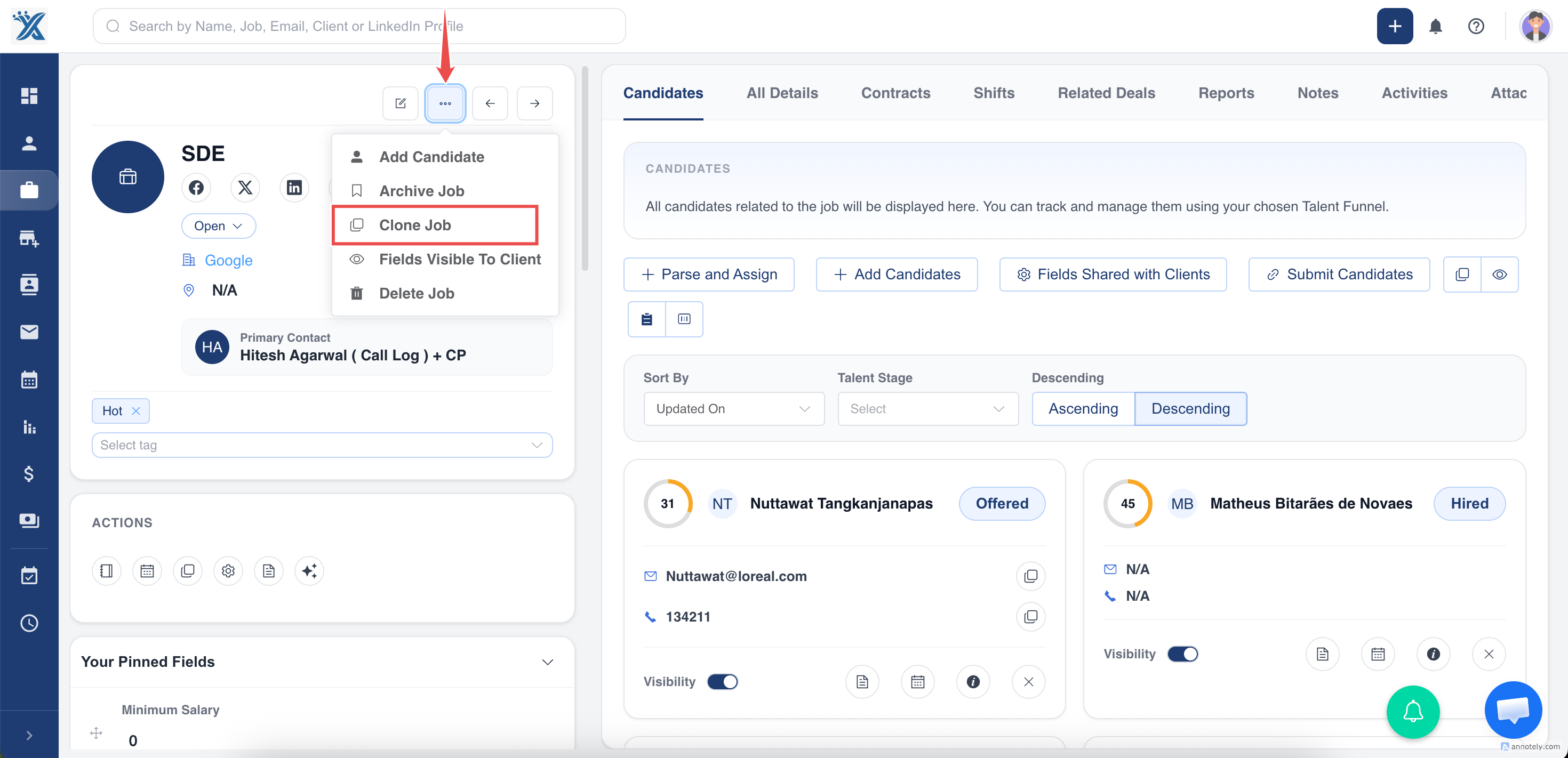
Step 4: Select “Clone Job”
Click on the Clone Job option from the dropdown menu.
Step 5: Review the Pre-filled Job Form
A new job form will open, pre-filled with the details of the selected job.
Review and make any necessary adjustments to the details.
Step 6: Create the Cloned Job
Once you’ve reviewed the information, click the Clon e button.
The cloned job will now appear in the job list, ready for further actions
- Cloned jobs inherit all details from the original job, including descriptions, assigned team members, and deadlines.
- You can modify any field in the pre-filled form before saving the cloned job.
- Ensure proper review of the pre-filled form to avoid duplicate errors.
By following these steps, you can efficiently clone jobs in ATZ CRM, streamlining your workflow and maintaining data accuracy.
Hope this help:)