
Guide to Customizing Job Application Forms in ATZ CRM
This guide explains how to customize Job Application Forms in ATZ CRM to collect candidate information directly from your company website or job boards. Tailor forms with specific fields, settings, and questions to streamline your recruitment process.
Accessing Job Application Page Settings
Section titled “Accessing Job Application Page Settings”- Go to Admin Settings in the ATZ CRM interface.
- Click Job Application Page Settings to begin customization.
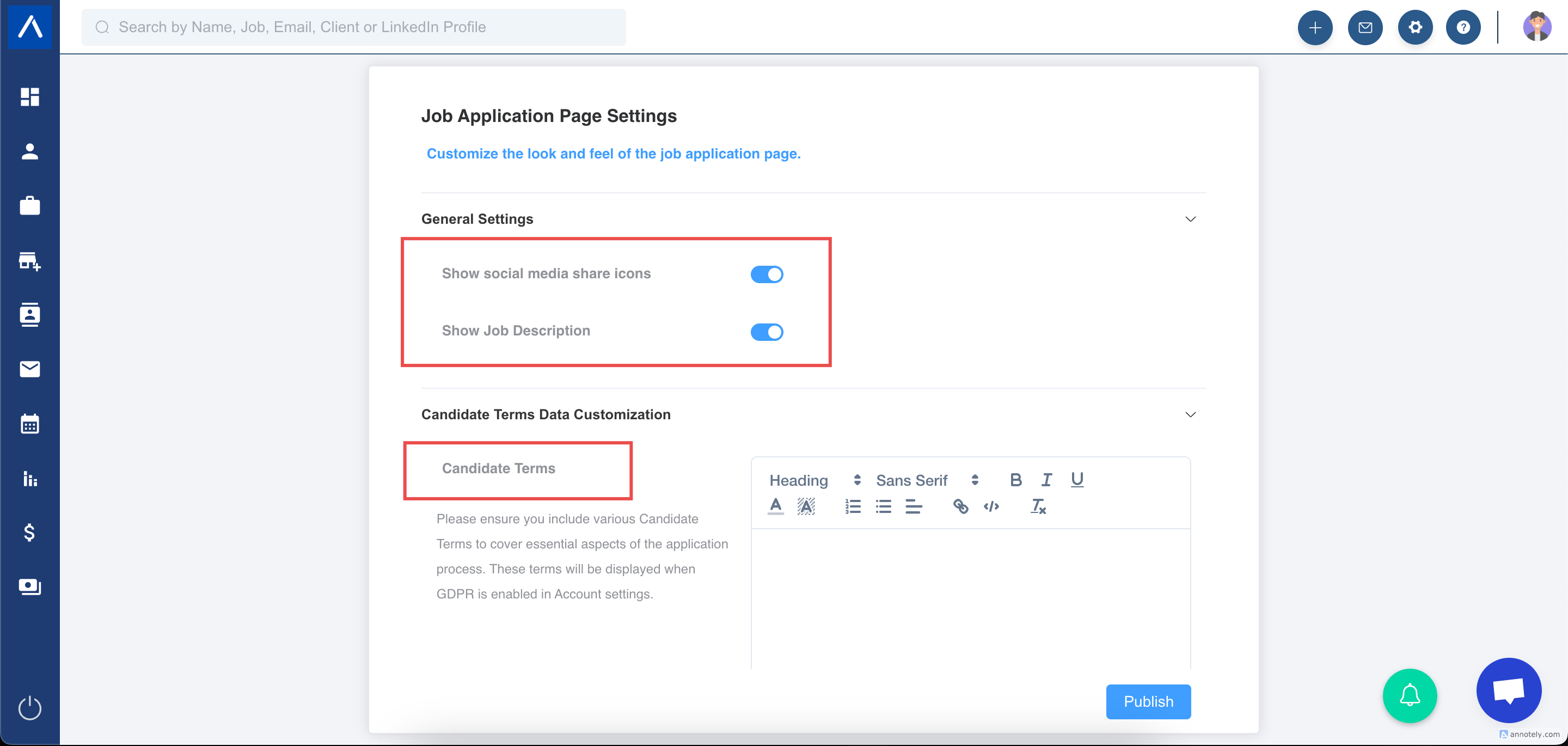
1. Show Job Description
Section titled “1. Show Job Description”- Choose whether the form displays the Job Description.
- Toggle ON to show the job description on the form or OFF to hide it.
2. Social Media Icons
Section titled “2. Social Media Icons”- Toggle ON to display social media share icons on the form or OFF to hide them.
3. Equal Employment Opportunity Policy (EEOP)
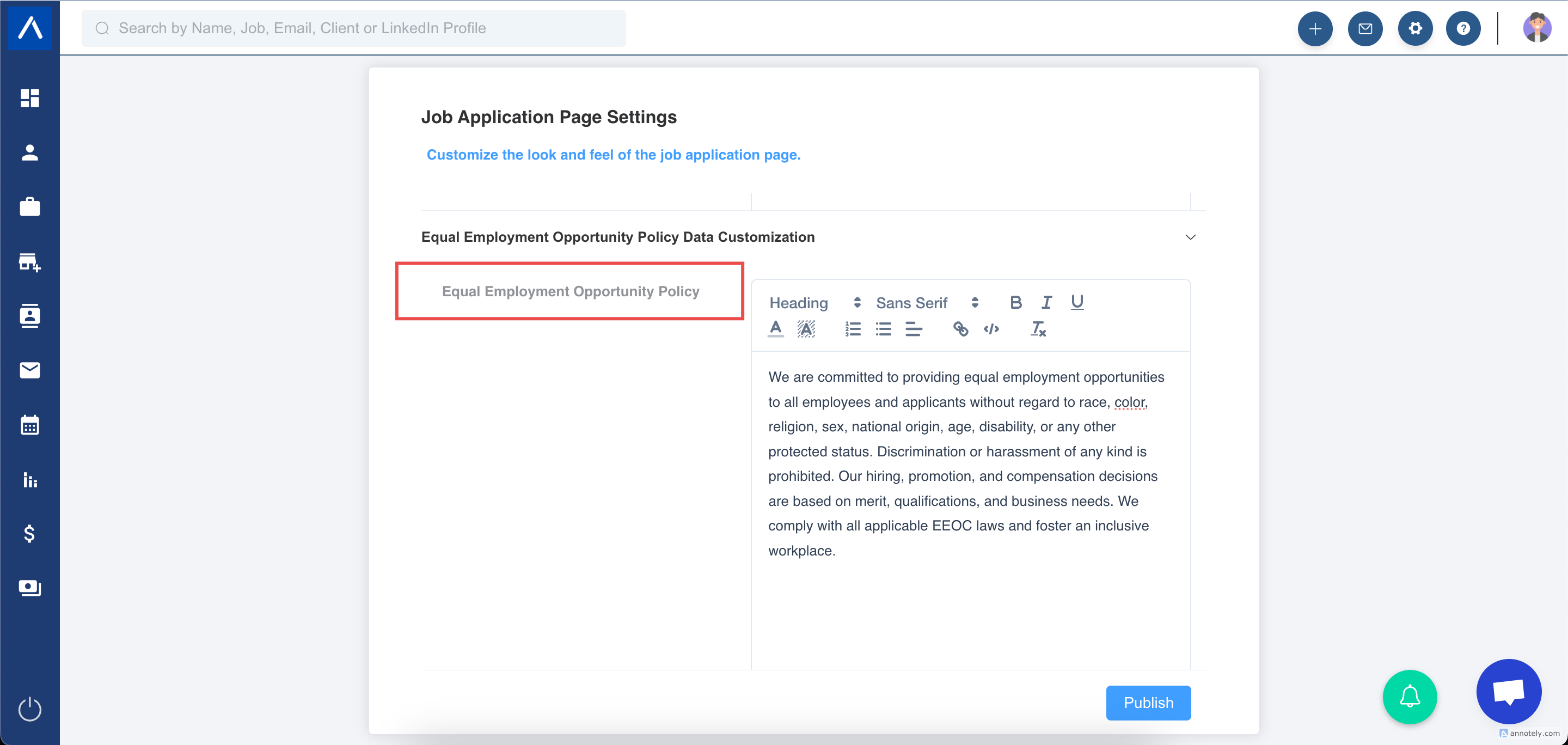
Section titled “3. Equal Employment Opportunity Policy (EEOP)”- Set EEOP that applicants can read in the Application Form.
- Note: EEOP must be enabled in Account Settings for this option to appear.
4. Candidate Terms
Section titled “4. Candidate Terms”- Set Candidate Terms that applicants must agree to before submitting the form.
- Note: GDPR must be enabled in Account Settings for this option to appear.
Job Application Form Field Settings
Section titled “Job Application Form Field Settings”1. Navigate to the Page
- Go to Admin Settings in the ATZ CRM interface.
- Click Job Application Page Settings to begin customization.
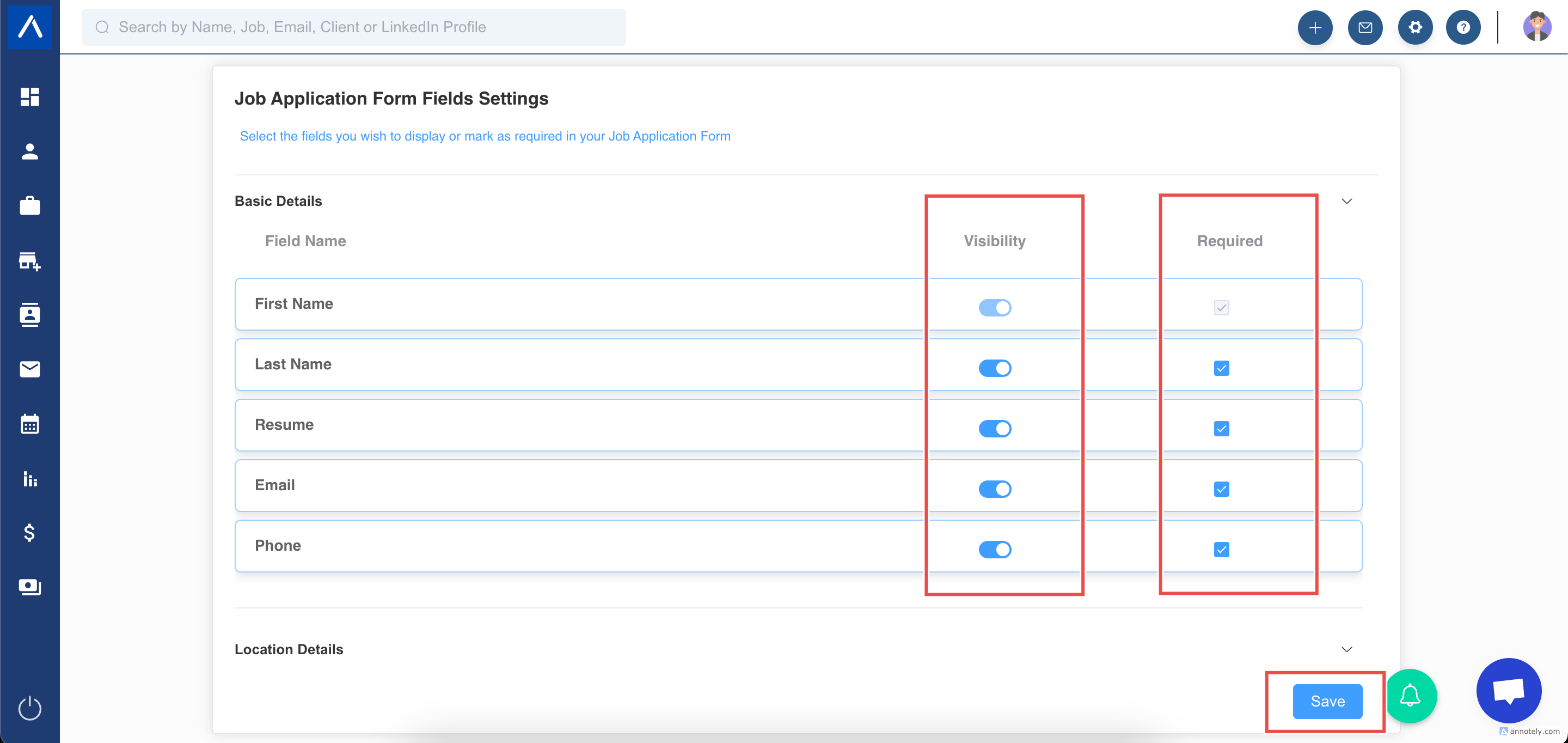
2. Set Mandatory Fields and Visibility
- Mark fields as mandatory to require candidate input.
- Toggle OFF visibility for fields you don’t want to include.
- Click Save making changes.
Setting Up Candidate Questions
Section titled “Setting Up Candidate Questions”Click Here: How to Edit or Delete Candidate Screening Question
Click Here: How to Set Up and Manage Screening Questions
Important Notes
Section titled “Important Notes”- Active Accounts: Job application forms remain active even if an account is inactive (i.e., users are active but not logged in). To disable forms, log in and deactivate the job application URLs manually.
- Account Deactivation: Forms are automatically disabled, and settings are deleted only upon full account deactivation.
Support
Section titled “Support”For assistance, use the chat icon in the bottom-right corner of ATZ CRM to contact support, or visit the ATZ CRM Help Center.