
How to archive and unarchive a job in ATZ CRM
Managing your jobs efficiently is essential for keeping your CRM organized. In this guide, we will walk you through the simple steps to archive or unarchive a job in ATZ CRM, ensuring your workspace remains clutter-free and easy to navigate. Whether you’re looking to declutter old entries or retrieve archived jobs, we’ve got you covered!
How to archive a job in ATZ CRM
Step 1: Navigate to the Job Listings: Go to the section where the job postings are listed and Find the job, you want to archive.
Step 2: Select the Job: There is often a checkbox or an option to click on the job for more details.
Step 3: for an Archive Option: In the job detail view or action menu, you should find an option like “Archive” or “Change Status.” This is typically found under “Actions” or “More Options.”
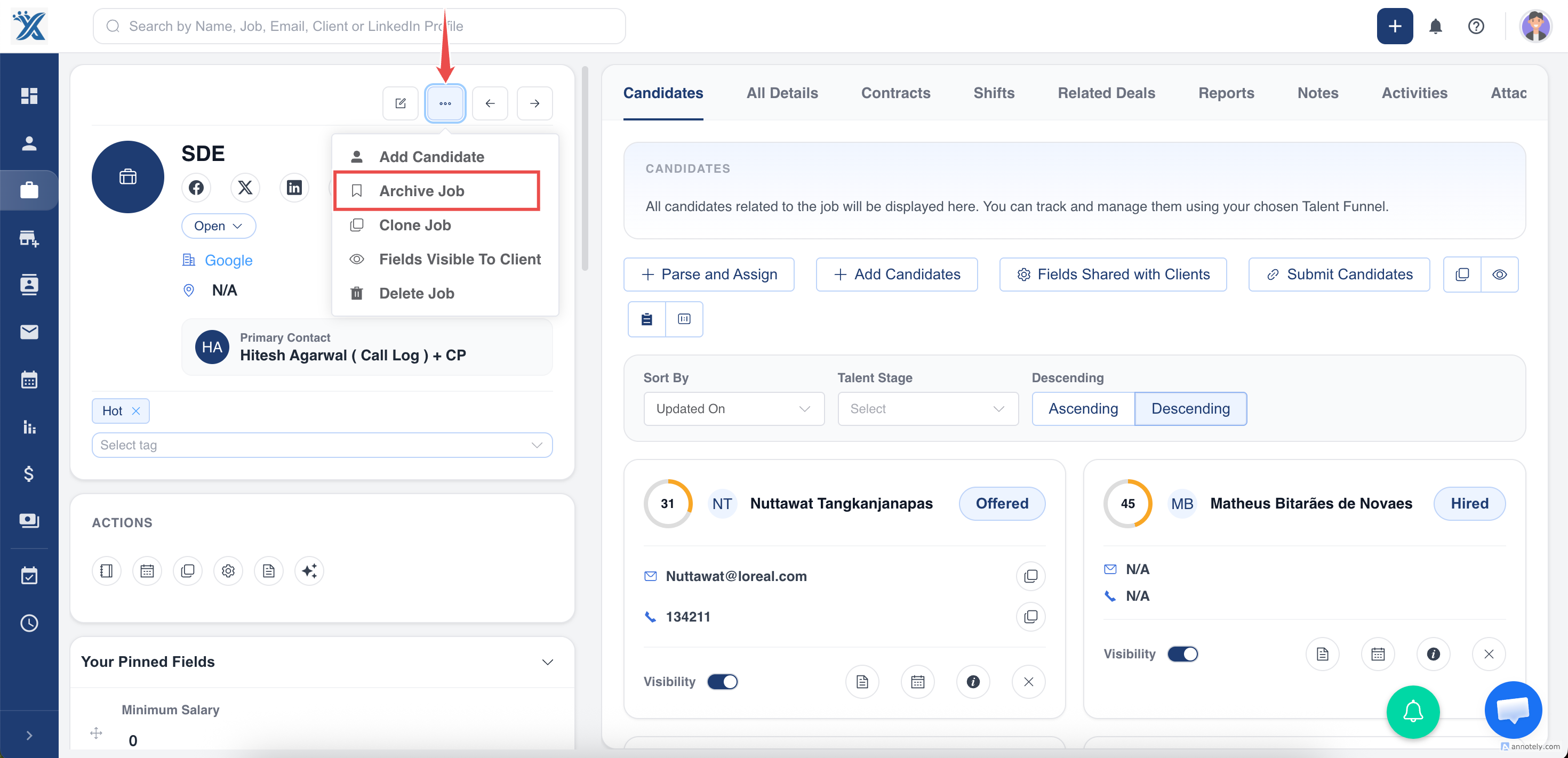
Step 4:Click Archive: Once you choose to archive, the job will be moved out of the active listings but kept for future reference or record.
Done, you have archive job successfully!
Un-archiving a job in ATZ CRM.
Step 1: Navigate to the Archived Jobs: There should be a section where archived jobs are stored, or you may need to filter job listings by “Archived” status.
Step 2: Locate the Archived Job: Find the job you want to unarchive in the archived section and Click on the job to view its details.
Step 3: Look for an Unarchive Option: There is often an option like “Unarchive,” “Restore,” or “Move to Active” within the job details or under a “More Options” menu.
Step 4: Click to Unarchive: Once you choose the unarchive option, the job will be restored to the active listings.
Done, you have unarchive job successfully!
Where to find all achieved/ unarchived jobs:
1.Navigate to the jobs section Go to the “jobs” from the main dashboard.
- Click on the ” hamburger ” icon on top left.
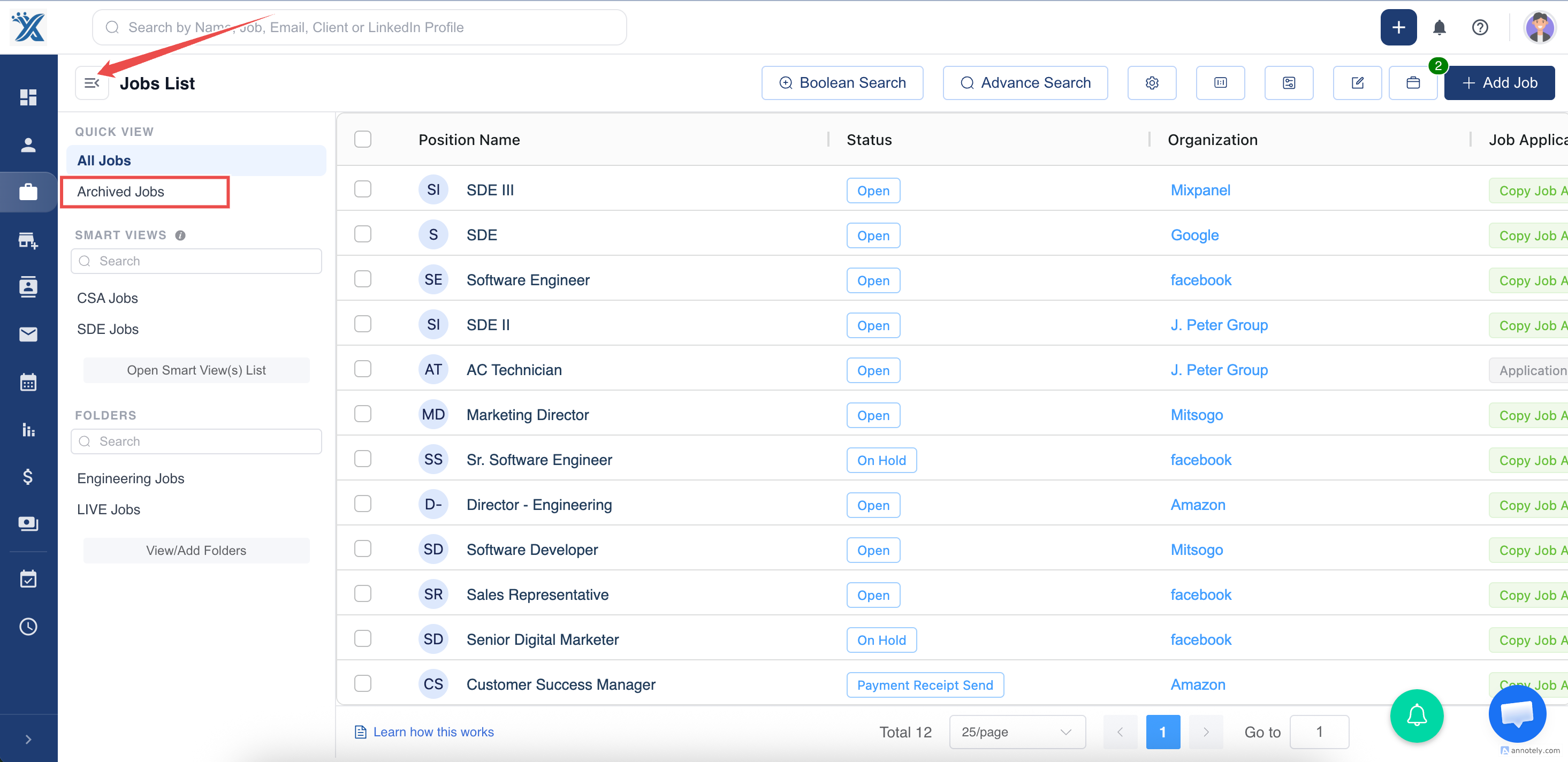
3.click on archived jobs to see the all archived jobs.
Done, now you can see the all archived jobs.