
Guide to Connecting Outlook/Office365 to ATZ CRM
This guide details how to connect your Outlook or Office365 email to ATZ CRM using Nylas, our partner for robust email integration. Your ATZ CRM mailbox will mirror your Outlook/Office365 mailbox, syncing all existing emails and folders.
Steps to Connect Outlook/Office365 to ATZ CRM
Section titled “Steps to Connect Outlook/Office365 to ATZ CRM”1. Navigate to Email Settings
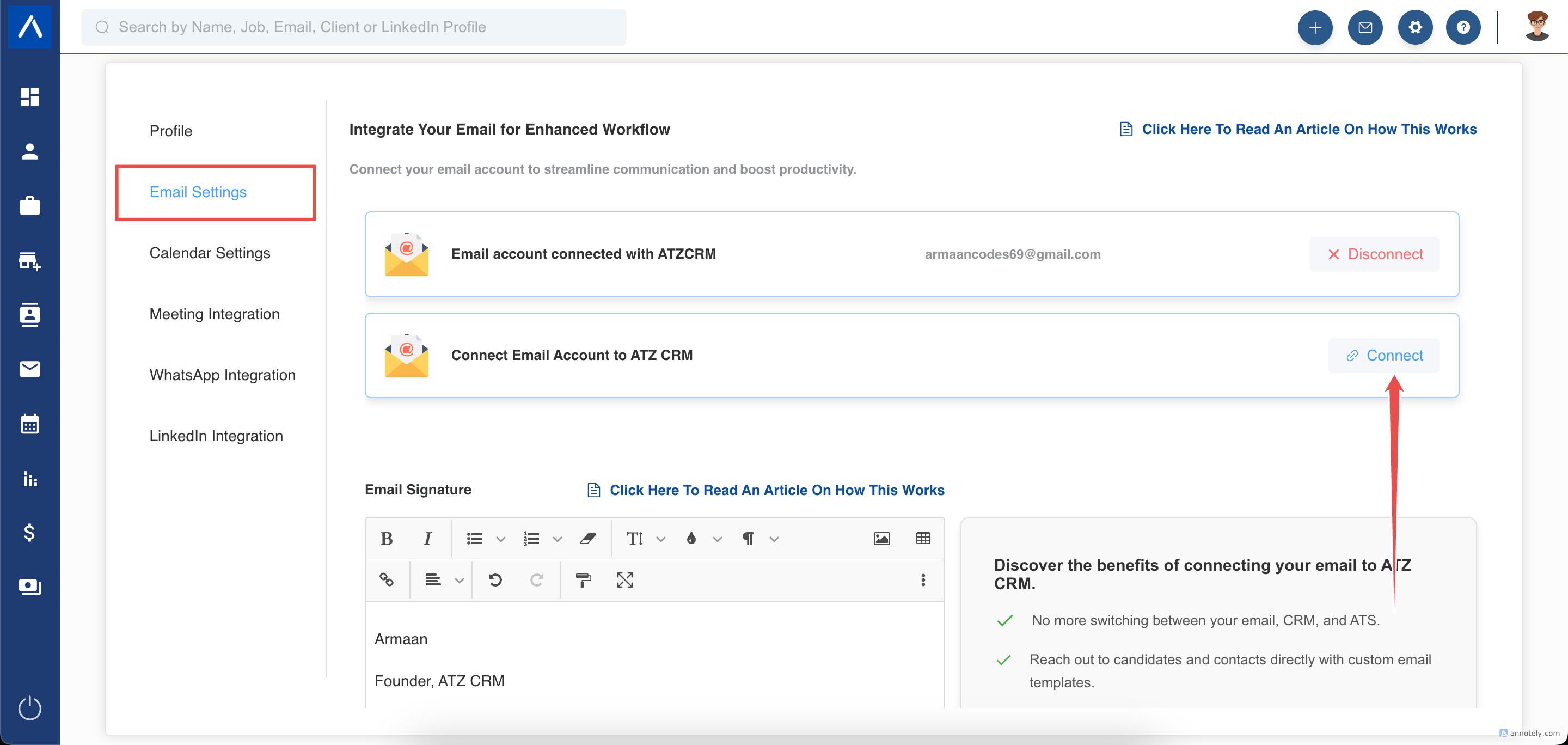
- Navigate to your Email Settings in ATZ CRM.
- Select the option to connect your email accounts.
- Note: You can connect up to two email accounts, but this feature is an addon.
- Set one email as the default for sending emails. If only one email is connected, it will automatically be the default. You can switch between connected emails as needed.
2. Log in via Nylas
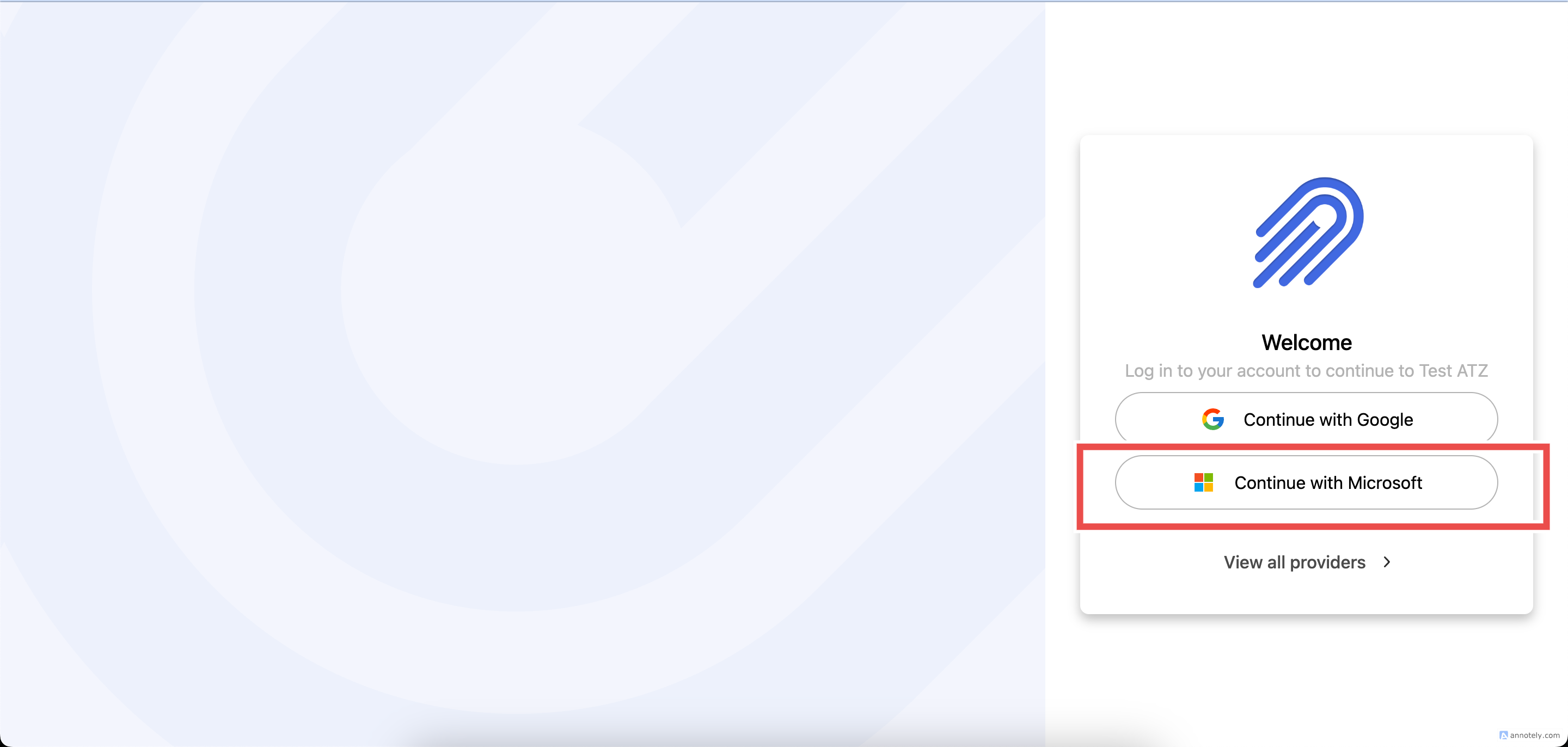
- You’ll be redirected to the Nylas login page.
3. Authenticate Your Account
- Enter your password and sign in to your Microsoft account.
- Grant all requested permissions and click “Continue” to confirm.
- Once verified, your email will be connected to ATZ CRM.
4. Access Your Mailbox
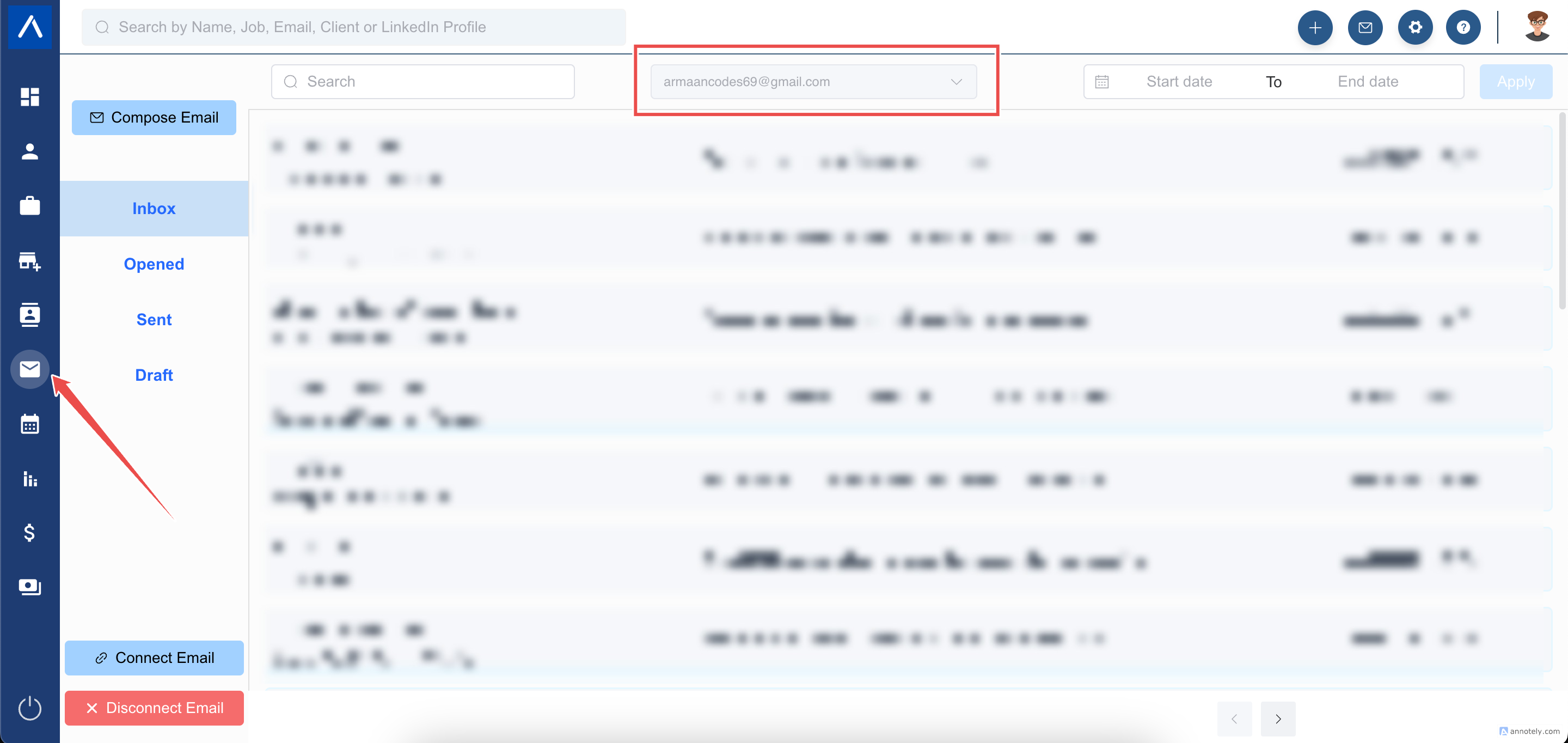
- Your mailbox is accessible from the left menu bar in ATZ CRM.
- It mirrors your Outlook/Office365 mailbox, including all existing emails.
- Note: Folder organization in ATZ CRM depends on responses from Nylas and may not match Outlook’s layout exactly.
- Sync Time: Initial folder sync takes up to 2–3 hours, and older emails may take up to 24 hours to fully sync. This is a one-time process.
5. Switch Between Mailboxes
- If you have multiple emails connected, you can switch between them within ATZ CRM.
Special Cases
Section titled “Special Cases”Admin Approval for Strict Security Settings
Section titled “Admin Approval for Strict Security Settings”If your organization has strict security settings, you may see a “Need Admin Approval” message. In this case:
- Your Microsoft/Office365 administrator must log in to the Microsoft Azure portal and approve the connection for users under the same domain.
- Once approved, other users in the domain can connect their emails without issues.
Connecting Office365 Family, Personal, or Free Accounts
Section titled “Connecting Office365 Family, Personal, or Free Accounts”If you’re using an Office365 Family, Personal, or Free account:
- Select “Custom IMAP Settings” on the Nylas login page by clicking “ Select a different provider. ”
- Follow the prompts to configure IMAP settings for your account.
Comply with Email Protection Policies
Section titled “Comply with Email Protection Policies”To ensure secure and reliable email delivery, configure your email settings to align with Google and Yahoo’s updated policies. Key requirements include:
- Email Authentication: Set up SPF, DKIM, and DMARC to verify sender identity.
- Easy Unsubscription: Include one-click unsubscribe options in marketing emails.
- Low Spam Rate: Maintain a spam rate below 0.1% to avoid delivery issues.
For detailed setup instructions, refer to Adhering to Google & Yahoo’s Email Protection Policy.
Data Security with Nylas
Section titled “Data Security with Nylas”Your ATZ CRM mailbox mirrors your Gmail account, and Nylas securely stores this data on its servers. Nylas is fully compliant with GDPR, ensuring your email data is protected. Learn more at Nylas GDPR Policy.
Retaining Emails of Deactivated Users
Section titled “Retaining Emails of Deactivated Users”To preserve emails from deactivated users, use one of these methods:
- Transfer Emails to an Active User’s Mailbox
- Move the deactivated user’s emails to a folder within an active user’s Gmail account (via Google Workspace).
- Since ATZ CRM mirrors your email provider, these emails will sync and appear in ATZ CRM.
- Create a Shared Email Account
- Set up a new common email ID for archiving purposes.
- Connect this email as a second account in ATZ CRM (Addon).
- Transfer emails from departing team members to this account before deleting their individual email ID. This ensures email retention without relying on a specific user’s account.
Support
Section titled “Support”If you encounter issues or have questions, contact your Email Administrator or ATZ CRM support. For further details, visit ATZ CRM Help Center.
Hope this helps:)