
Guide to Requesting Updated Candidate Profiles in ATZ CRM
This guide explains how to use the “ Request Profile Update ” feature in ATZ CRM to collect updated resumes or profiles directly from candidates with minimal effort.
Overview
Section titled “Overview”The “Request Profile Update” feature allows you to refresh your candidate database by sending candidates a link to an online form where they can submit updated details, which sync in real-time to your ATZ CRM account.
How to Request Updated Profiles
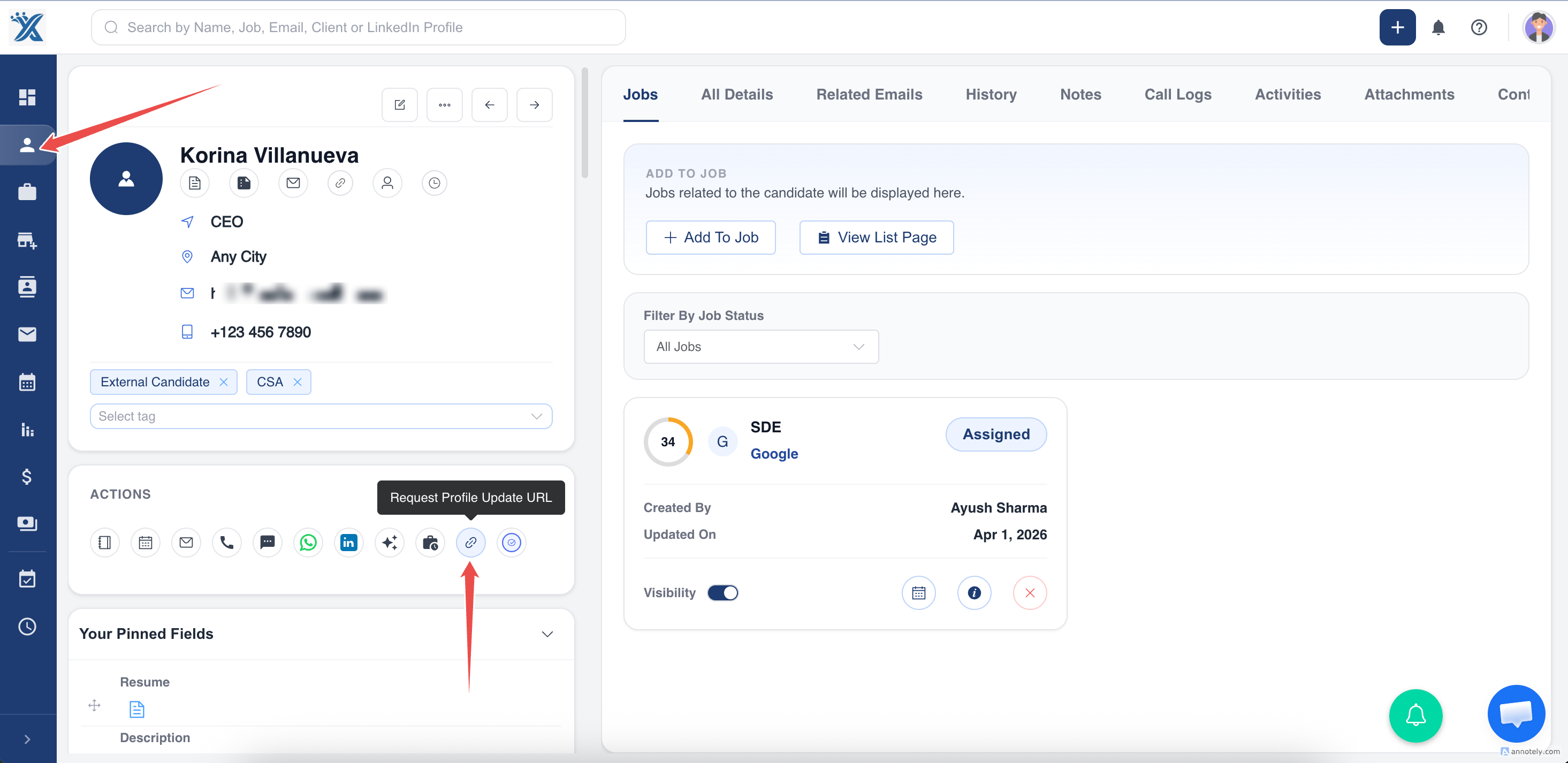
Section titled “How to Request Updated Profiles”1. Access the Candidate’s Profile
- Navigate to the candidate’s details page in ATZ CRM.
2. Initiate the Request
- Click the Request Updated Profile button on the profile.
- This triggers an email to the candidate containing a unique URL linking to an online form.
- The candidate fills out the form, and their updated details are automatically synced to ATZ CRM in real-time.
Key Points
Section titled “Key Points”- The profile update link expires after the candidate submits their updated profile.
- Updates are reflected in ATZ CRM immediately upon submission.
Customizing the Profile Update Request Form
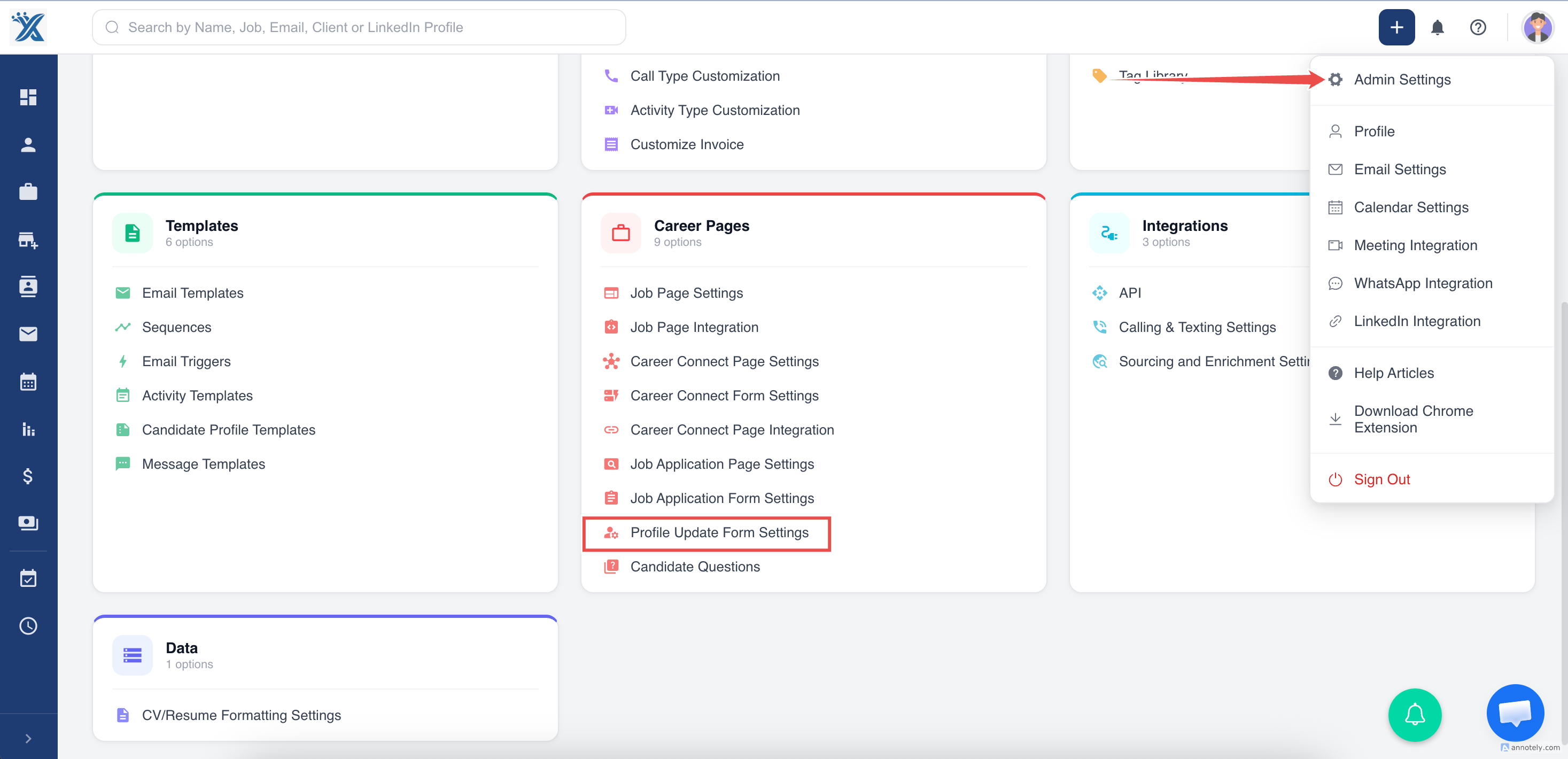
Section titled “Customizing the Profile Update Request Form”1. Access Form Settings
- Go to Admin Settings > Profile Update Form Settings.
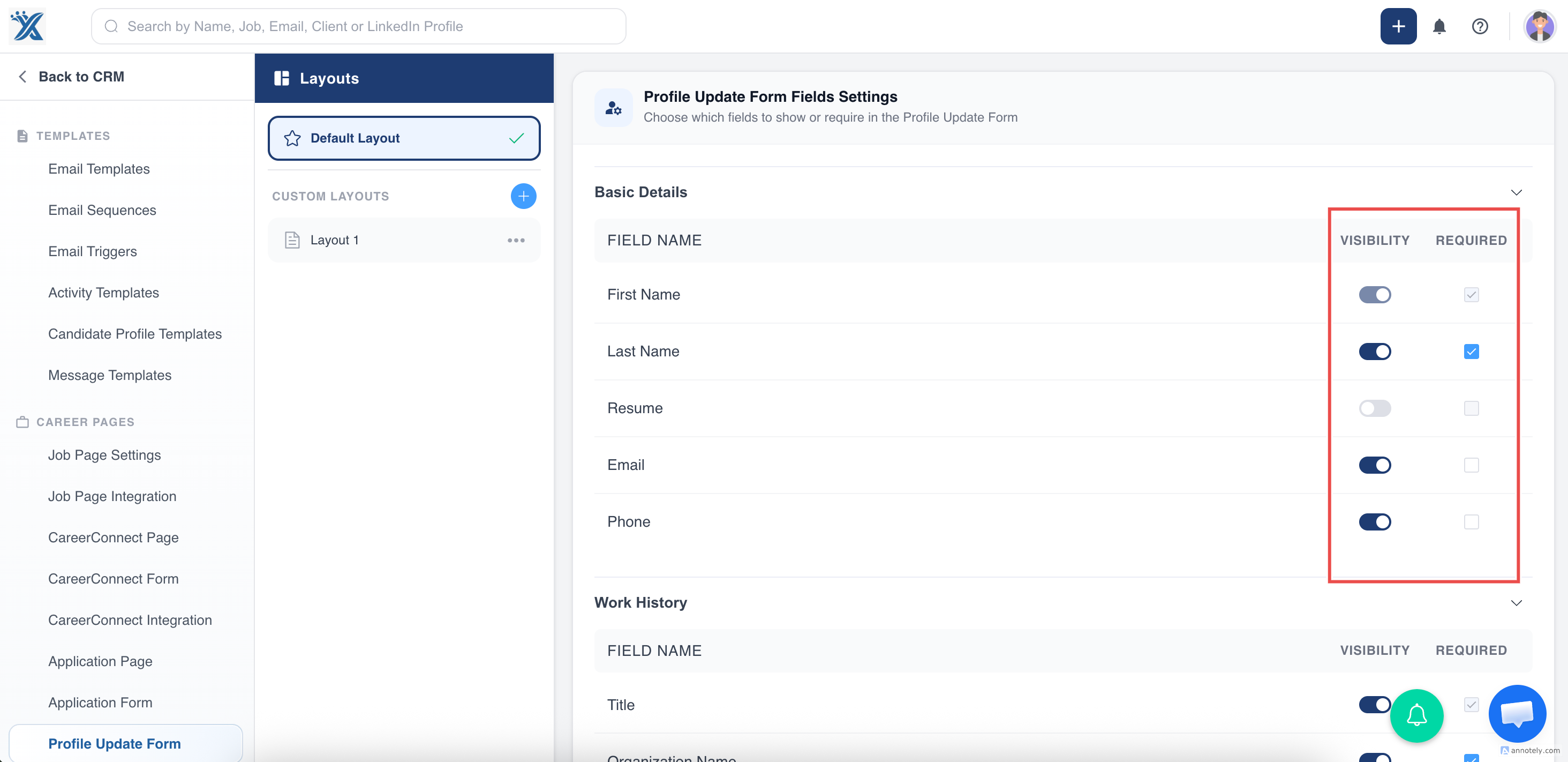
2. Profile Update Form Field Settings
- Customize:
- Field Visibility: Toggle fields ON to display or OFF to hide.
- Mandatory Fields: Mark fields as Required to ensure candidates provide specific information.
- Click Save button after changes.
- Form Availability: Profile update forms remain active unless manually disabled or the account is fully deactivated.
- Feedback: If you encounter issues or have suggestions, use the in-app chatbot to contact support.
Support
Section titled “Support”For further assistance, use the chat icon in the bottom-right corner of ATZ CRM or visit the ATZ CRM Help Center.
Hope this help:)