
How to Use Folders for Managing Records in ATZ CRM
Managing a growing list of candidates can quickly become overwhelming. To help you stay organized, ATZ CRM offers a feature called Folders — think of them as folders where you can group candidates based on specific needs. In this article, we’ll explain how Folders work, how to create and assign candidates to them, and the actions you can perform within Folders.
What Are Folders?
Section titled “What Are Folders?”Folders in ATZ CRM are like categorized folders where you can place specific candidates together. They allow you to manage, organize, and track candidates more efficiently. Whether you want to group candidates by role, source, or hiring stage, Folders make it easy to stay structured.
How to Create a Folders
Section titled “How to Create a Folders”Creating a Folders is straightforward:
-
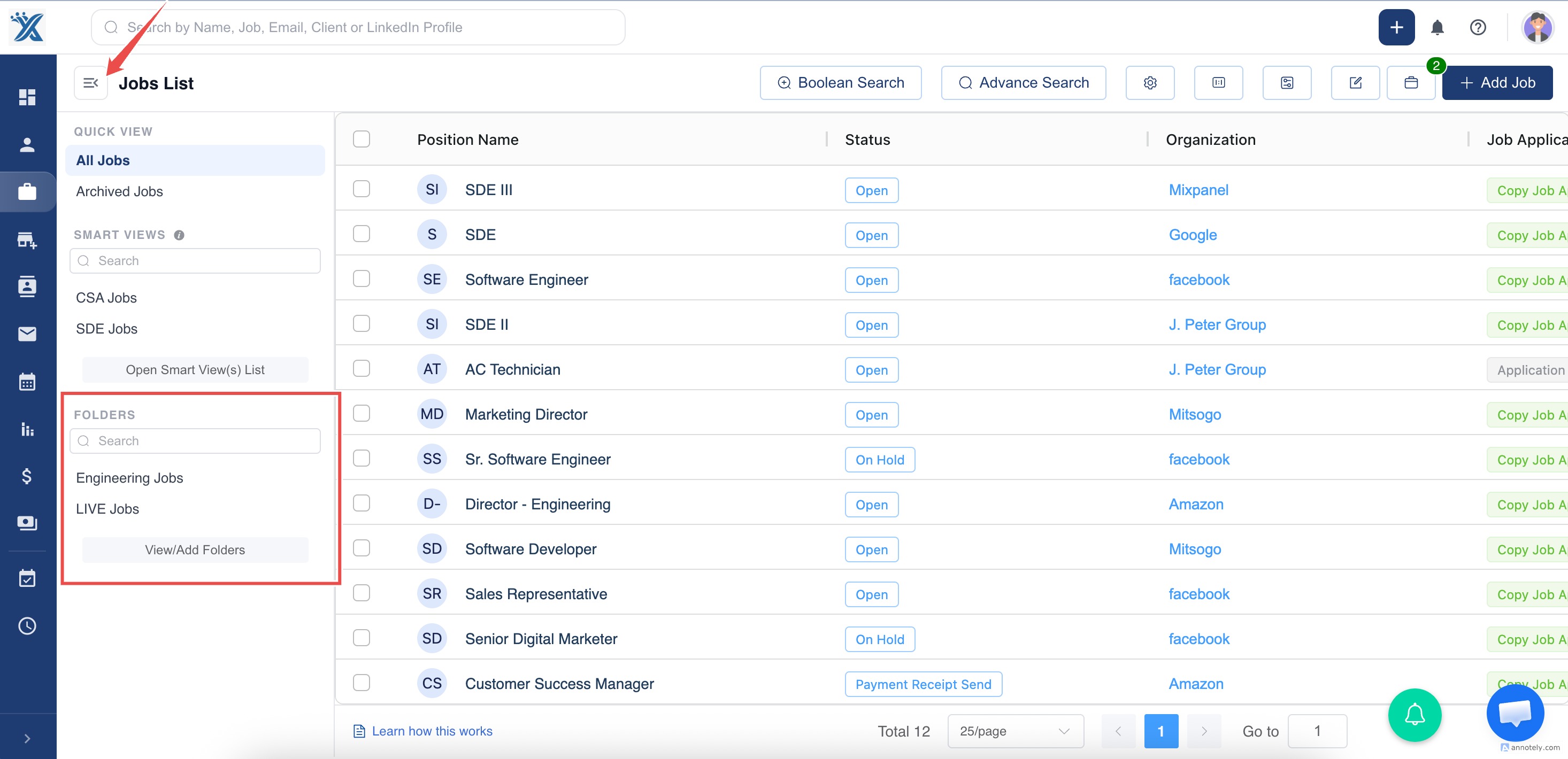
Click on the Job list
-
Click the Hamburger Icon On the top-left corner of your screen, click on the icon to open more options.
- Select “Add New Folder” From the dropdown menu, click on “Add New Folder.”
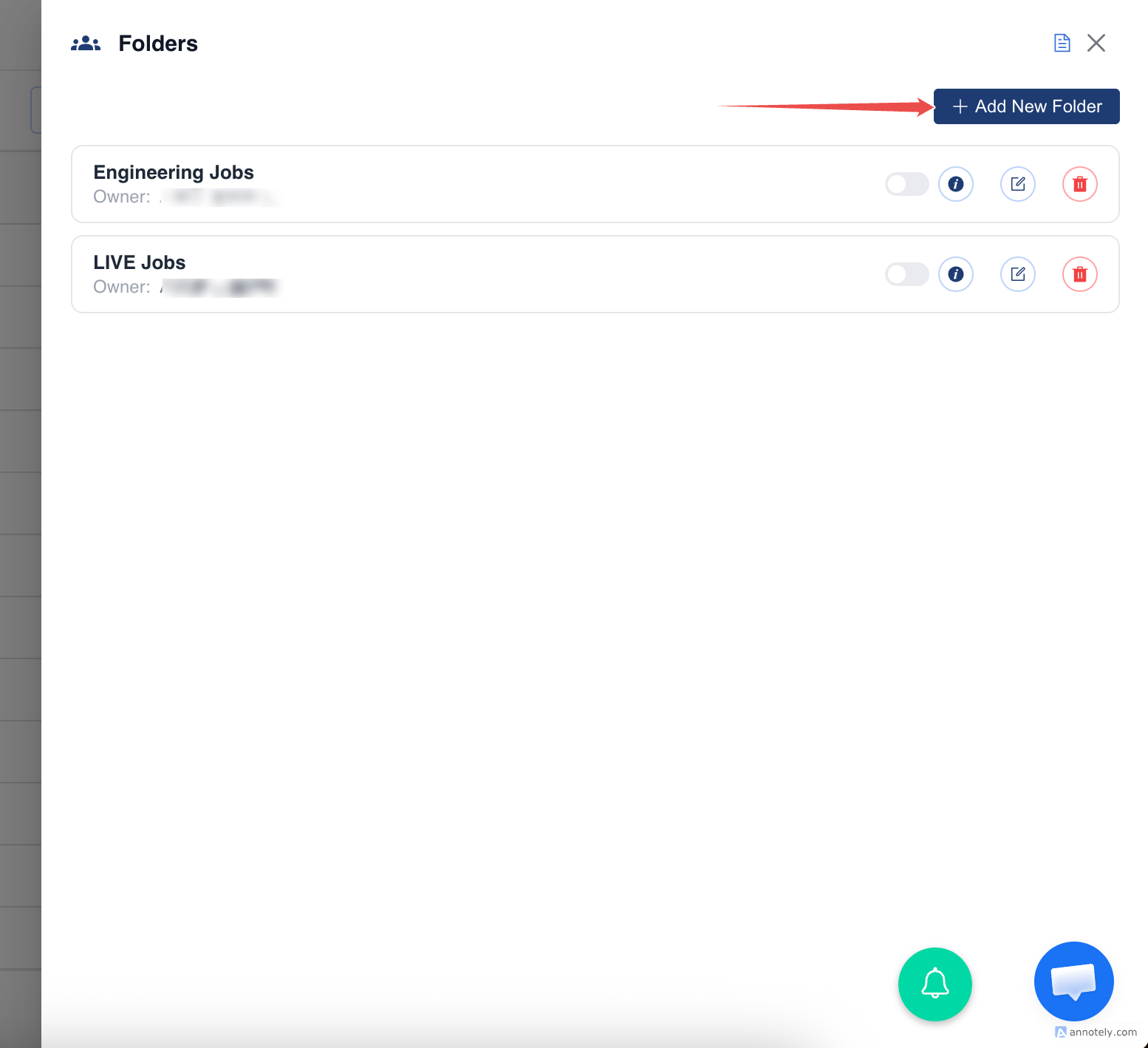
- Fill in Group Details Enter the basic details such as:
- Name of the Folder
- Description (optional)
- (Optional) Share with Teammates You can choose to share the Folder with your teammates — meaning the other ATZ CRM users in your account.
Once done, save the group and start organizing candidates right away!
How to Assign Candidates to a Folder
Section titled “How to Assign Candidates to a Folder”You have two ways to assign candidates into a Folder:
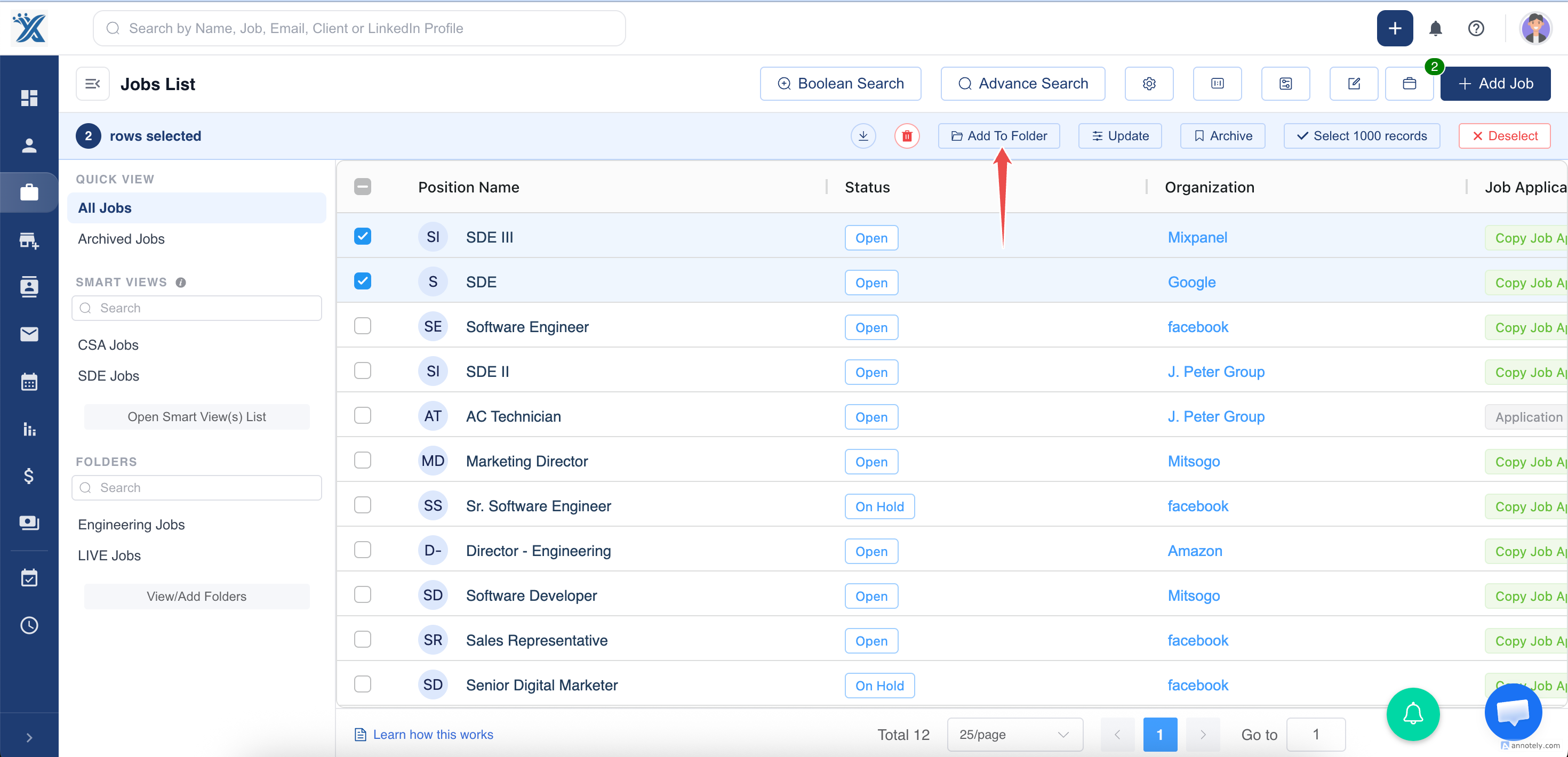
1. Bulk Selection
Section titled “1. Bulk Selection”- Select multiple records from the list page.
Click on Add to Folder and choose the Folder where you want to add them
2. Detail Page Assignment
Section titled “2. Detail Page Assignment”- Open an individual detailed profile page.
In the Folder section, you can either:
- Add them to an existing group,
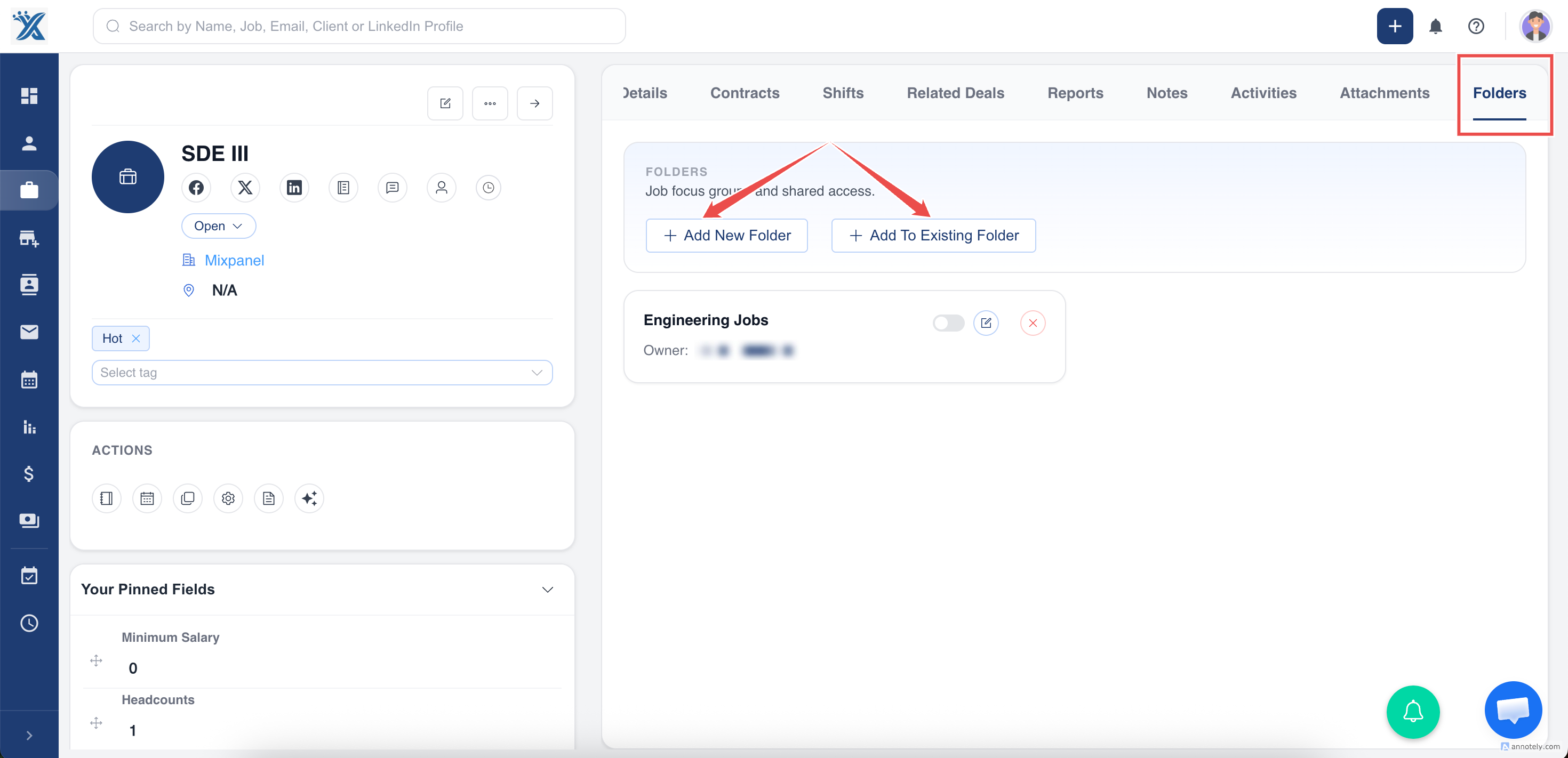
Create a new Folder directly and assign the candidate.
Editing and Deleting Folders
Section titled “Editing and Deleting Folders”Editing Folders: You can edit a Folders name, description, and members both from the list view and from a detail page.
Deleting Folders
:
Folders can be deleted
only
from the list view.
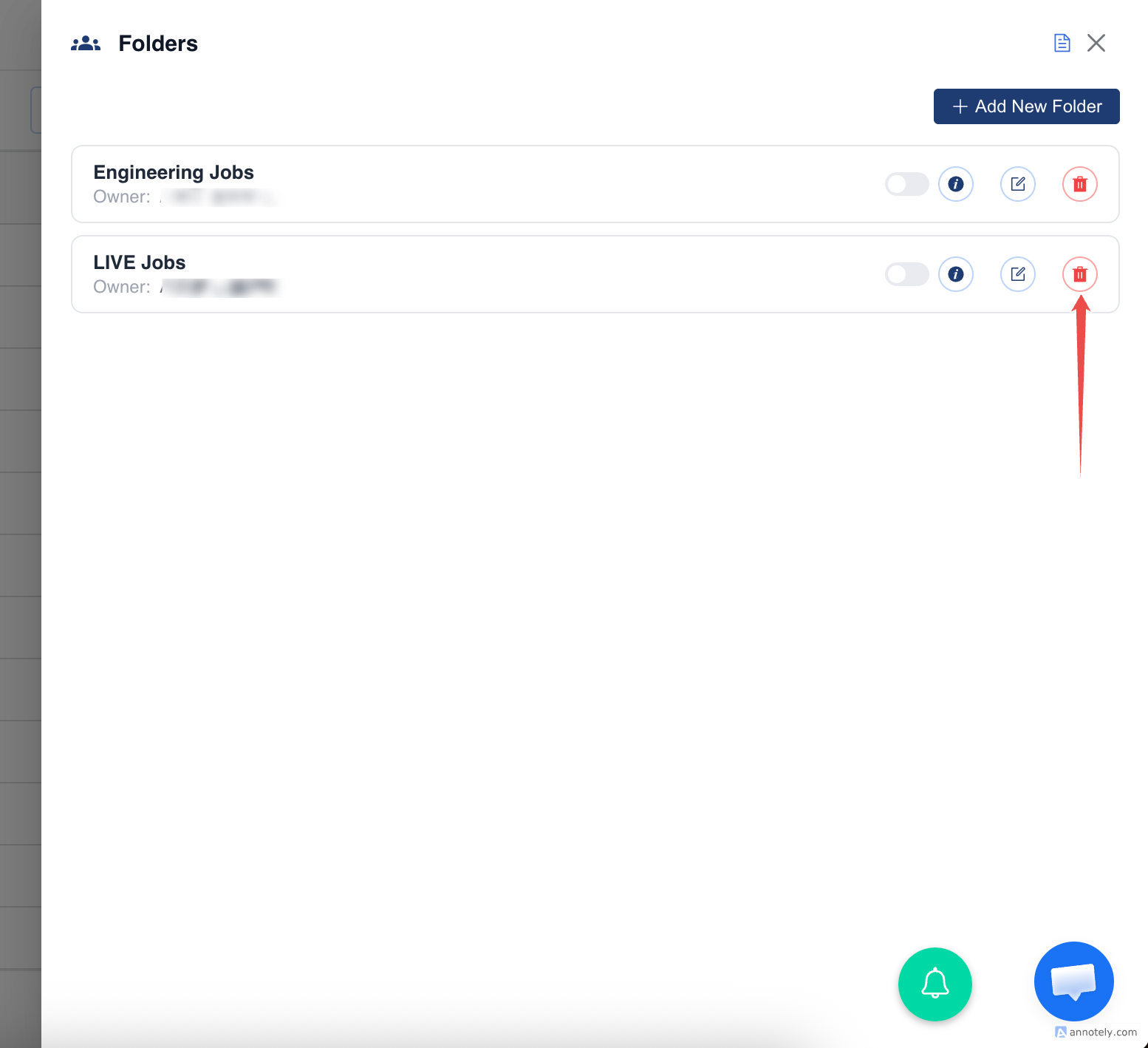
Important: Deleting a Folder does not delete the candidates; it only removes the grouping.
Unassigning Candidates from a Folder
Section titled “Unassigning Candidates from a Folder”( Works only in candidate detail page )
If you want to remove a candidate from a specific Folder:
- Click on the Remove button next to the Folder Name within the Folder tab.
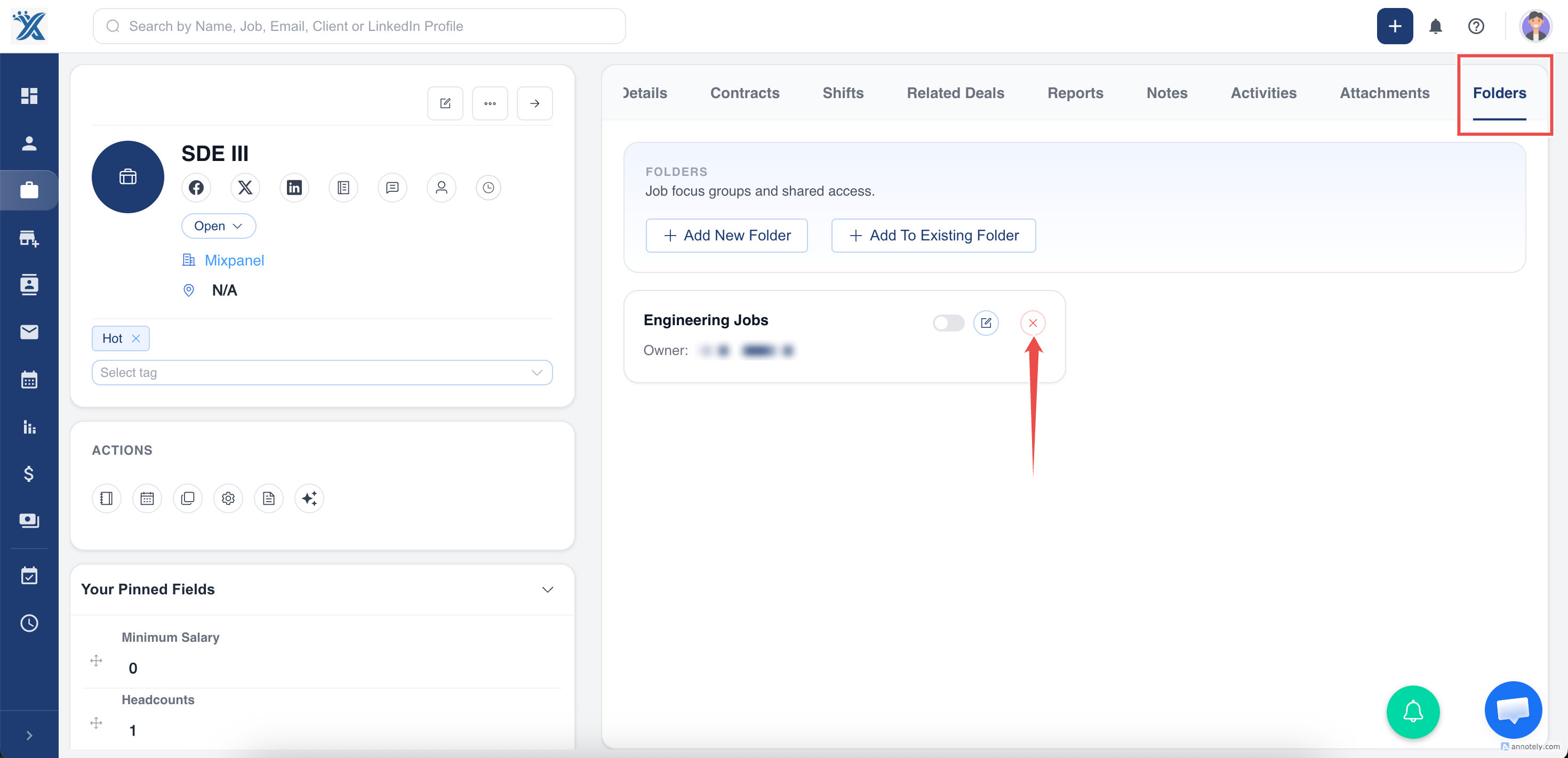
This action will only remove the candidate from that Folder — it won’t delete the candidate’s profile from the CRM.
Feel free to reach out to our chat support for further assistance.
Hope this helps:)