
Add a Contact Manually in ATZ CRM
TABLE OF CONTENTS
- Step 1: Navigate to Contacts
- Step 2: Create a New Contact
- Step 3: Fill in the Details
- Step 4: Save the Contact
Step 1: Navigate to Contacts
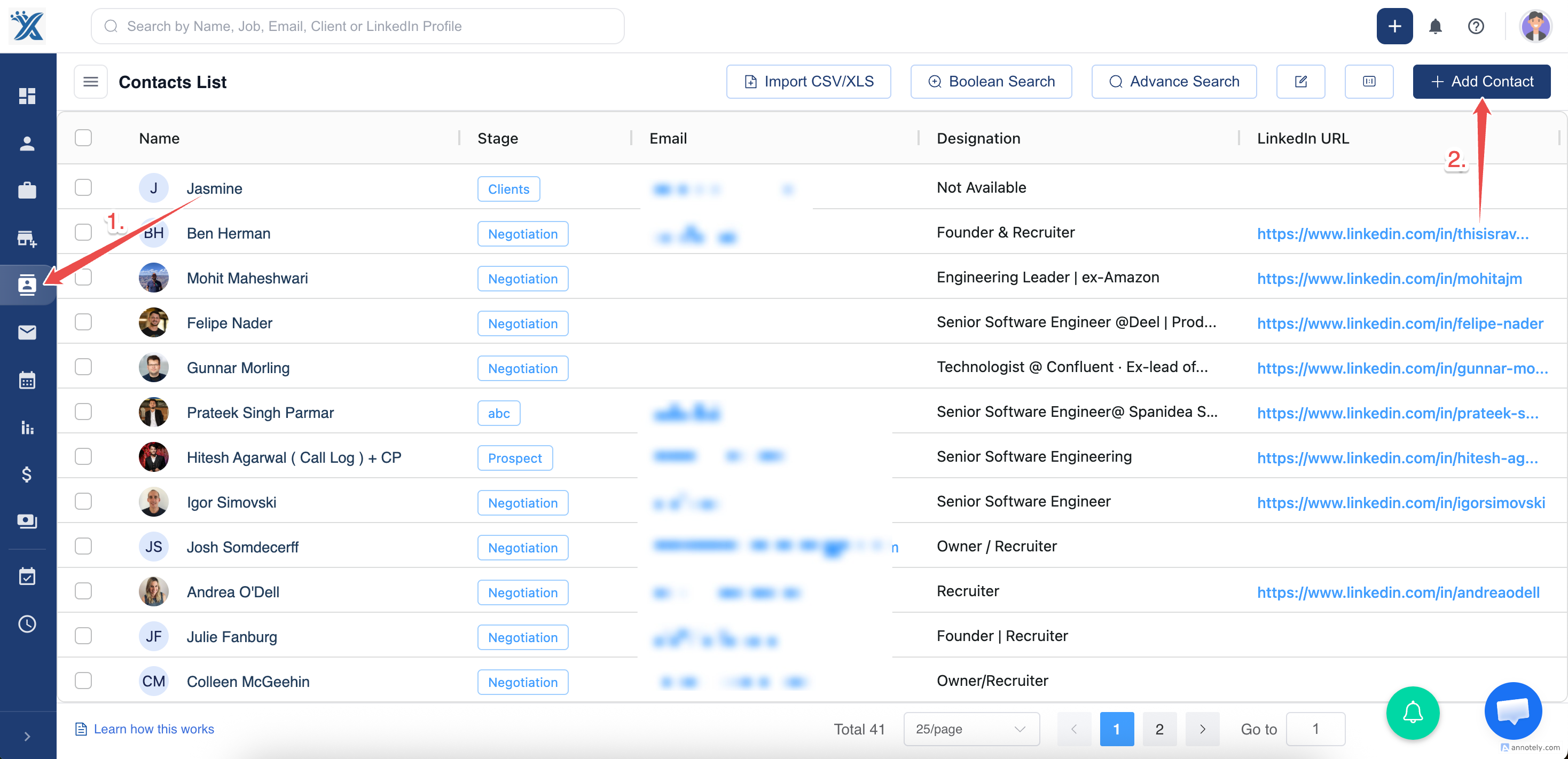
Section titled “Step 1: Navigate to Contacts”Once logged in, locate and click on the “Contacts” section.
Step 2: Create a New Contact
Section titled “Step 2: Create a New Contact”Click on the “Add Contact” button to initiate the process.
Step 3: Fill in the Details
Section titled “Step 3: Fill in the Details”Enter the details and make sure to fill the required fields.
Section titled “Enter the details and make sure to fill the required fields.”If you want the contact to be connected with any organization, just search and select in the organization section.
Step 4: Save the Contact
Section titled “Step 4: Save the Contact”Click the ” Create ” button to add the new contact to your contact list.
By following these steps, you can easily add new contacts to your ATZ CRM database.