
How to Create Custom Fields for an Entity in ATZ CRM
In ATZ CRM, you can create custom fields to store specific information relevant to your business needs. This allows you to tailor the CRM to better track and manage your data.
Creating Custom Fields
Step 1: Go to settings
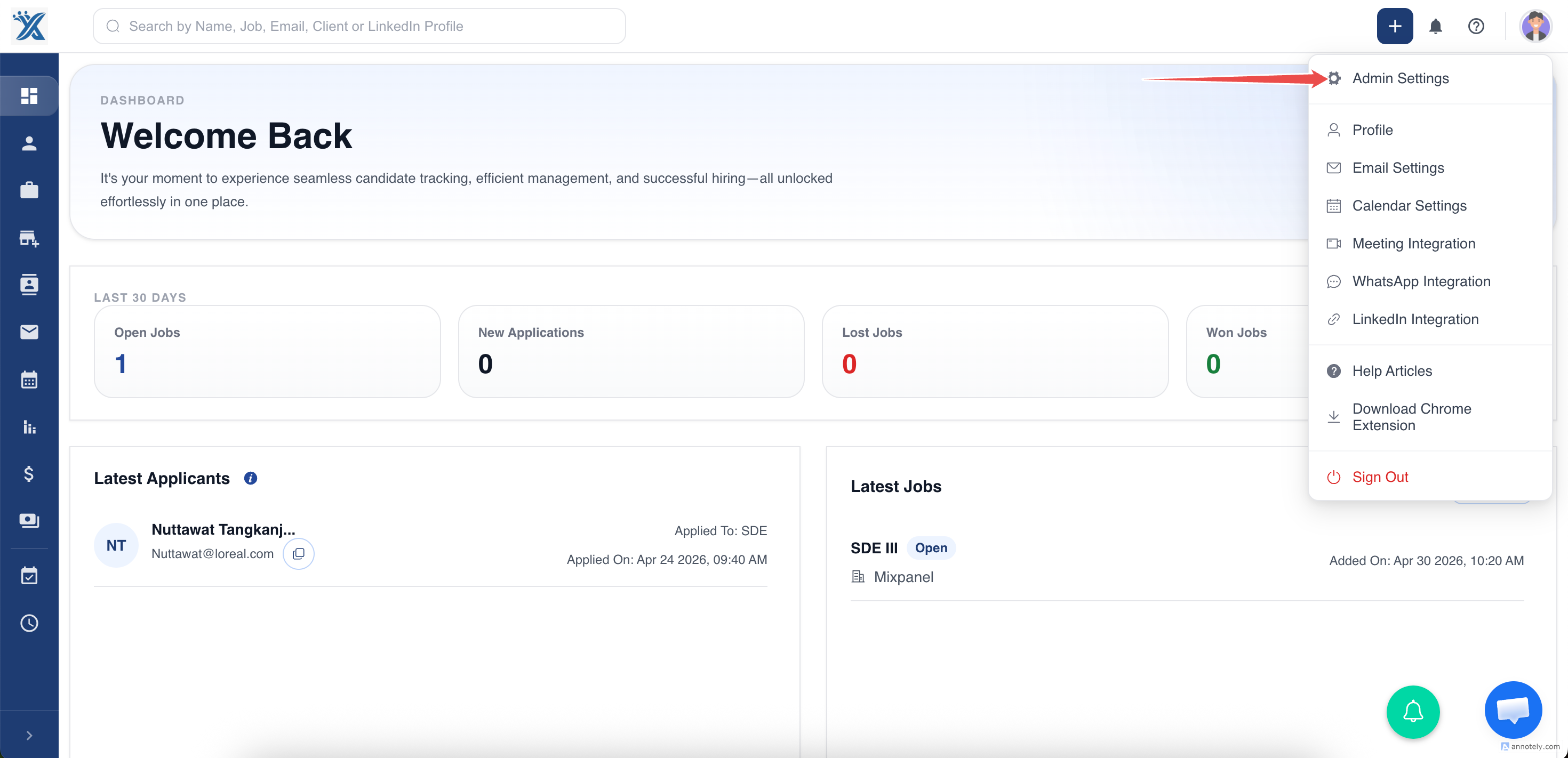
Step 2: In Custom Fields > Navigate to the Entity:
Go to the entity for which you want to create custom fields (e.g., “Contacts,” “Candidate,” “Job”).
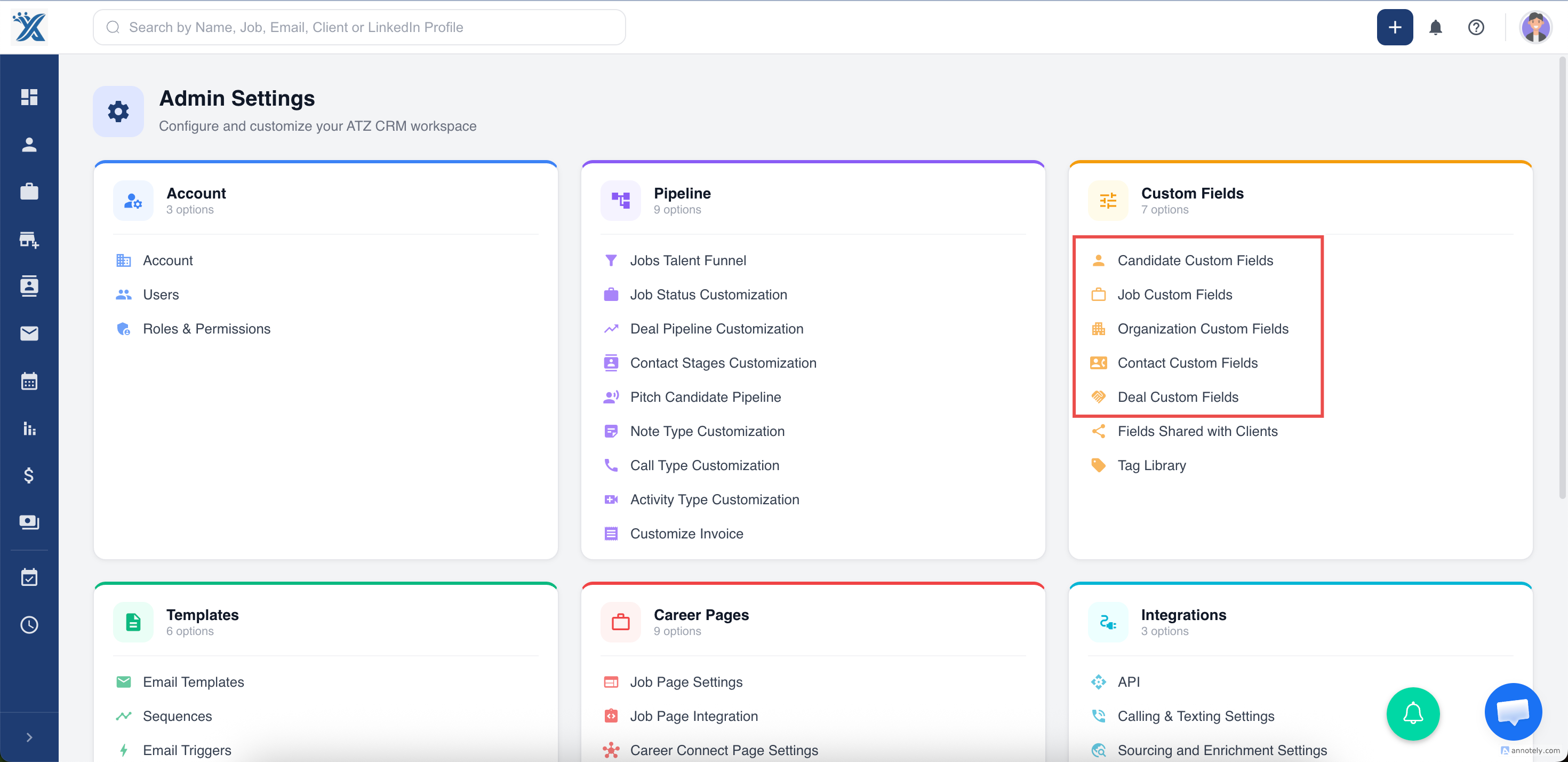
Step 3: Access Custom Fields:
Locate the section for managing custom fields.
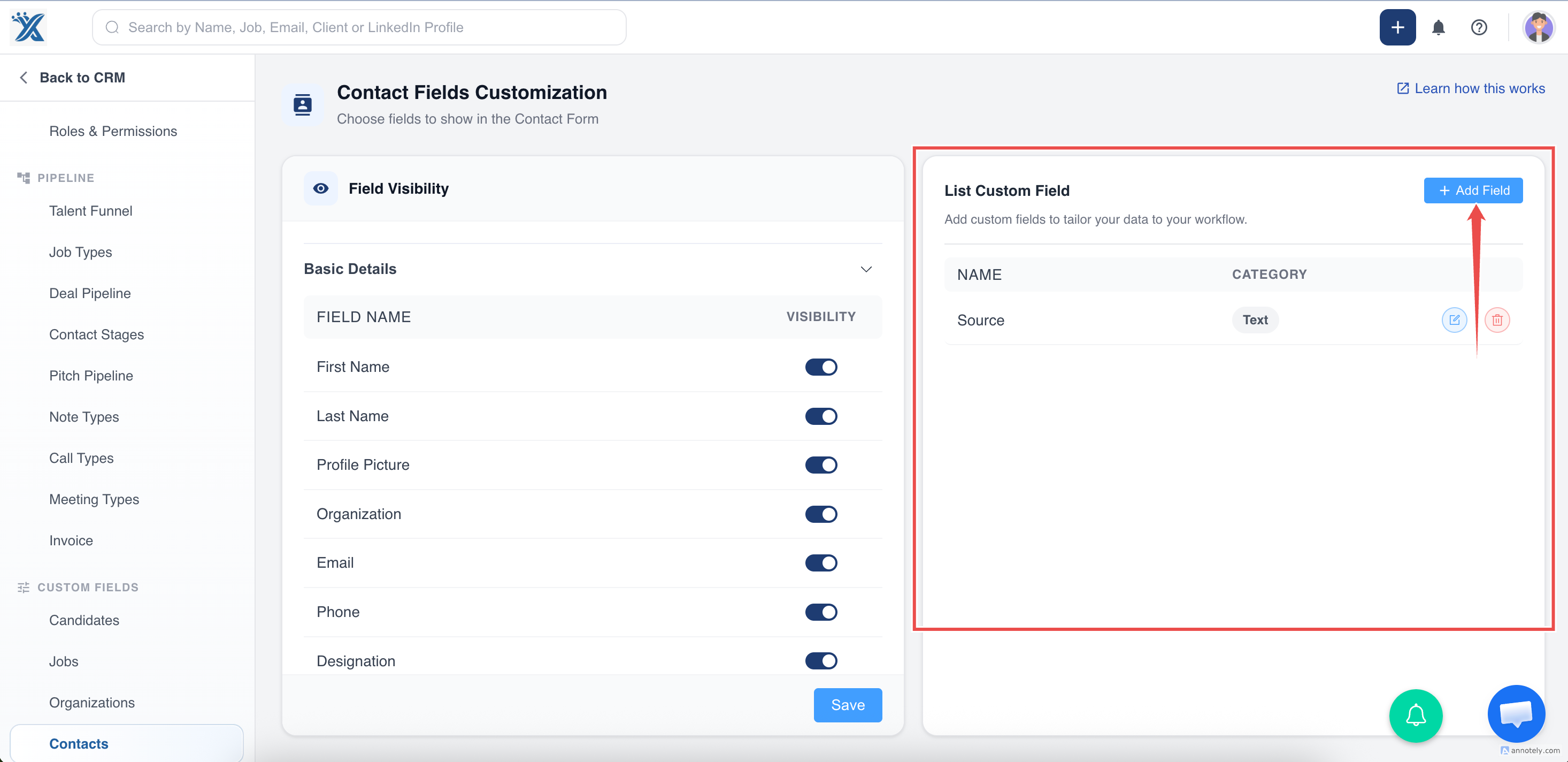
Step 4: Create a New Field:
Click on the “Add Field” button
Step 5: Fill the details
- Name
- Select category
- Add description
Step 6: Click on ADD the Field:
Click “Add” to create the new custom field.
Note:
Custom fields are specific to the entity they are created for.
Field Types you can create in ATZ CRM
Text For single-line text input. Long Text For multi-line text input Number For numerical values. Date For dates Dropdown For selecting from a predefined list of options Phone Number For entering phone numbers Multi-Select For selecting multiple options from a list. Email For entering email addresses File For uploading files Percentage For entering values as percentages
For more detailed instructions or if you encounter any issues, please refer to the ATZ CRM support team.
I hope this helps! Let me know if you have any other questions.