
Guide to Setting Up Your Career Connect Page in ATZ CRM
This guide explains how to configure the Career Connect Page in ATZ CRM, allowing candidates to submit their profiles even if no suitable job is listed, helping you build a proactive candidate database.
Overview
Section titled “Overview”The Career Connect Form enables candidates to share their details via a customizable page on your website, with options to tailor its appearance, fields, and automated responses.
Steps to Set Up the Career Connect Page
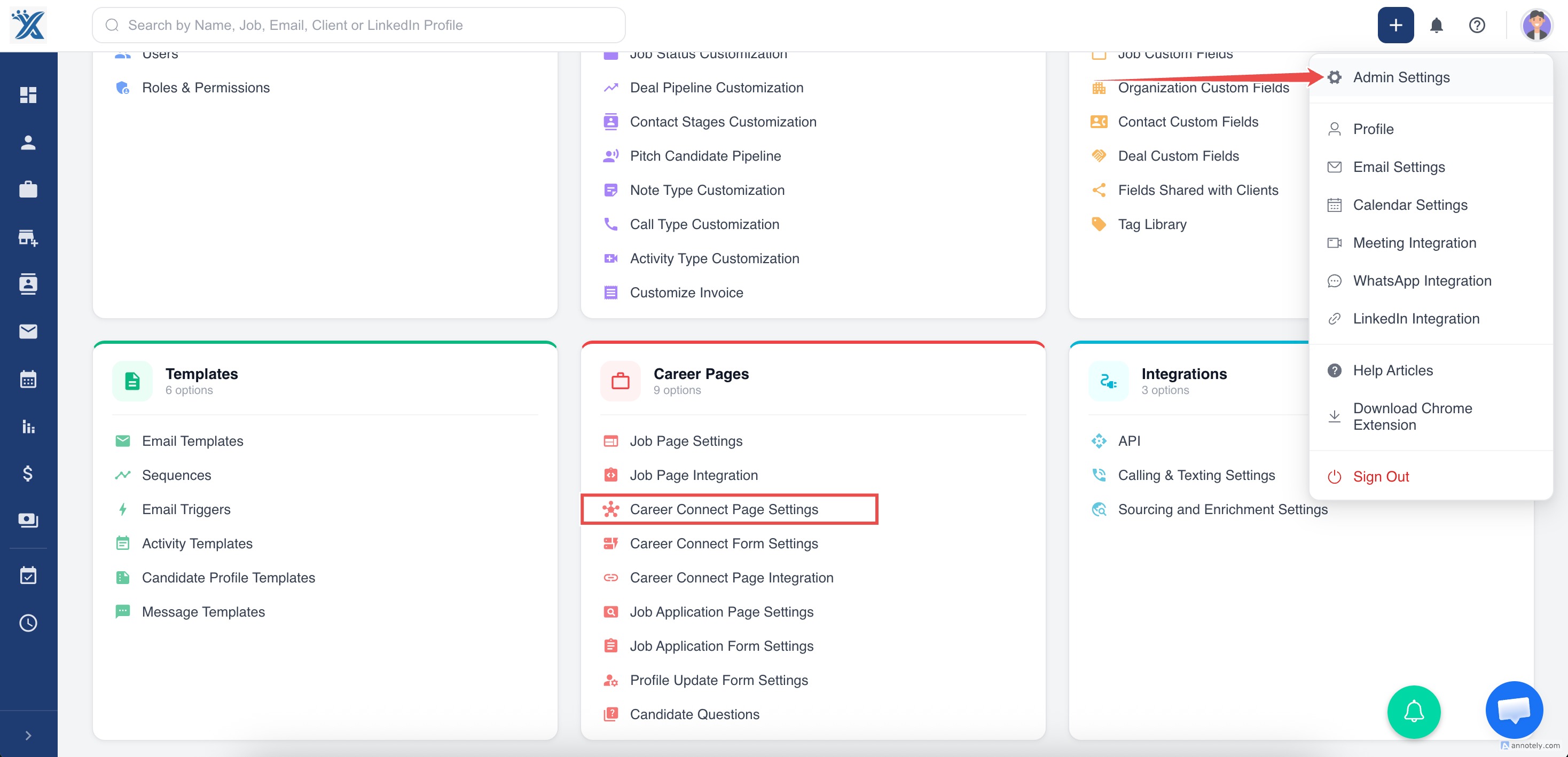
Section titled “Steps to Set Up the Career Connect Page”1. Access Career Connect Page Settings
- Navigate to Admin Settings > Career Connect Page Settings in the ATZ CRM interface.
2. Customize Page Appearance
-
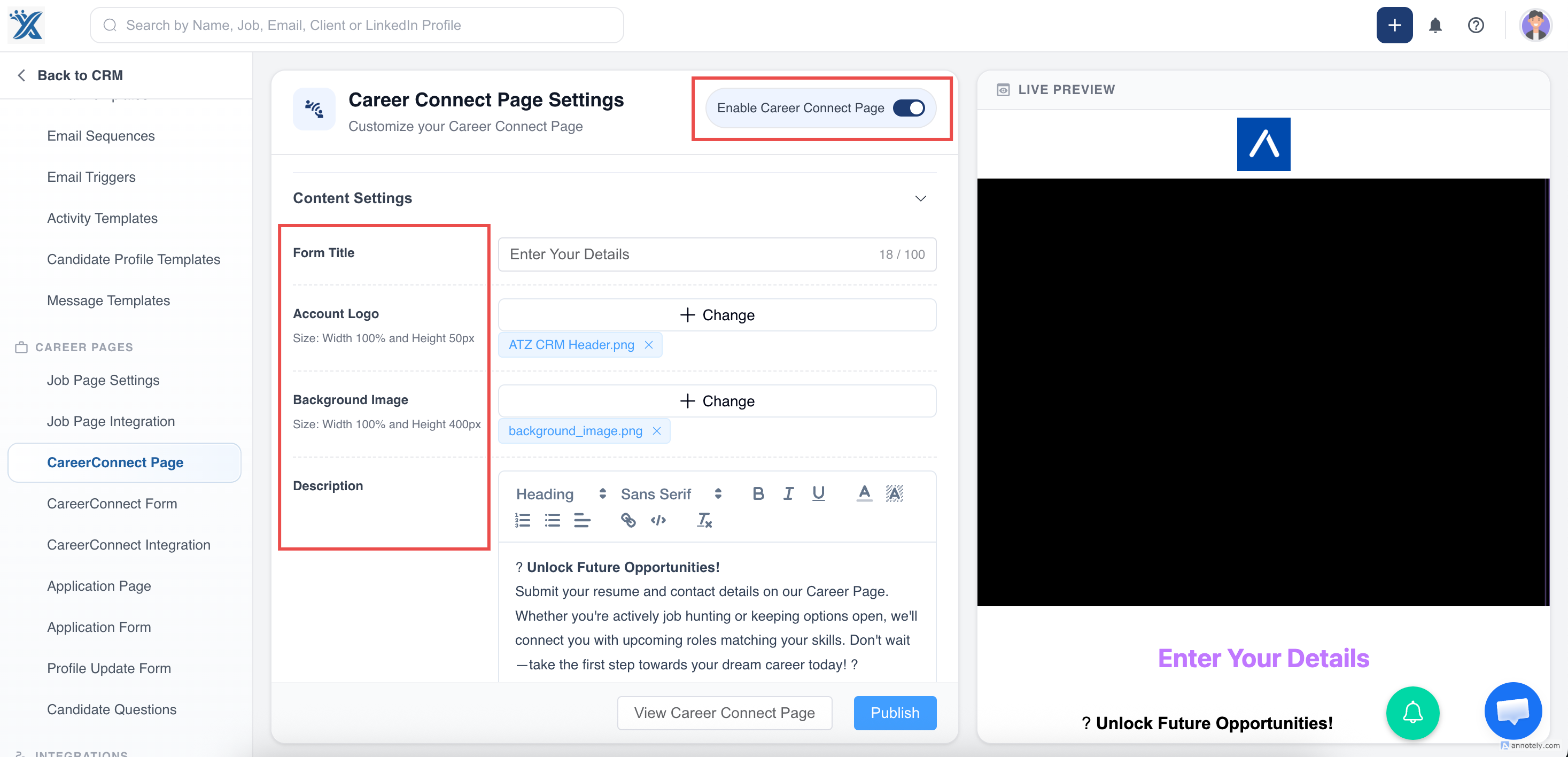
Make sure Turn ON the Enable Career Connect Page switch.
-
Add Images:
-
Upload a Account Logo (supported formats: JPEG, PNG, JPG).
-
Add a Cover Image to enhance the page’s visual appeal.
-
Set Titles and Descriptions:
-
Customize the Page Title and Form Title.
-
Write a Description in any language to guide candidates. This will be visible on the form.
3. Configure Button and Label Color
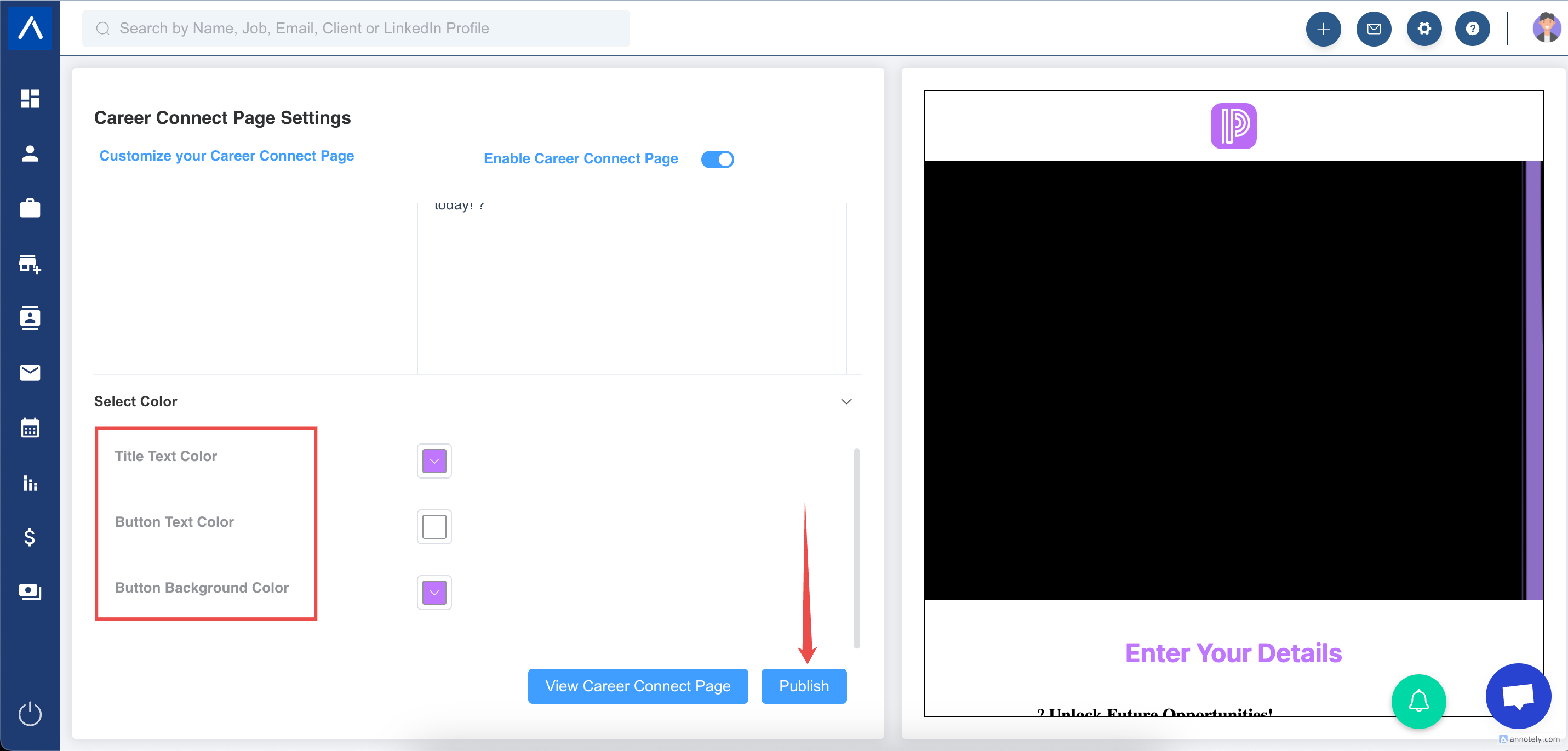
- Edit the colors for buttons and labels to align with your branding.
- Click on Publish to reflect the changes.
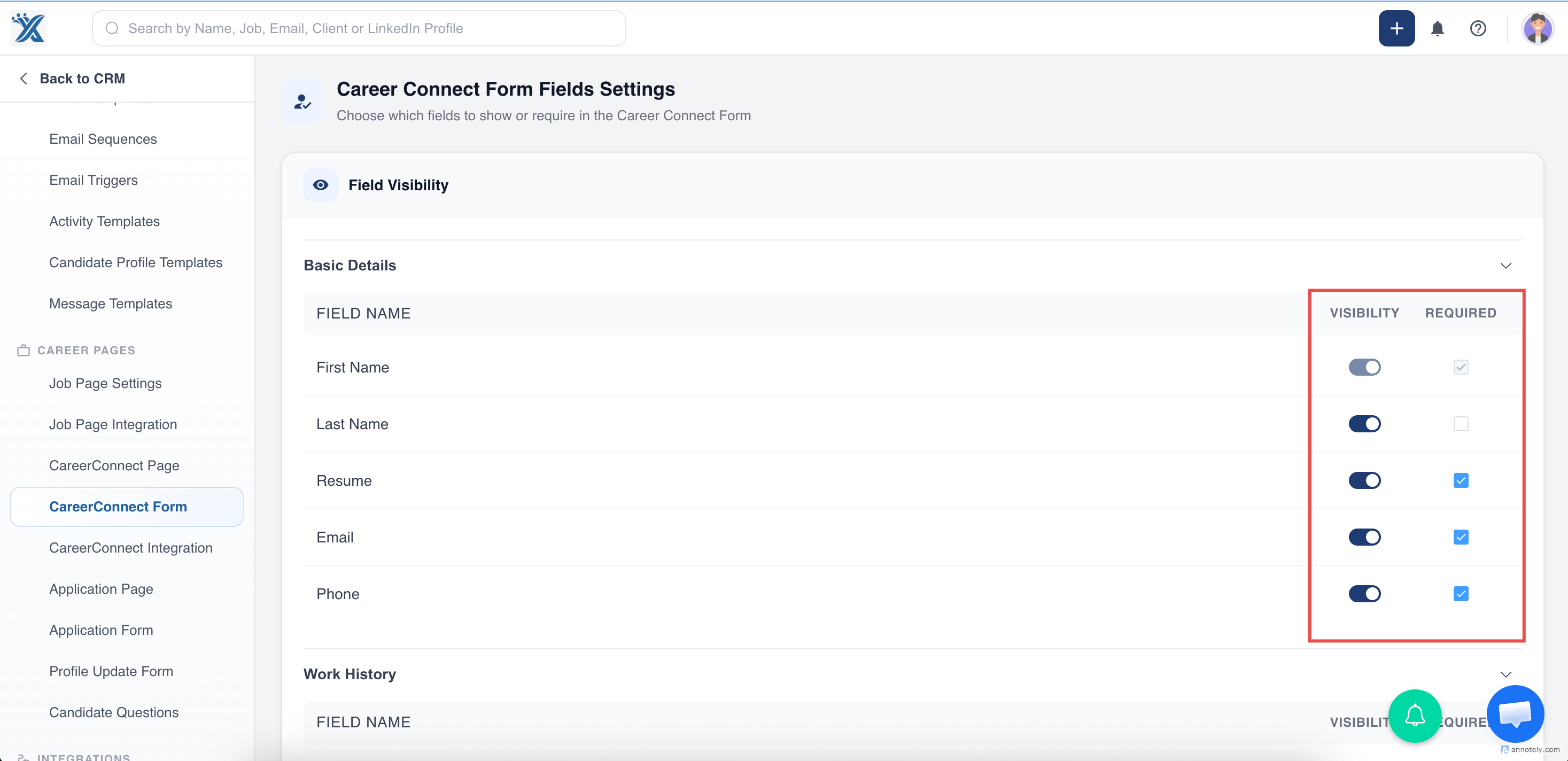
4. Customize Career Connect Form Fields
- Navigate to Admin Settings > Career Connect Form Settings in the ATZ CRM interface.
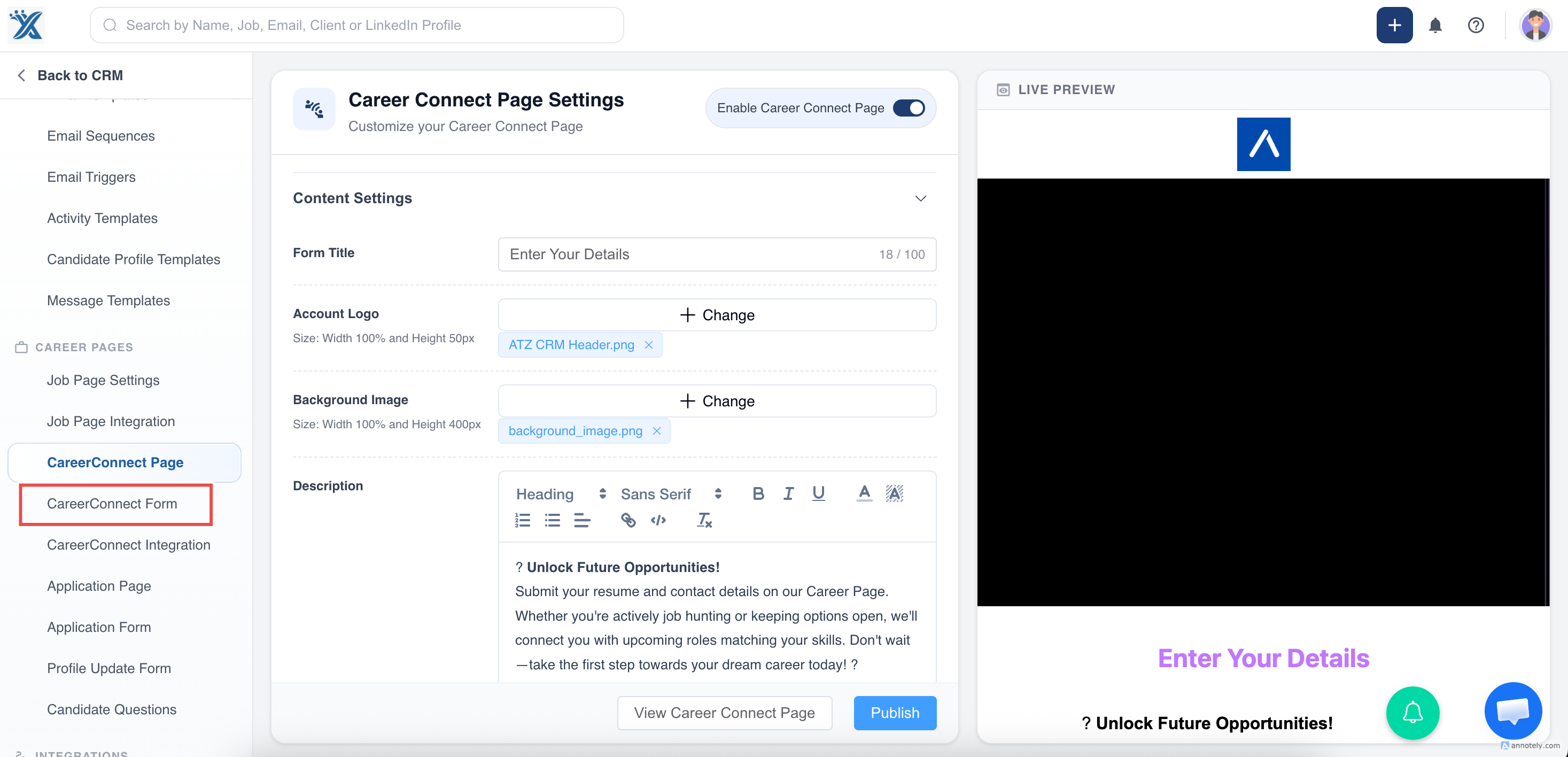
- Select and configure fields for the Career Connect Form Setting.
- Set Mandatory Fields: Mark fields as required to ensure candidates provide essential information.
- Toggle Visibility: Turn fields ON to display or OFF to hide.
- Click Save to apply the changes.
5. Integrate with Your Website
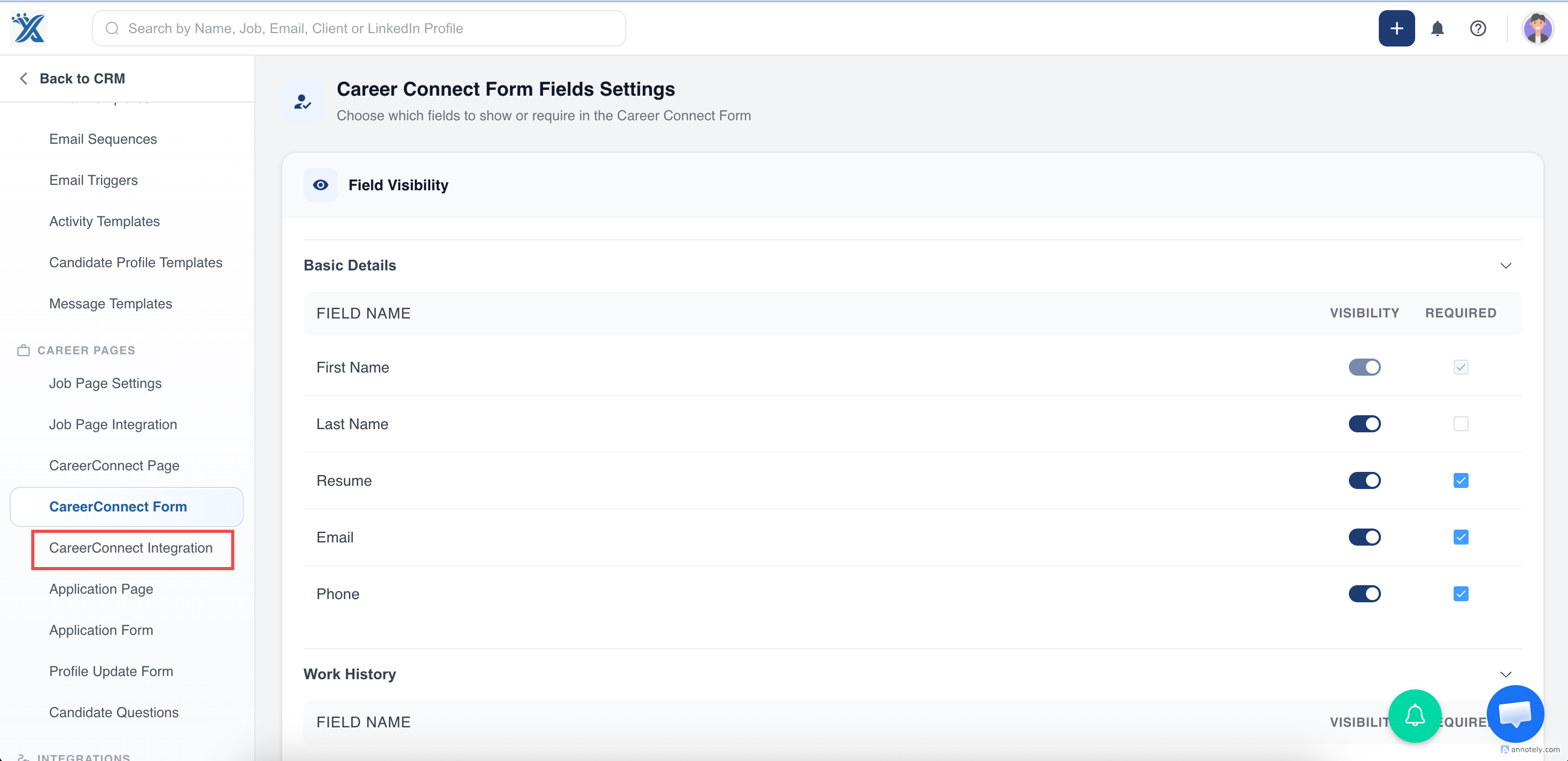
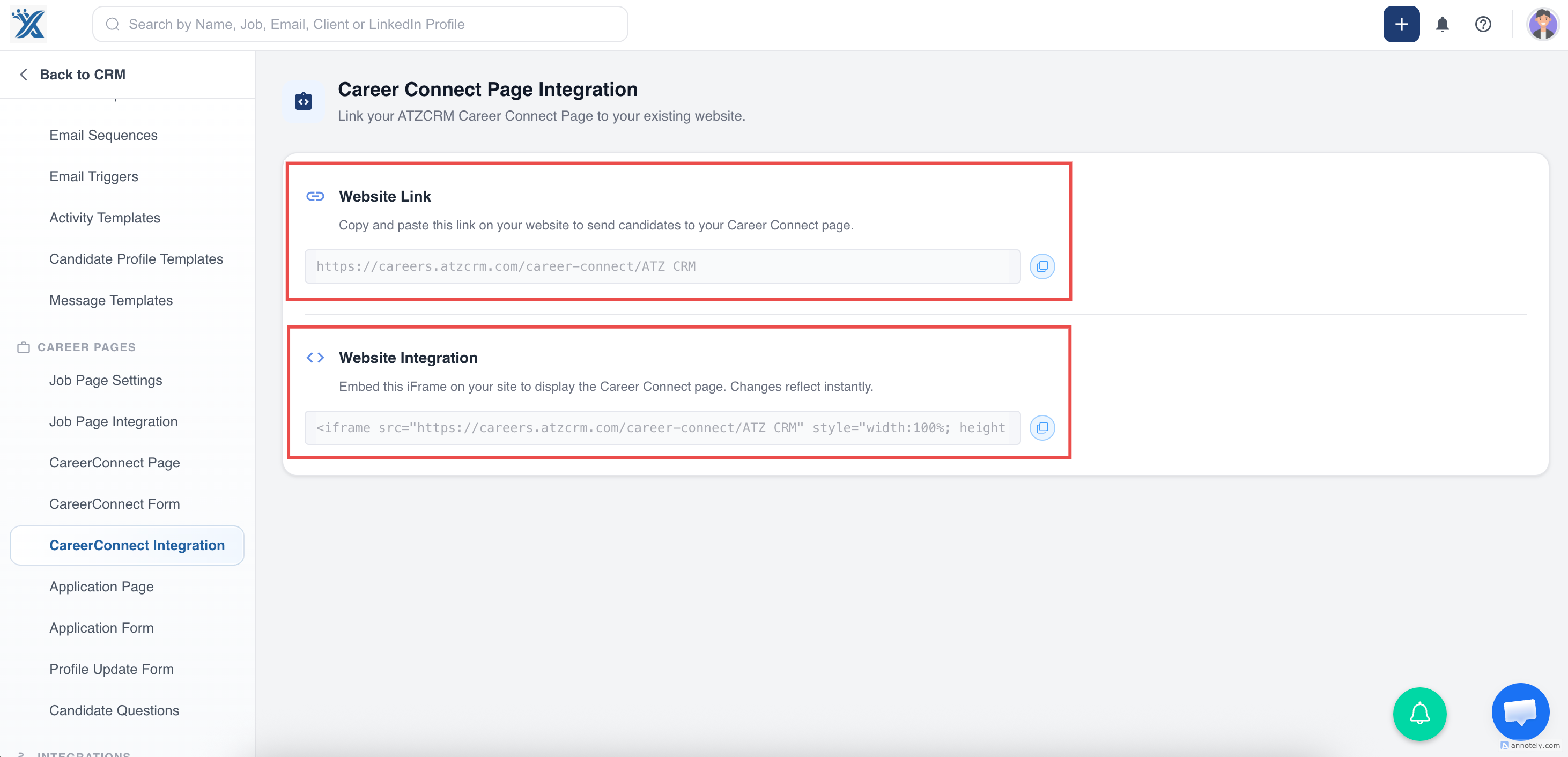
- Navigate to Admin Settings > Career Connect Page Integration in the ATZ CRM interface.
- Copy the provided iframe code from the settings.
- Paste the code into your website to embed the Career Connect Form.
Managing Candidate Submissions
Section titled “Managing Candidate Submissions”- Notifications: When a candidate submits a profile via the Career Connect Page, you’ll receive the profile in the Candidates Entity with source as ” Career Connect Page ”.
- Viewing Applicants: Access all Career Connect applicants in the Quick View section on the Candidate List page.
- Form Availability: The Career Connect Form remains active unless manually disabled or the account is deactivated.
Support
Section titled “Support”For assistance, use the chat icon in the bottom-right corner of ATZ CRM or visit the ATZ CRM Help Center.