
How to Manage Job Requisitions in ATZ CRM
Job requisitions are submitted by clients through the Client Portal. As a recruiter or account user in ATZ CRM, you can review, approve, or reject these requisitions directly from the system.
Note: The Client Portal is an add-on feature of ATZ CRM, available separately from the standard ATZ CRM subscription. For details on accessing this feature or pricing, contact our support team via the in-app chat or email us at support@atzcrm.com.
Viewing Job Requisitions
Section titled “Viewing Job Requisitions”- Go to the Job List page in ATZ CRM.
- Click on the Job Requisition icon.
- If there are any pending requisitions (not yet approved or rejected), the icon will show a count badge.
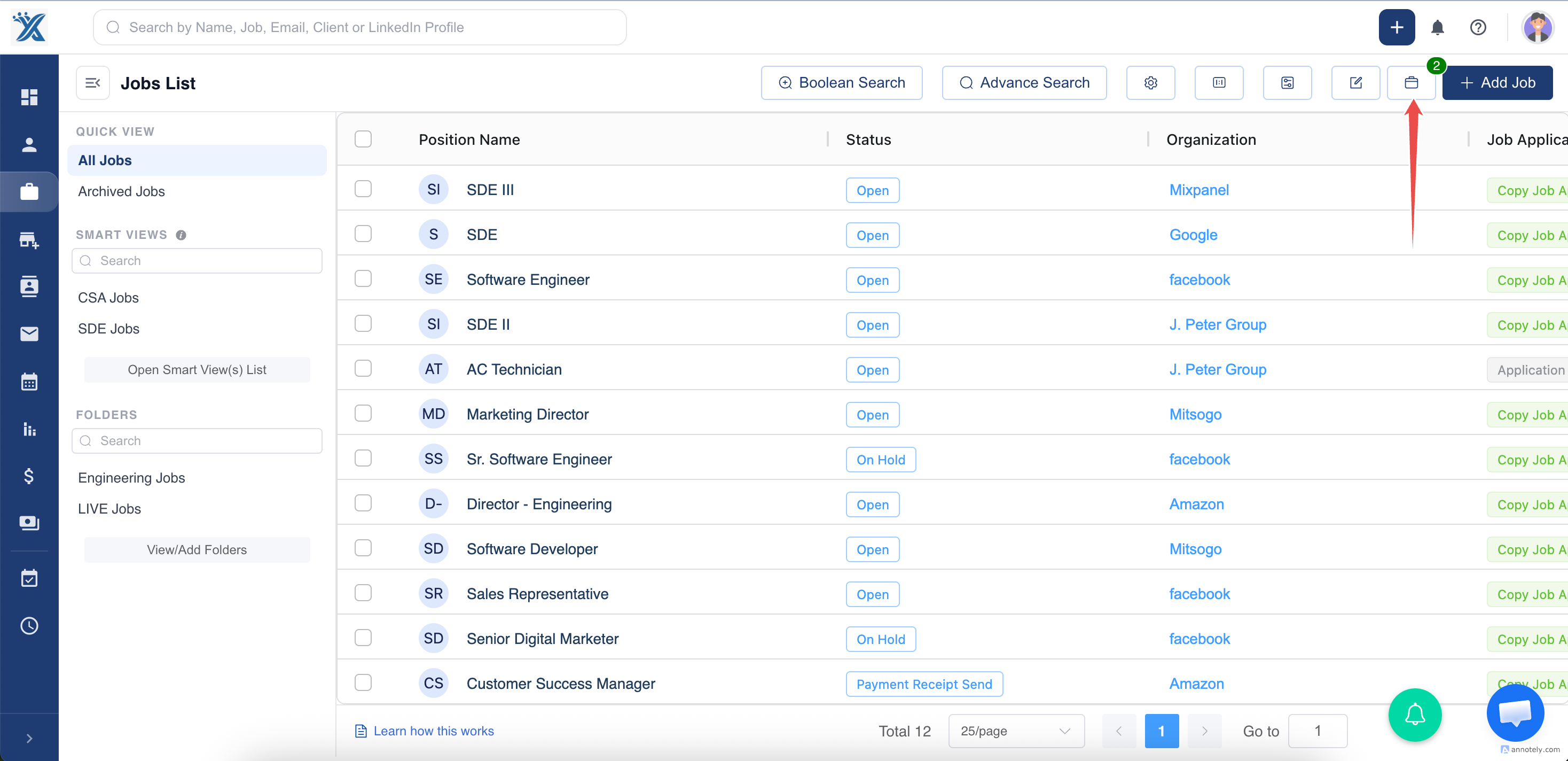
3. Open the Job Requisition list.
- Here, you’ll see all job requisitions submitted by client contacts, along with their organization details.
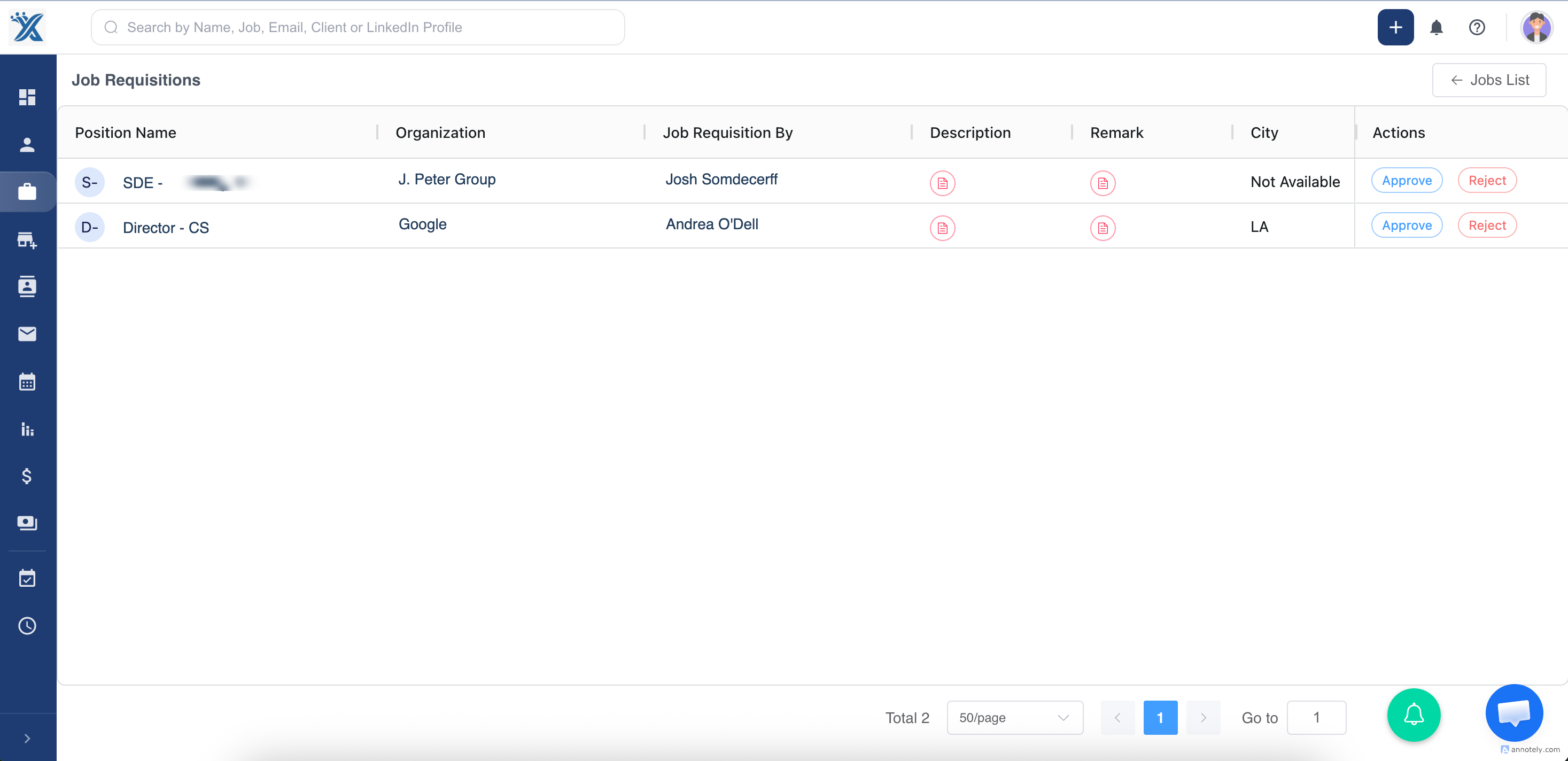
Managing a Job Requisition
Section titled “Managing a Job Requisition”When reviewing a requisition, you have two options:
1. Approve
- If approved, the job will be created in ATZ CRM as a new job record.
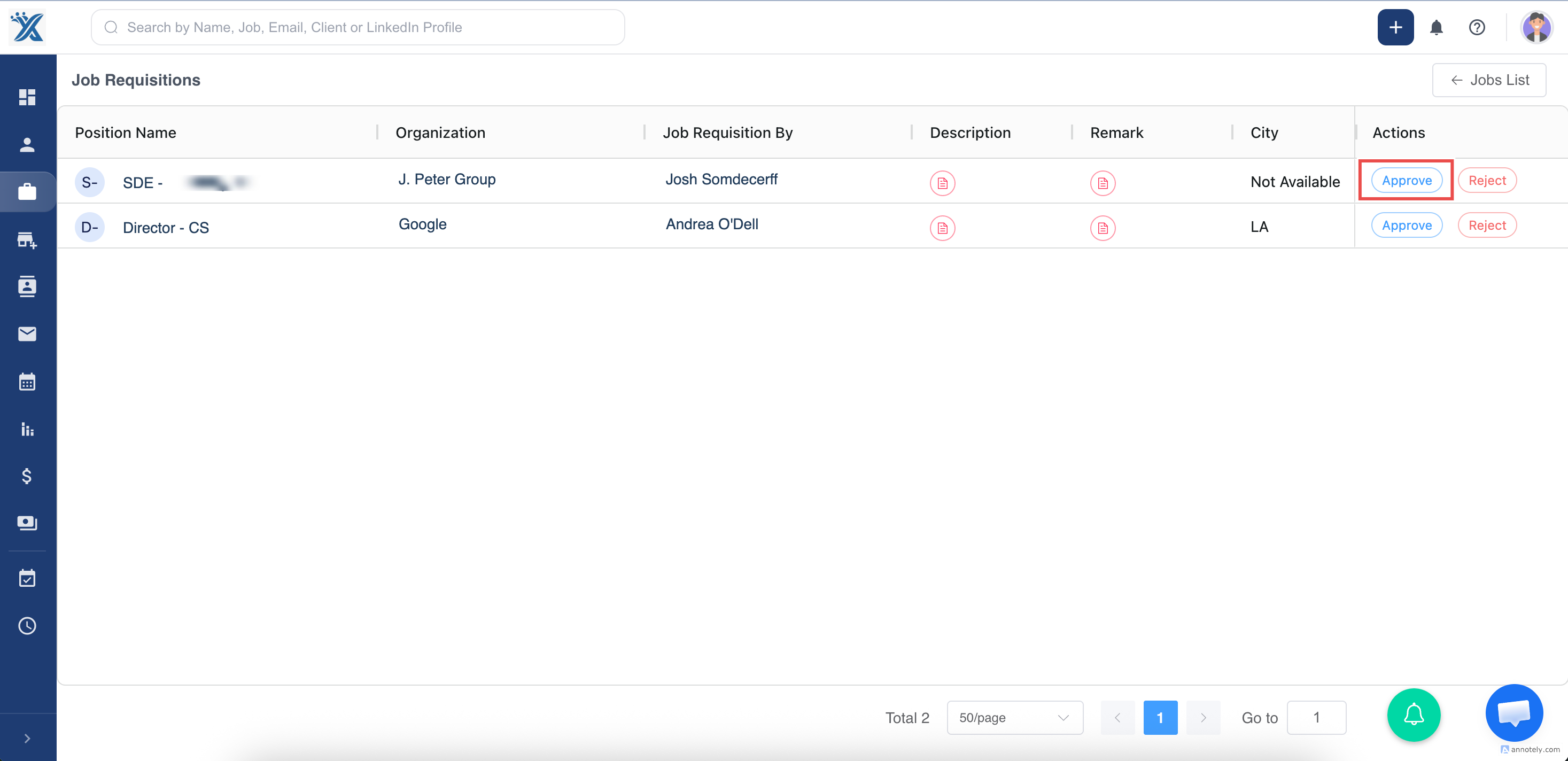
- Once created, you can submit candidates and share the job back to the client portal. See the How to Share Jobs to the Client Portal guide.
2. Reject with Feedback
- If rejecting, a feedback window will pop up.
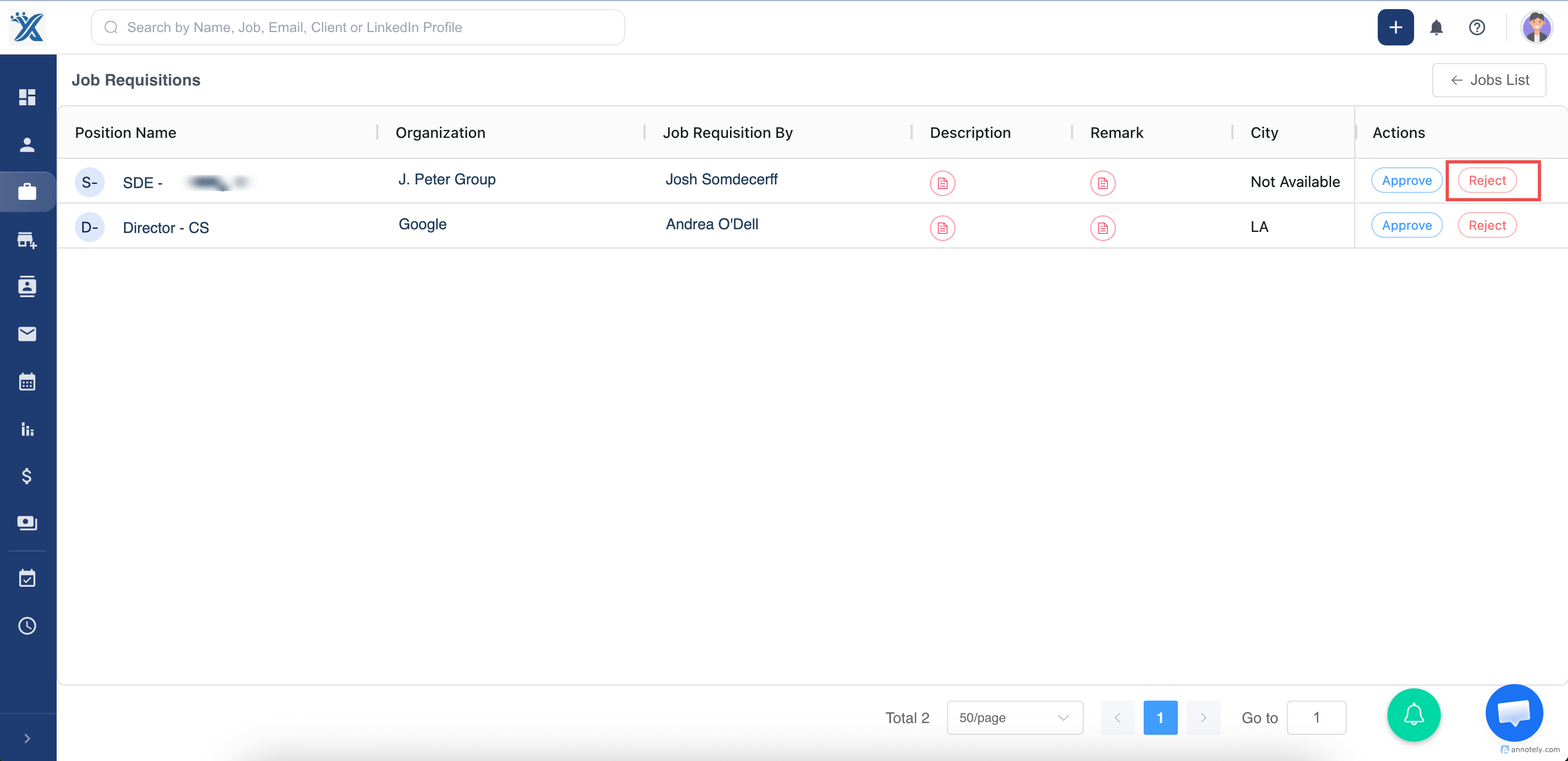
- Enter your remarks explaining why the requisition was not approved.
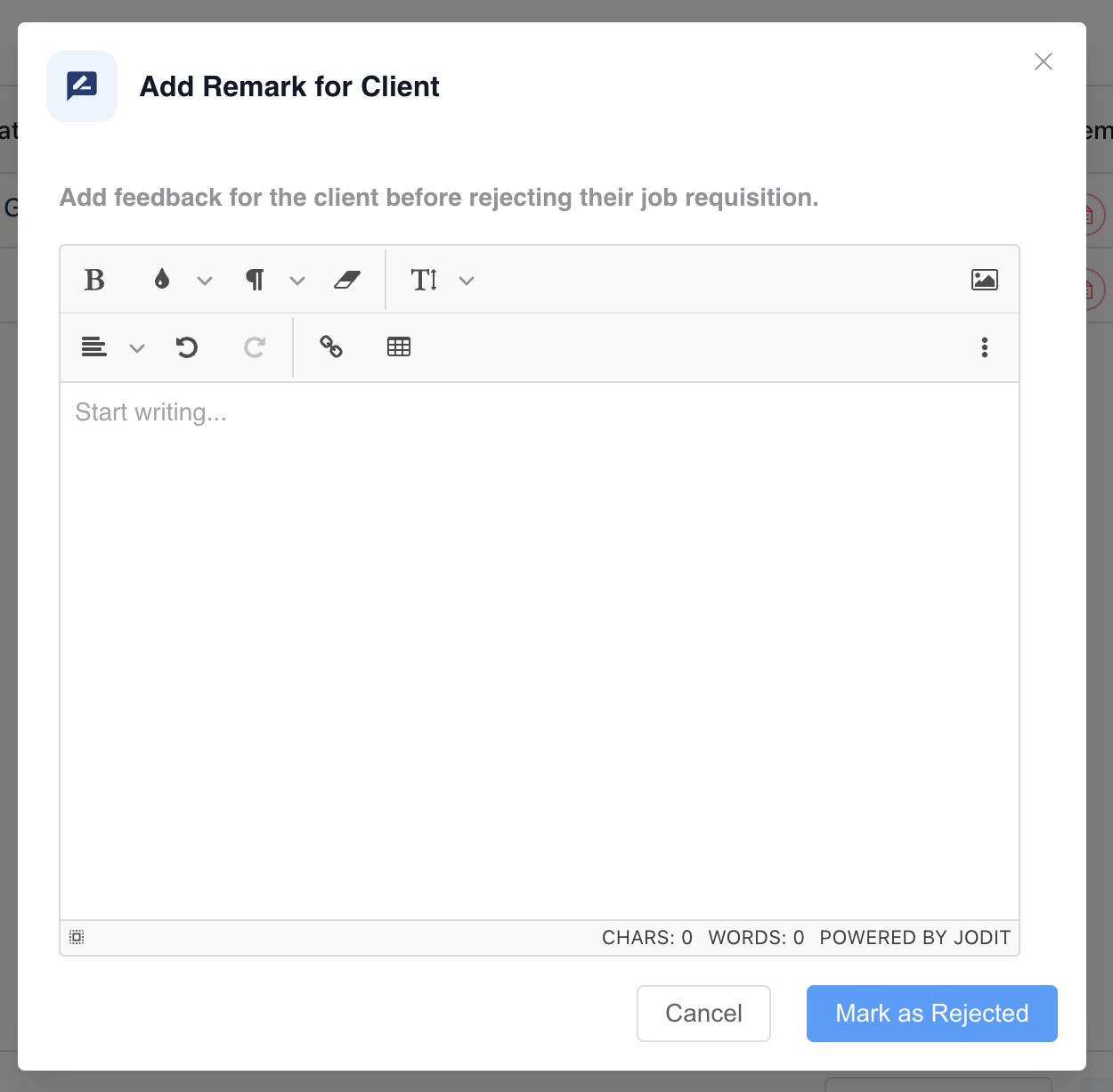
Once submitted, the client portal user will be notified of the rejection along with your feedback.
Notes & Tips
Section titled “Notes & Tips”- Pending requisitions always appear with a count on the Job Requisition icon.
- Approved requisitions instantly create a new job in ATZ CRM.
- Rejected requisitions remain visible with the recruiter’s feedback for transparency.
✨ That’s how you can manage job requisitions effectively in ATZ CRM.