
How to Show and Hide Data Fields Across Forms in ATZ CRM
In ATZ CRM, you can control the visibility of data fields such as a candidate’s last name, email, resume, and more by toggling their settings in the Admin Settings. This article explains how to manage these settings effectively to customize forms for candidates, contacts, companies, and jobs.
Steps to Show or Hide Data Fields for a Candidate
Section titled “Steps to Show or Hide Data Fields for a Candidate”Step 1: Access Admin Settings
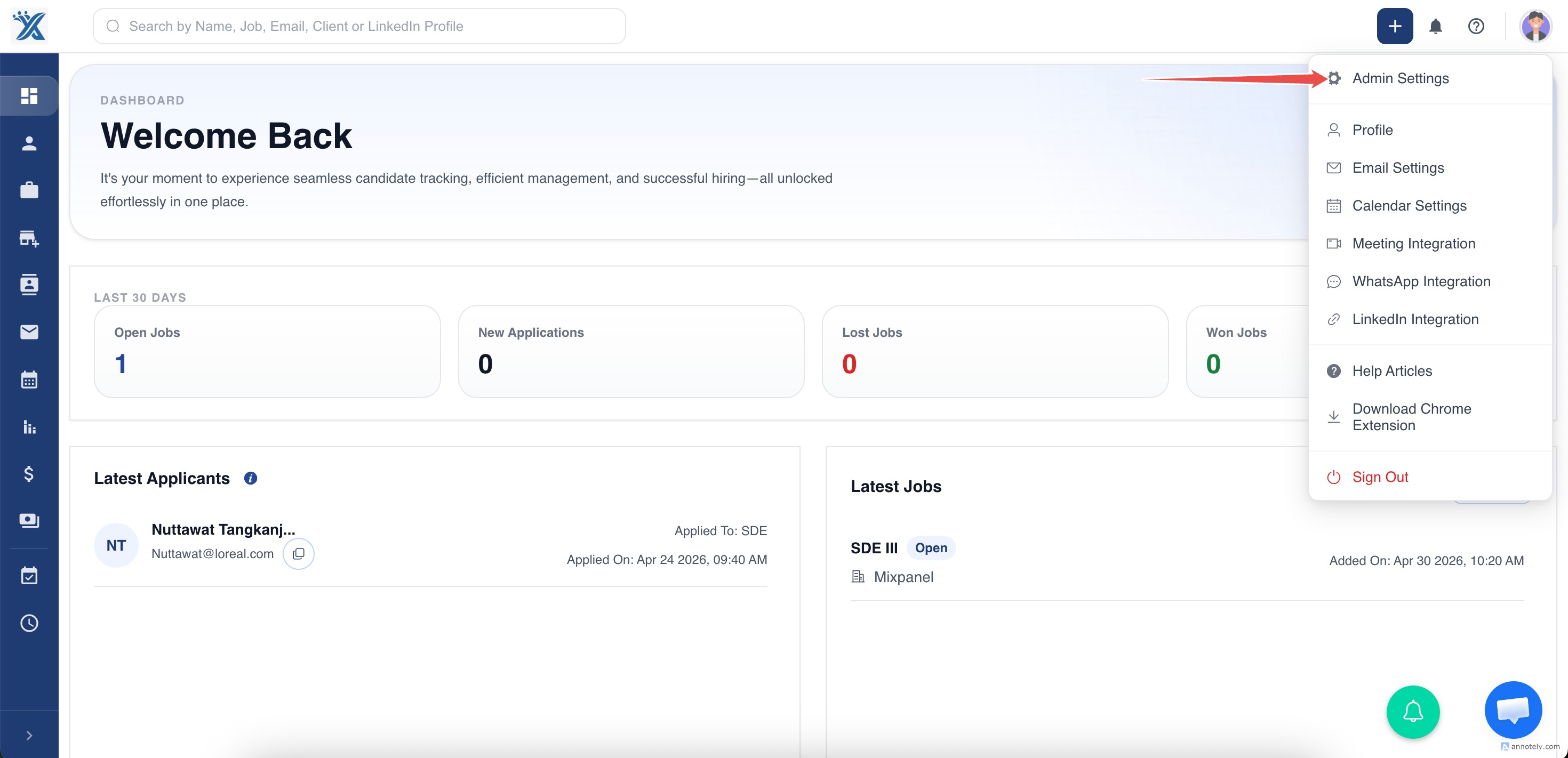
Step 2: In data customization > Navigate to the Entity:
Go to the entity for which you want to create custom fields.
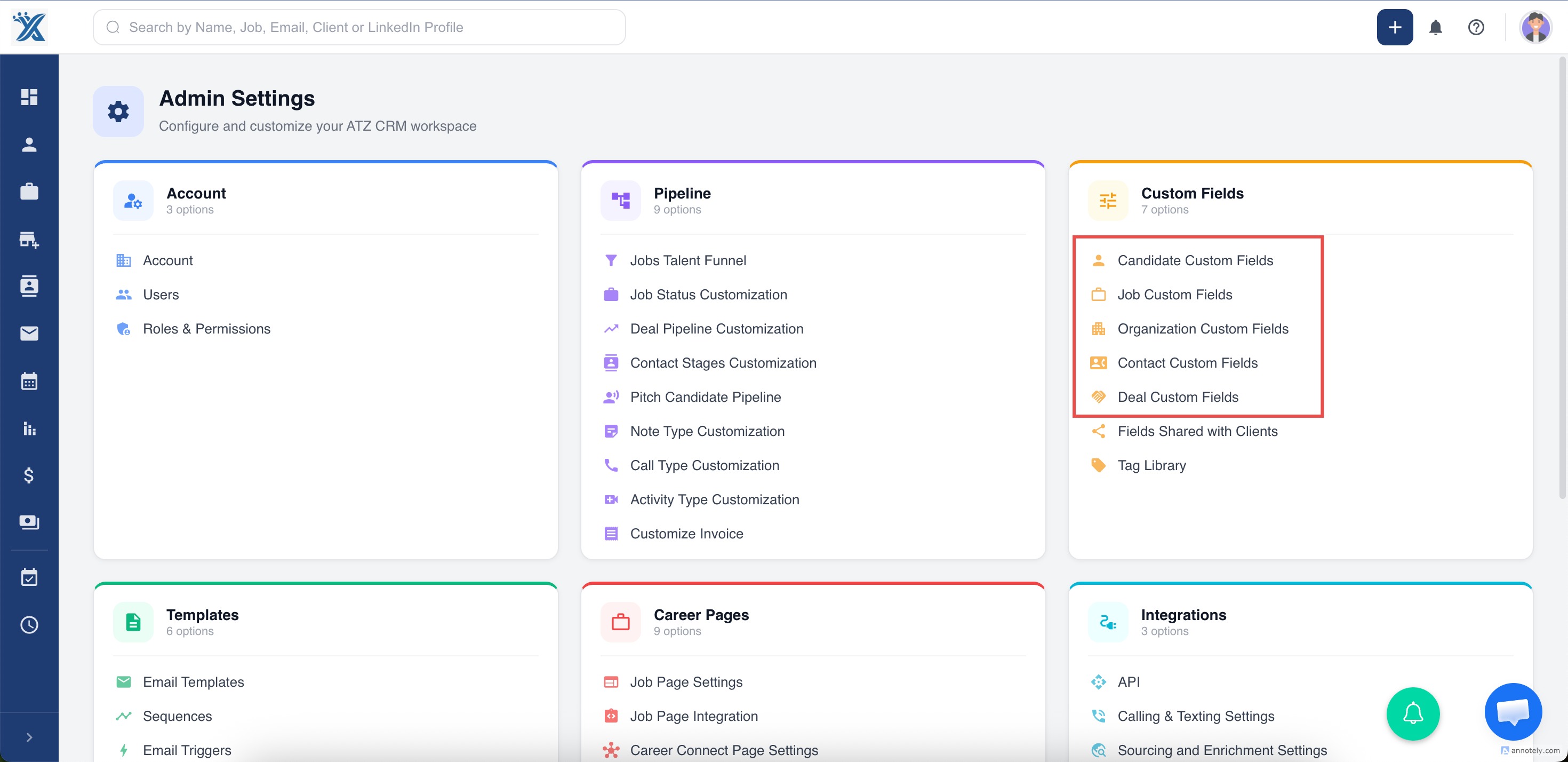
Step 3: View and Manage Field Toggles
You’ll see a list of fields like First Name, Last Name, Email, and Resume
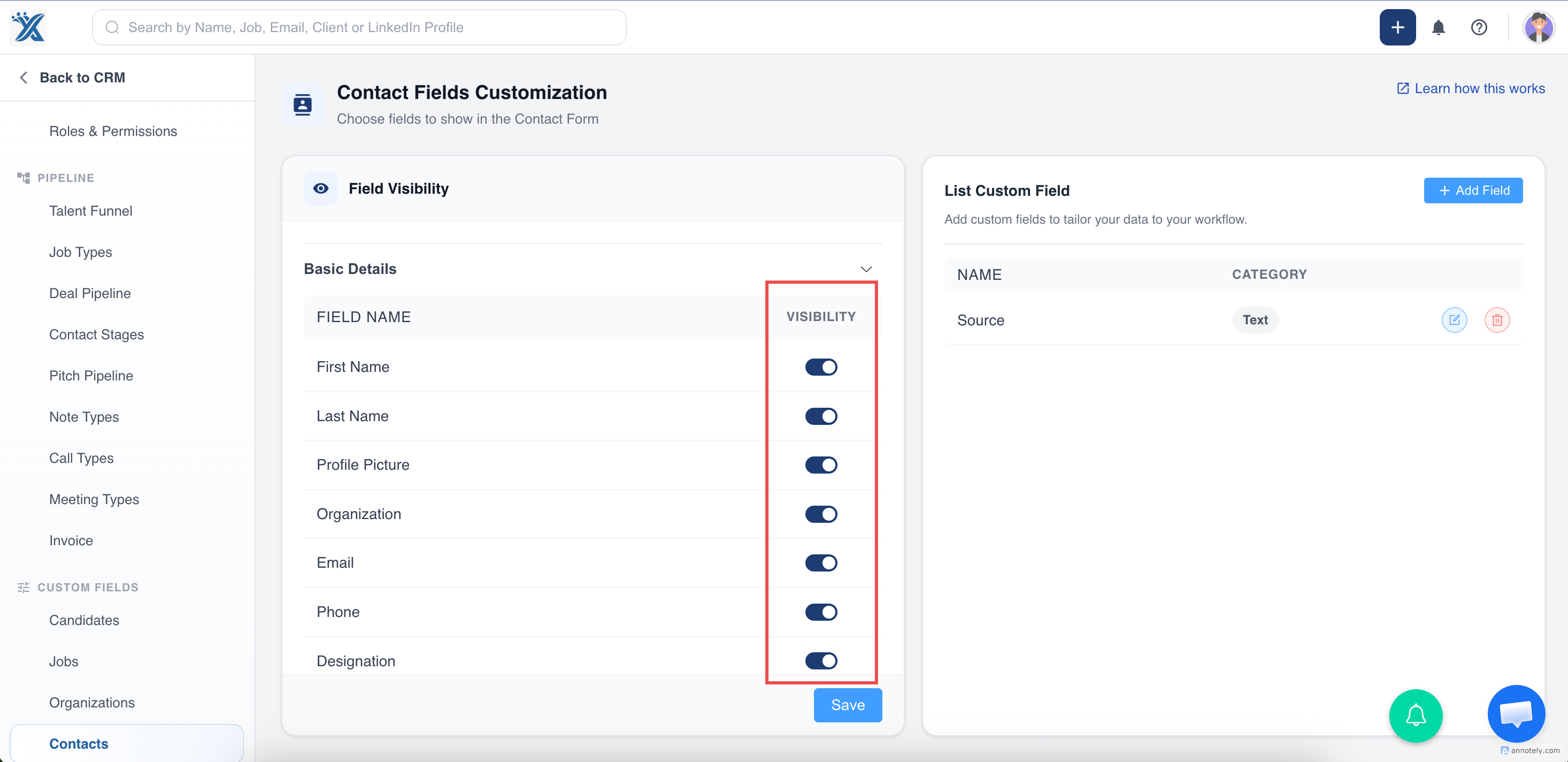
Toggle Visibility to set the visibility of fields as “ON” or “OFF”
Step 4: Save Changes
After making the necessary adjustments, save your changes..
Customizing Other Entities
Section titled “Customizing Other Entities”You can apply the same process to manage data visibility for other entities like:
- Contact
- Job
- Organization
- Deal
Simply navigate to their respective sections in Admin Settings, toggle the visibility of the desired fields, and save your preferences.
Important Notes
- Fields toggled off will not be visible in forms or views for the selected entity.
- Some fields (e.g., First Name ) is fixed and cannot be toggled.
- Ensure that critical fields are not accidentally hidden to maintain data completeness.
By following these steps, you can efficiently manage data fields in ATZ CRM, ensuring that your forms are tailored to your operational needs.