
Guide to Setting Up Calling in ATZ CRM
This guide explains how to configure the calling integration in ATZ CRM, powered by Twilio, to make and record calls to candidates and contacts directly within the platform.
The calling/auto-dialer feature is available on the Pro plan and above.
Important: Due to local regulations, Twilio no longer supports domestic outbound calls between +91 (Indian) numbers. International calls from Indian numbers are still supported.
Steps to Set Up Calling Integration
Section titled “Steps to Set Up Calling Integration”1. Add and Verify Your Calling Number
Section titled “1. Add and Verify Your Calling Number”You can add your calling number in two ways:
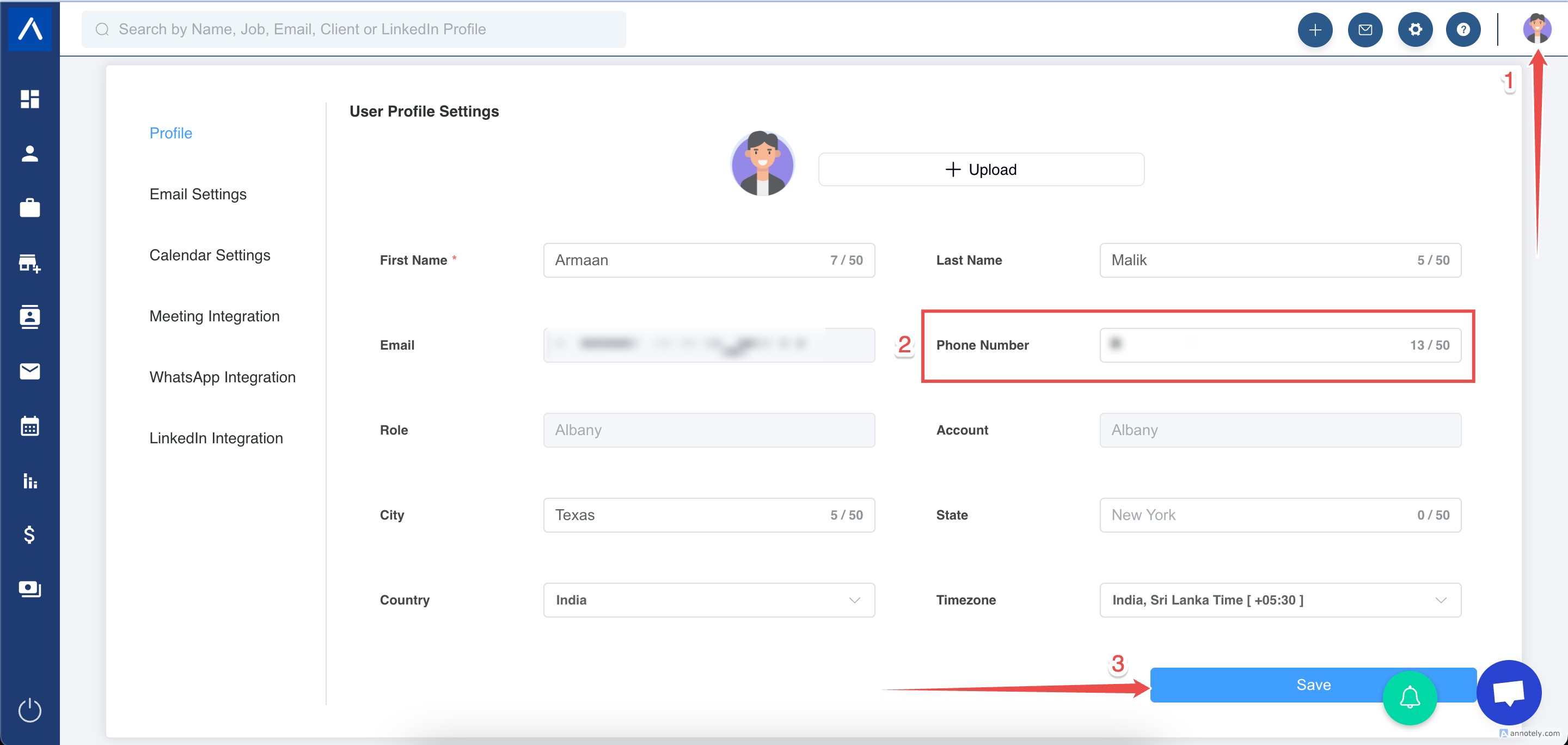
a. From the Profile Section
- Navigate to your Profile section in ATZ CRM.
- Enter your phone number and follow the prompts to verify it using a 6-digit code sent to your mobile.
b. While Making Your First Call
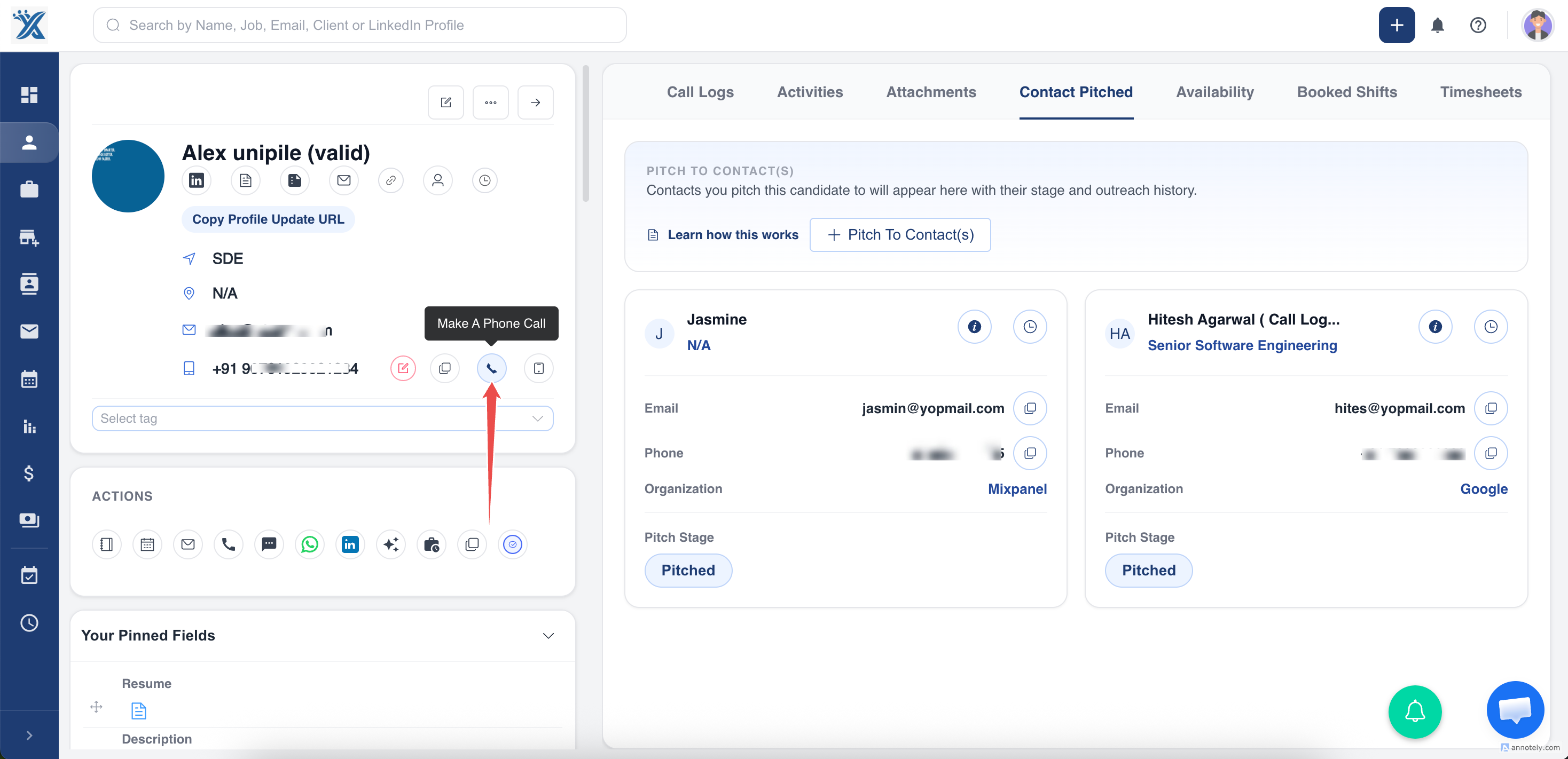
- Click a candidate’s or contact’s phone number in ATZ CRM.
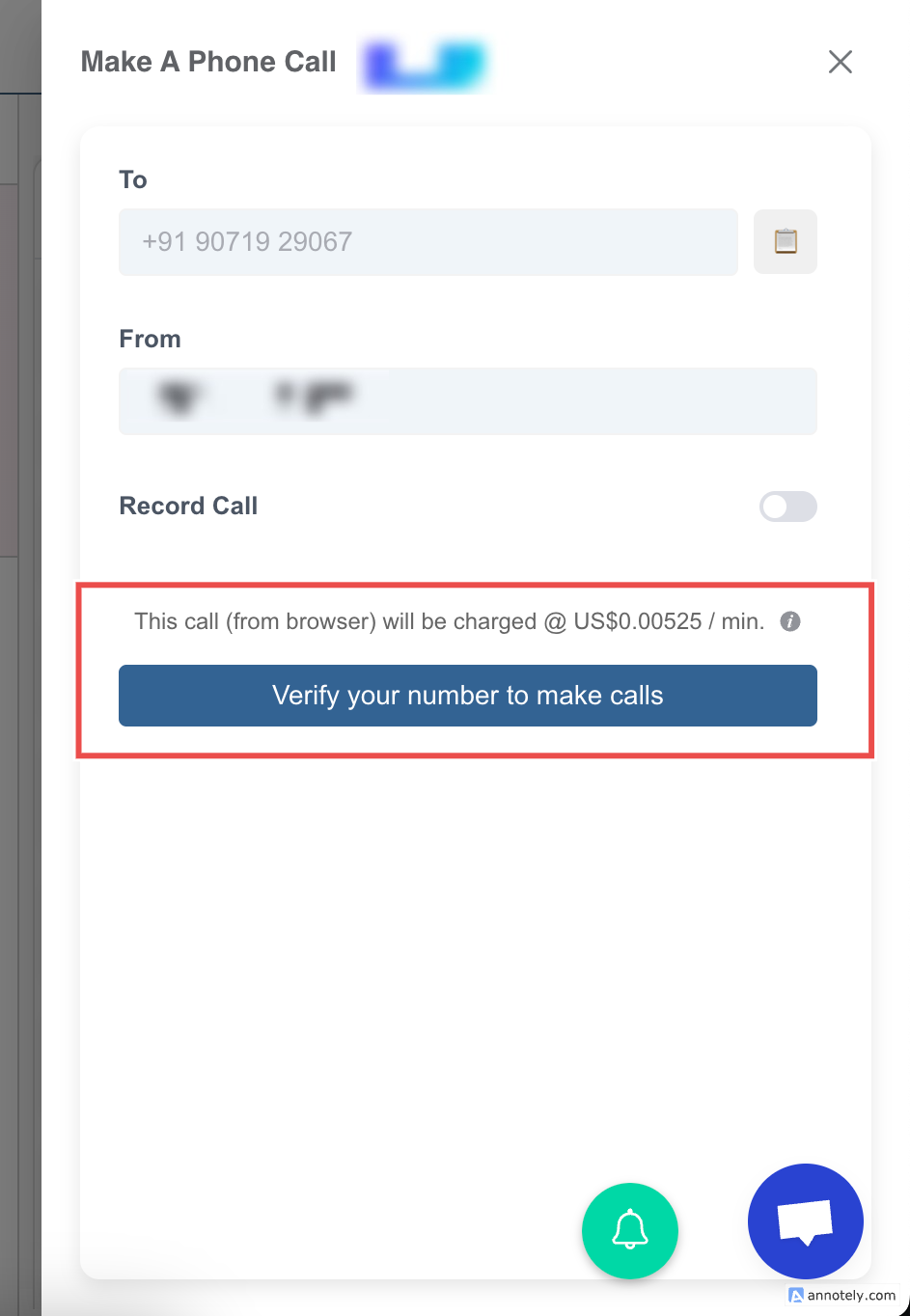
- The system will prompt you to add and verify your calling number with a 6-digit verification code.
2. Use Free Call Credits
Section titled “2. Use Free Call Credits”- Availability: Free credits are available on Enterprise Plan for users who haven’t used the calling service before. Connect with our CS Team using chatbot to avail these credits.
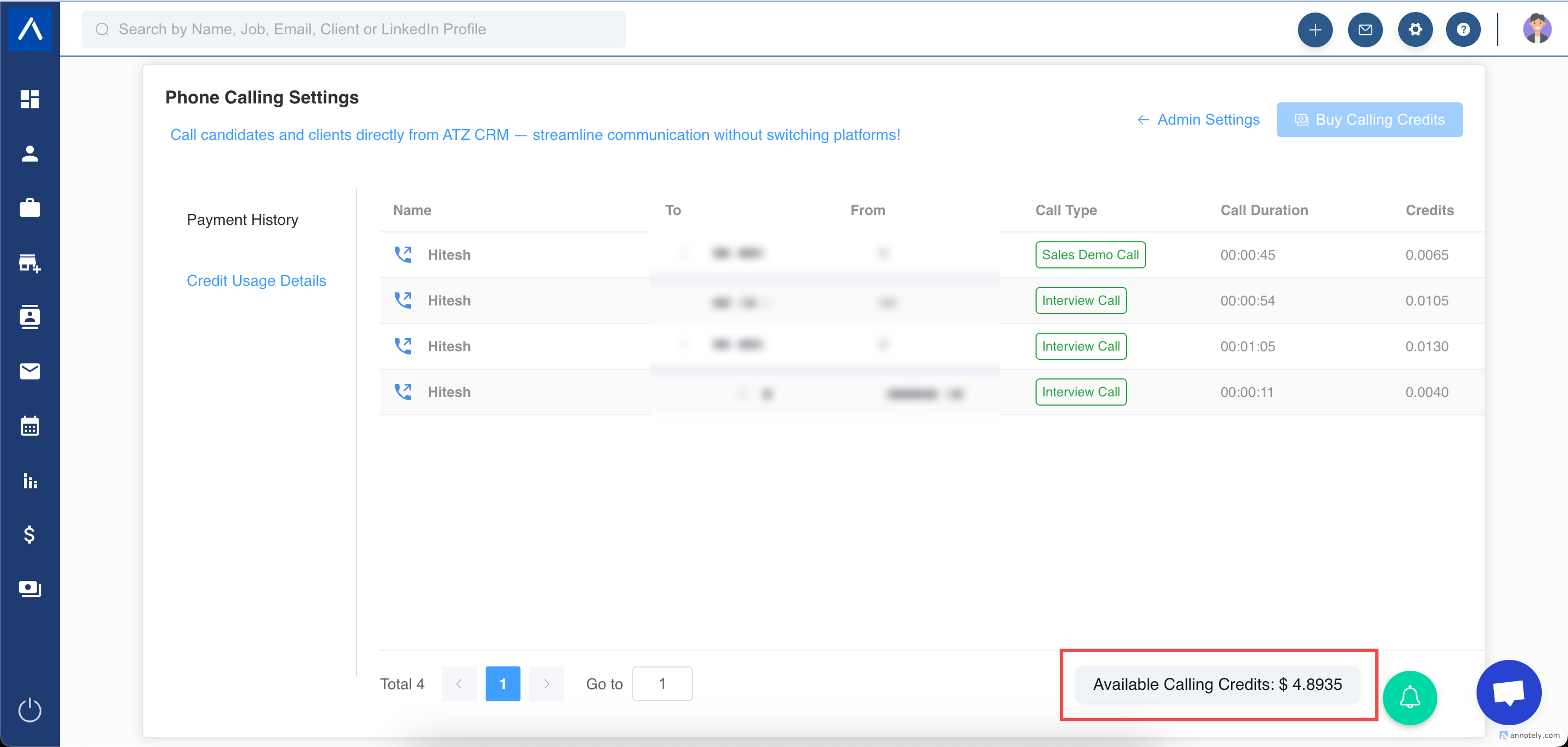
- Check Credits:
- Go to Admin Settings > Phone Calling Settings.
- Look for the “Available Calling Credits” message, indicating credits for local calls (international calls excluded).
- Limitations:
- Free credits apply only to calling.
- You can continue using free credits until depleted, provided the balance covers at least one minute of calling.
3. Purchase Calling Credits
Section titled “3. Purchase Calling Credits”To make calls beyond free credits, you must buy calling credits:
- Connect with our CS Team using Chatbot to purchase Calling Credits.
- Pricing:
- Check Twilio’s pricing at Twilio Voice Pricing.
- Total cost = (Local Call Pricing + Browser/App Call Pricing + Recording Pricing + Transcription Pricing, if applicable) × 1.25, including call storage in ATZ CRM.
4. Make a Call
Section titled “4. Make a Call”- Ensure your number is verified and credits are added.
- Click a candidate’s or contact’s phone number in their profile.
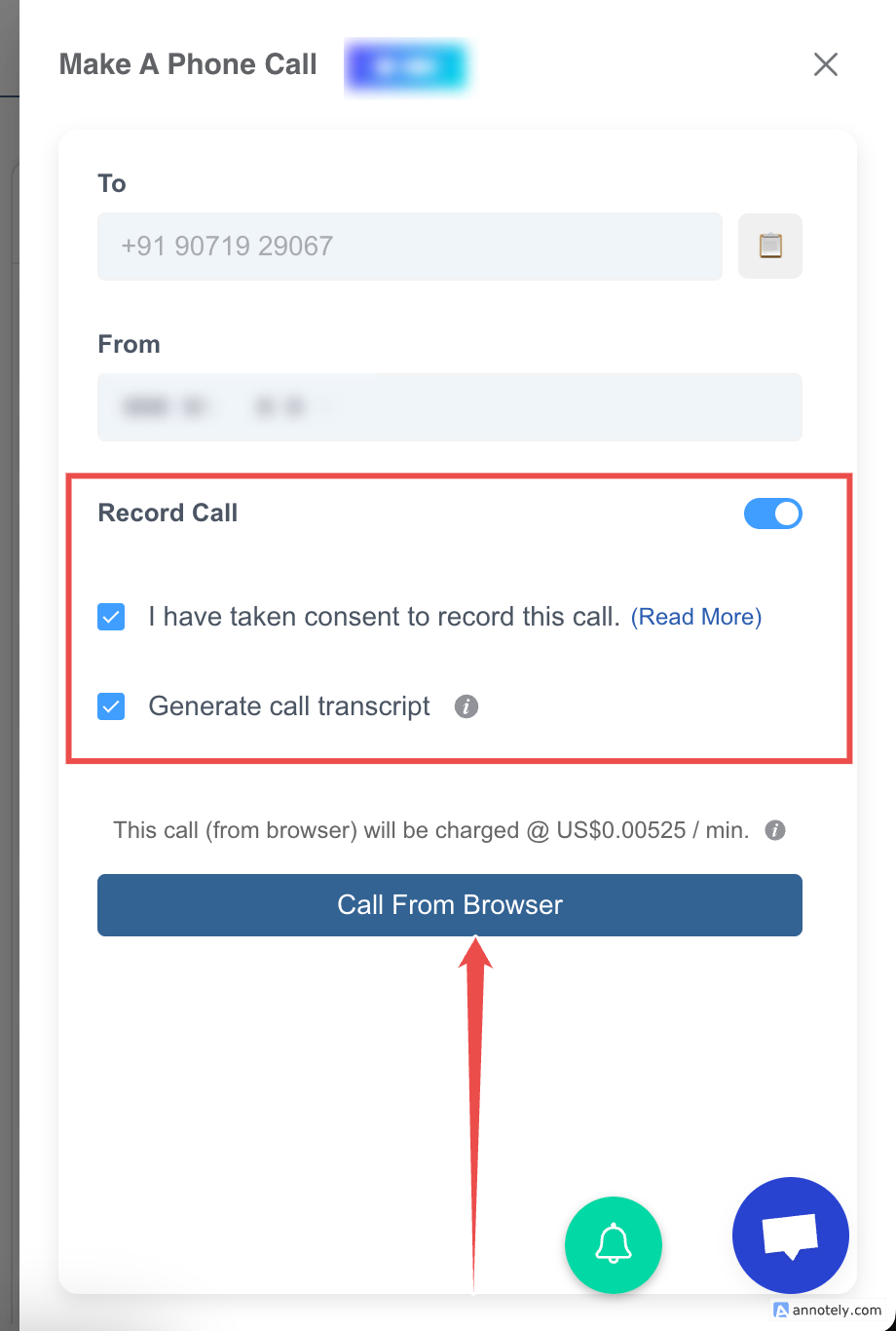
- A pop-up will display:
- To and From numbers.
- Call Recording Option: Toggle YES to record, check the consent box, and click the green Call button.
- Generate Transcript Option: Toggle YES to generate transcripts.
- During the call:
- Take notes on the screen, which will be saved in the Call Logs section.
- After the call:
- Add additional details, including Call Type, on the post-call screen.
- Customize call types as described in the Call Type Customization Guide.
Call Recording Permissions
Section titled “Call Recording Permissions”Permissions Setup: When creating custom roles, configure:
- Access to Phone Calling Settings: Allows users to manage credits and settings.
Access: Only Account Owners, Admins, and users with custom roles can access Phone Call Settings.
Compliance: Review call recording laws in the Call Recording Laws Guide.
Accessing Call Recordings
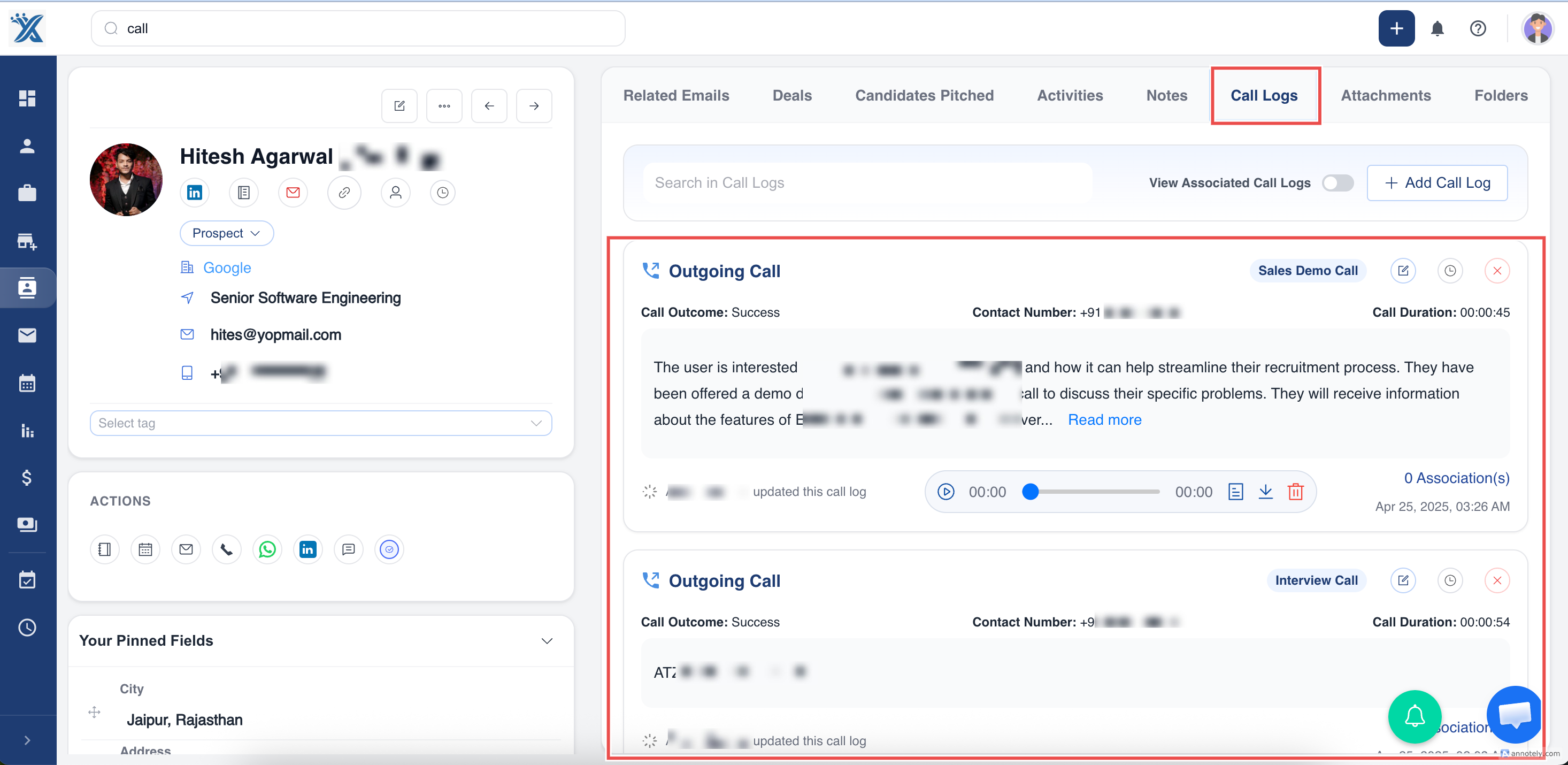
Section titled “Accessing Call Recordings”- Find recordings in the Call Logs tab of a candidate’s or contact’s profile.
Additional Features
Section titled “Additional Features”- Transcribe Calls: Learn how to transcribe calls in the Call Transcription Guide.
- Native Dialer: Use your device’s native dialer for calls as described in the Native Dialer Guide.
- Regional Restrictions: Verify Twilio’s compliance with local regulations (e.g., KYC for UK users, restrictions on +91 numbers).
- Consent: Ensure compliance with Twilio’s policies and local laws for call recording and communication.
- Support: For issues, contact ATZ CRM support via the in-app chat or visit the ATZ CRM Help Center.