
How to Create/Update/Delete Custom Note Types in ATZ CRM & How to Use Custom Note Types in ATZ CRM
In ATZ CRM, customizing note types allows users to organize and manage notes efficiently, ensuring smooth communication and workflows. By creating, updating, and deleting custom note types, you can categorize and filter key information such as candidate feedback or interview notes. This feature helps streamline your processes and makes important data easily accessible.
Creating a Custom Note Type in ATZ CRM
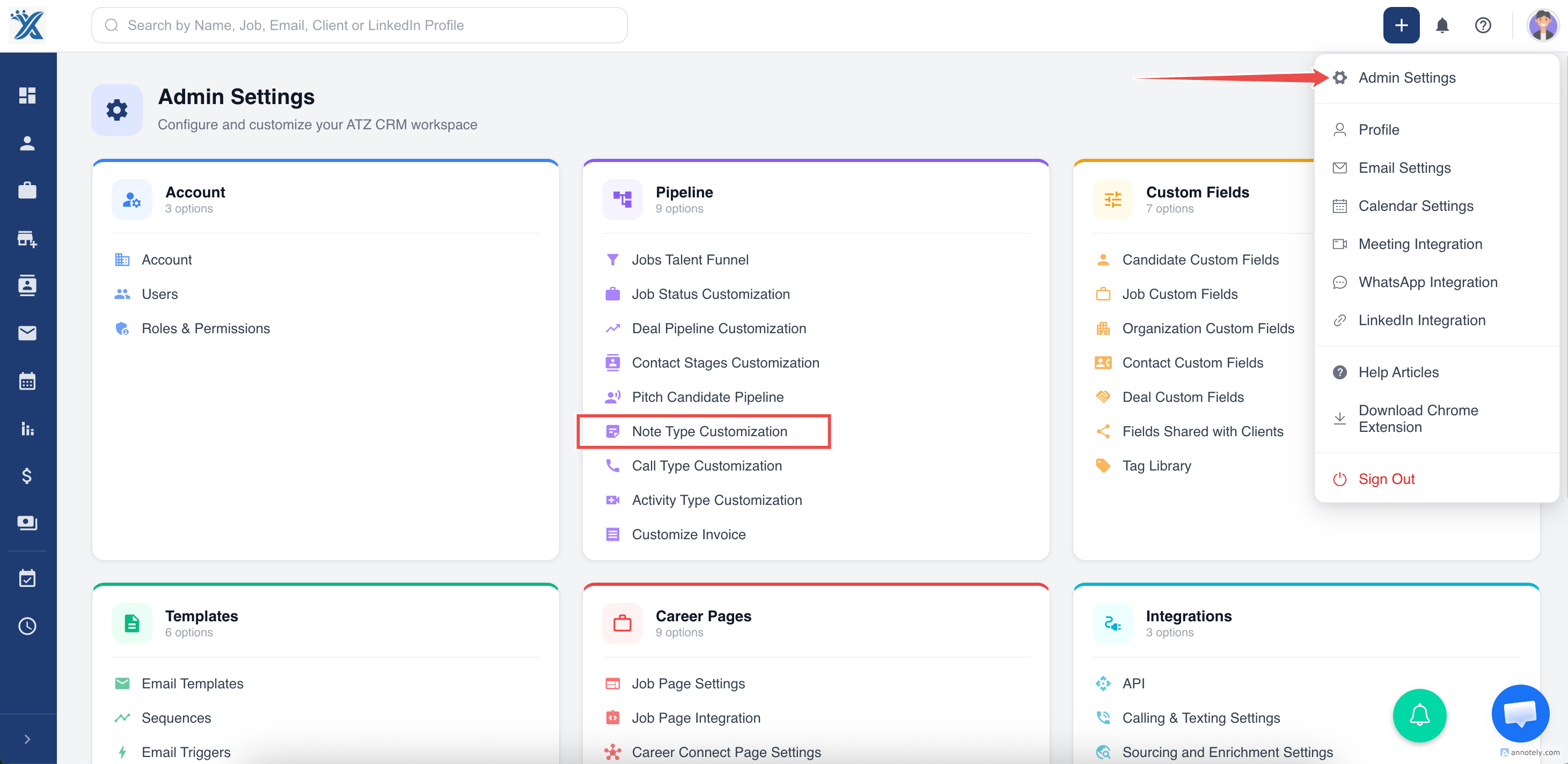
Section titled “Creating a Custom Note Type in ATZ CRM”- Access Note Type Customization:
- Navigate to the Settings section and select Note Type Customization.
- Create a New Custom Note Type:
- Click on the Add New Note Type button.
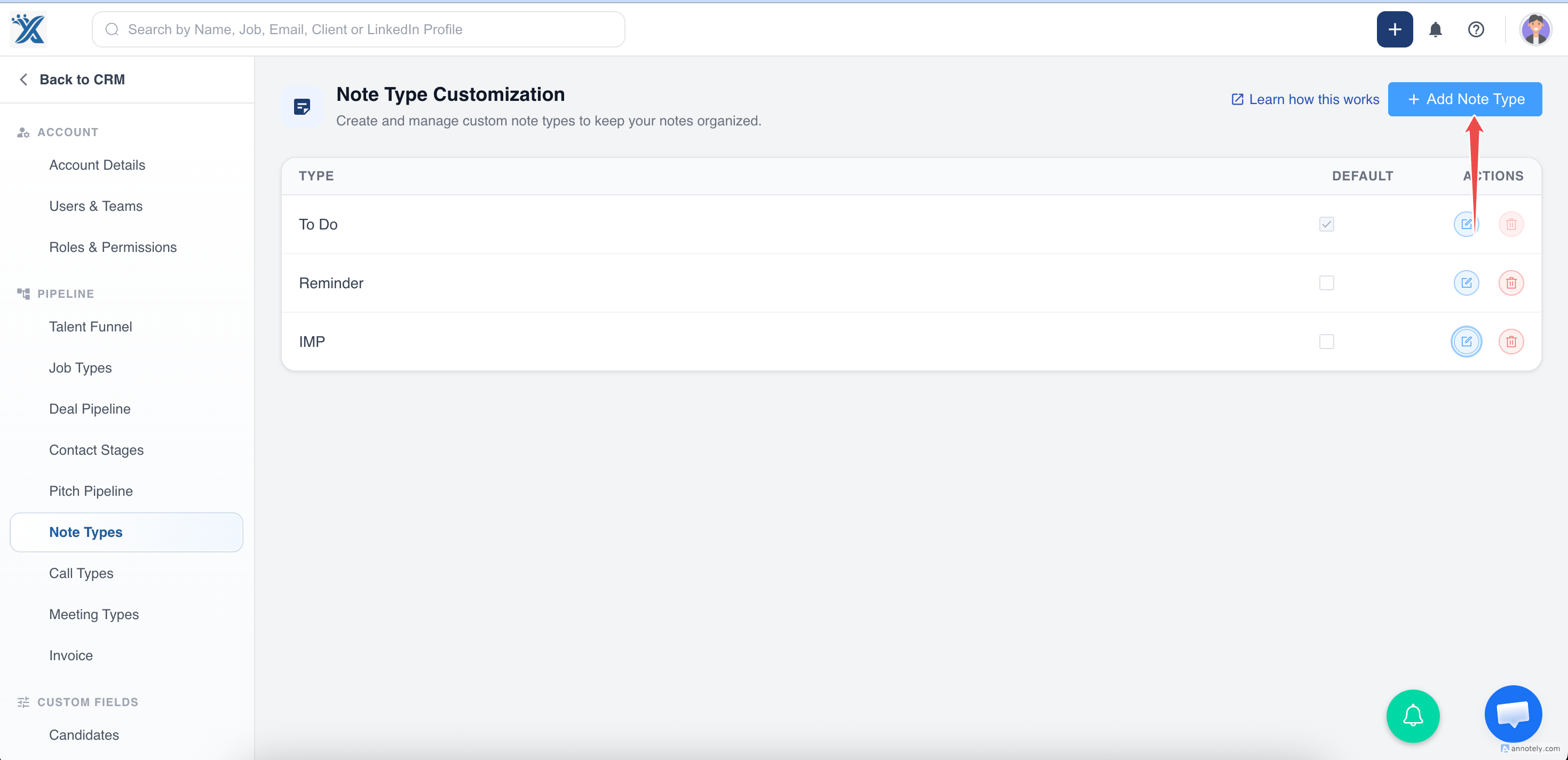
- Enter the name for the custom note type (e.g., “Candidate Feedback”, “Interview Notes”).
- Click Save once you’re finished.
Updating a Custom Note Type in ATZ CRM
Section titled “Updating a Custom Note Type in ATZ CRM”- Locate the Note Type:
- In the Note Type Customization section, find the note type you want to update.
- Edit the Note Type:
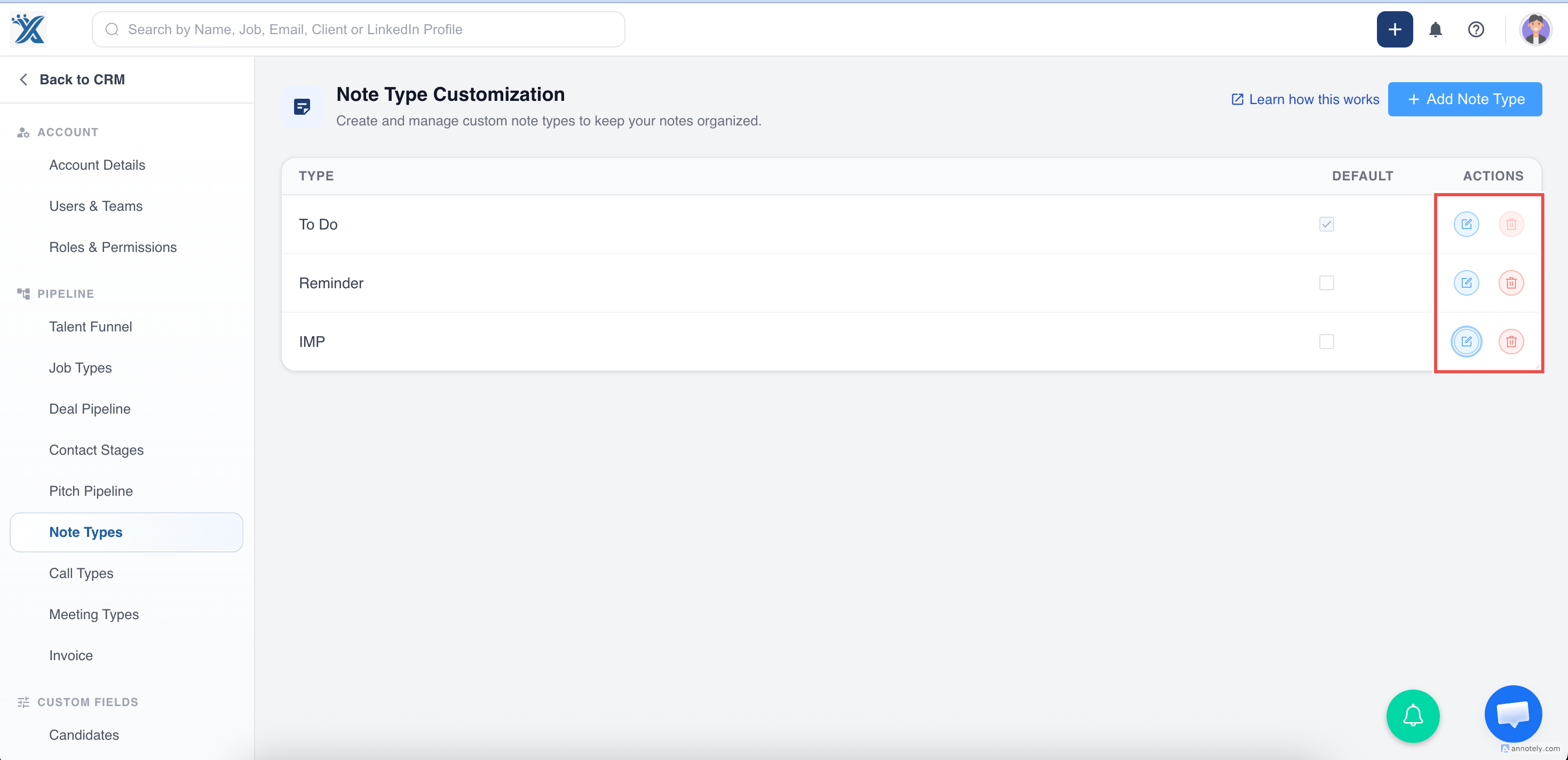
- Click on the Edit button next to the note type.
- Make changes to the name as necessary.
- Save your changes by clicking Save Changes.
Deleting a Custom Note Type in ATZ CRM
Section titled “Deleting a Custom Note Type in ATZ CRM”- Delete a Note Type:
- Find the custom note type you wish to delete in the Note Type Customization section.
- Click Delete next to the note type.
- Confirm the deletion in the pop-up window.
- Note: The default selected note type cannot be deleted.
How to Use Custom Note Types in ATZ CRM?
Section titled “How to Use Custom Note Types in ATZ CRM?”- Adding Notes with Custom Note Types:
-
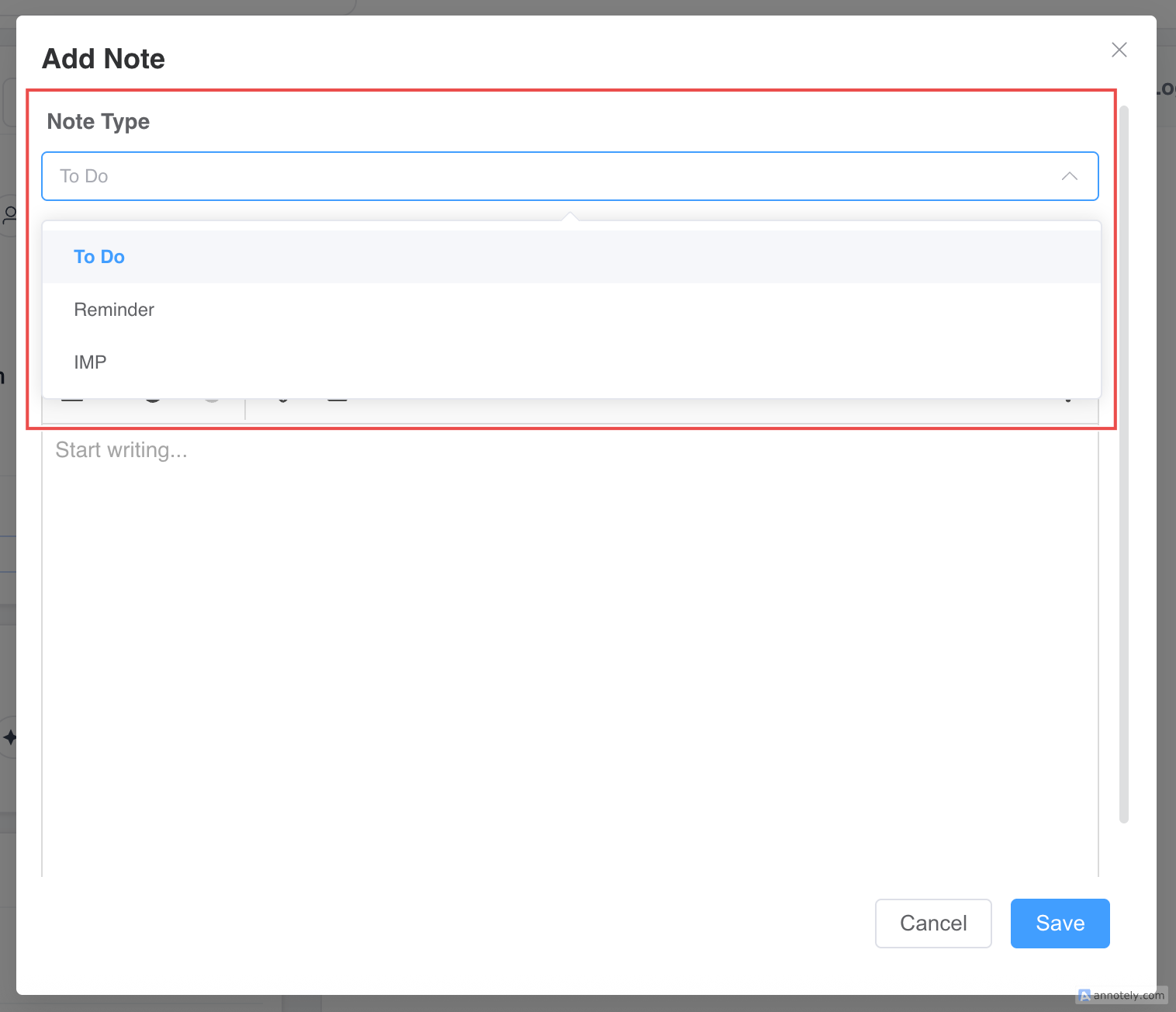
When adding a note to a candidate, job, or any other entity, you’ll see a Note Type dropdown.
-
Select the custom note type you’ve created (e.g., “Candidate Feedback”).
-
Enter the content of the note (e.g., feedback from an interview) and save it.
- Reviewing Notes:
- The custom note type will appear alongside other notes for easy filtering and reference when managing candidates or jobs.
For further details and guidance, Contact our chat support team!