Add Candidates Using ATZ CRM Chrome Extension
Our Chrome extension makes your work easier by letting you source candidates, contacts, and companies in a single click from various recruitment platforms and lead databases!
Section titled “Our Chrome extension makes your work easier by letting you source candidates, contacts, and companies in a single click from various recruitment platforms and lead databases!”The Chrome Extension works only on Chromium-based browsers including Google Chrome, Microsoft Edge, Brave browser, etc.
Steps to Install ATZ CRM Chrome Extension:
Section titled “Steps to Install ATZ CRM Chrome Extension:”- Visit Chrome store for ATZ CRM Extension:
- First we need to add it to your browser, you can click here to find ATZ CRM Chrome Extension.
- Add to Chrome:
- Click the “Add to Chrome” button.
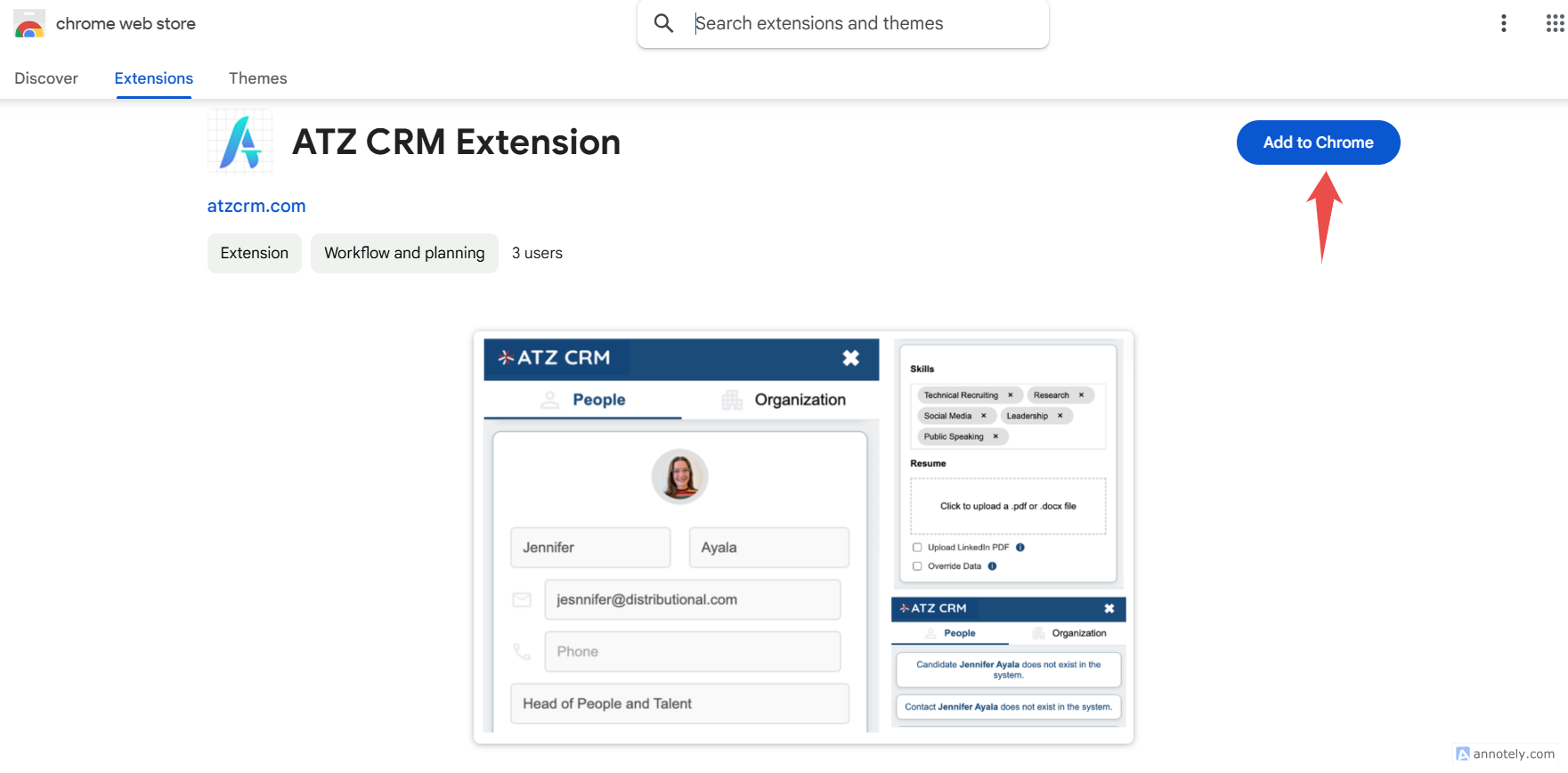
- A pop-up will appear. Click “Add Extension” to confirm the installation.
- Make sure once the extension is installed, you need to pin so that it shows up on top
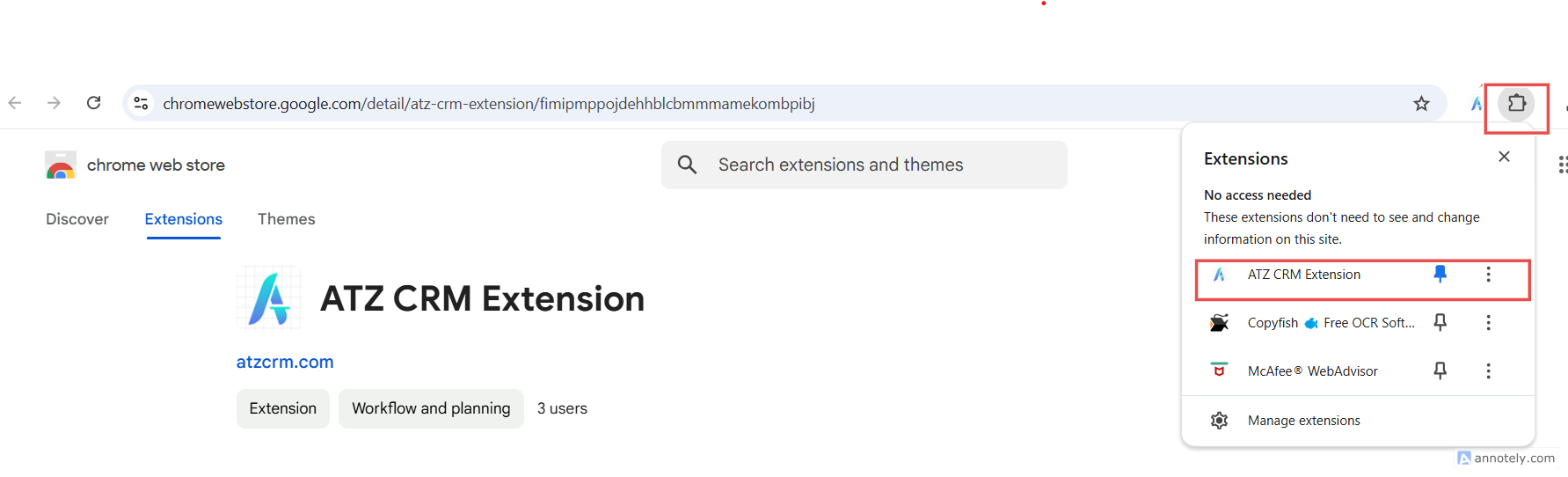 Click here to learn how to pin Chrome extension
Steps to add a candidate using the ATZ CRM chrome extension
Section titled “Steps to add a candidate using the ATZ CRM chrome extension”Step 1: Open LinkedIn in your browser and then click on ATZ CRM EXTENSION
Section titled “Step 1: Open LinkedIn in your browser and then click on ATZ CRM EXTENSION”- Open the extension by clicking on its icon in your browser toolbar.
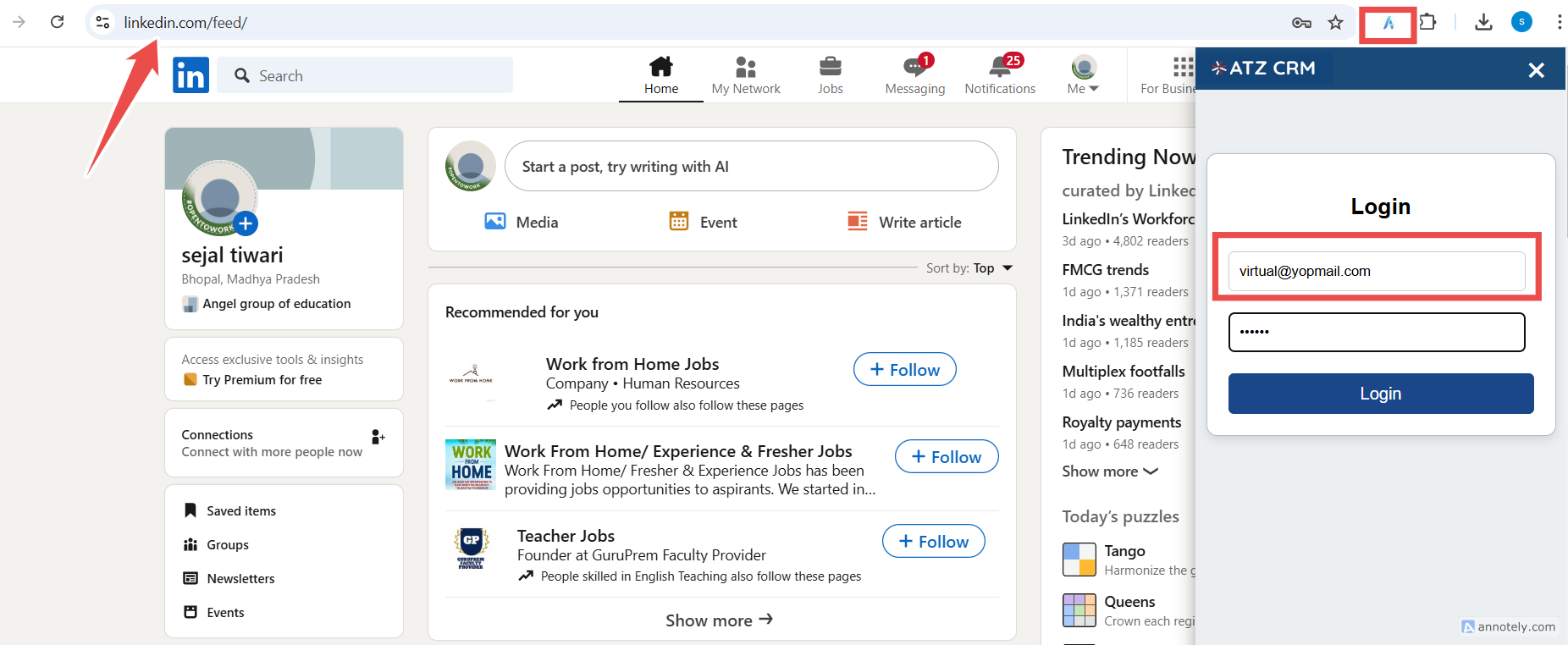
- Log in using your ATZ CRM credentials.
Step 2: Open the Candidate’s Source Page
Section titled “Step 2: Open the Candidate’s Source Page”- Navigate to the candidate profile you want to add
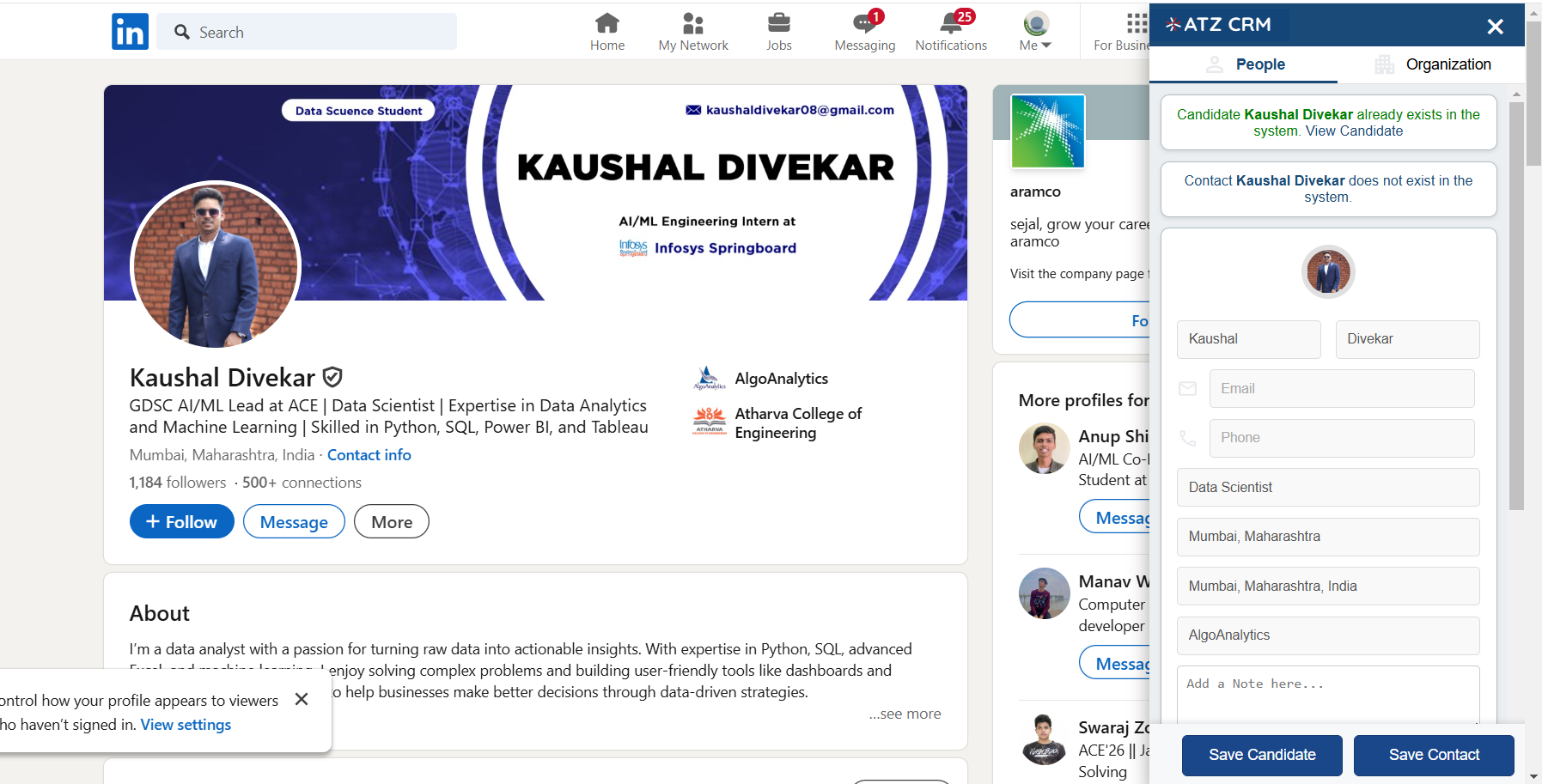
- Ensure the candidate’s profile or resume page is open and fully loaded.
Step 3: Use the Extension to Capture Candidate Data
Section titled “Step 3: Use the Extension to Capture Candidate Data”- Click on the ATZ CRM Chrome Extension icon.
- The extension will automatically detect candidate information from the open webpage.
- Fields such as name, email, phone number, and skills will be pre-filled.
- Note: Email and phone numbers will only be fetched if the candidates haven’t set them to private on LinkedIn.
- Review and edit the captured data as needed.
Step 4: Save the Candidate
Section titled “Step 4: Save the Candidate”- Once all details are verified, click the Save or Add Candidate button within the extension.
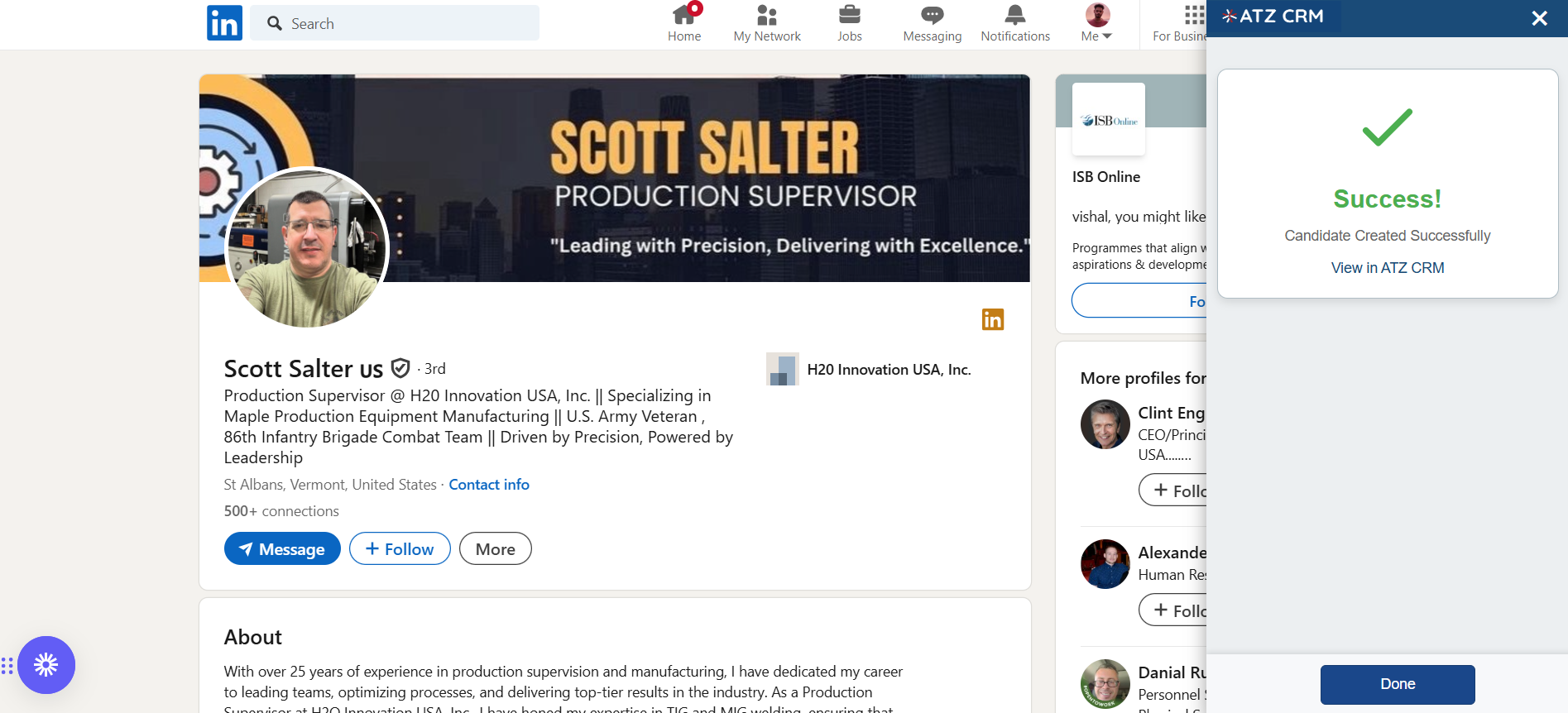
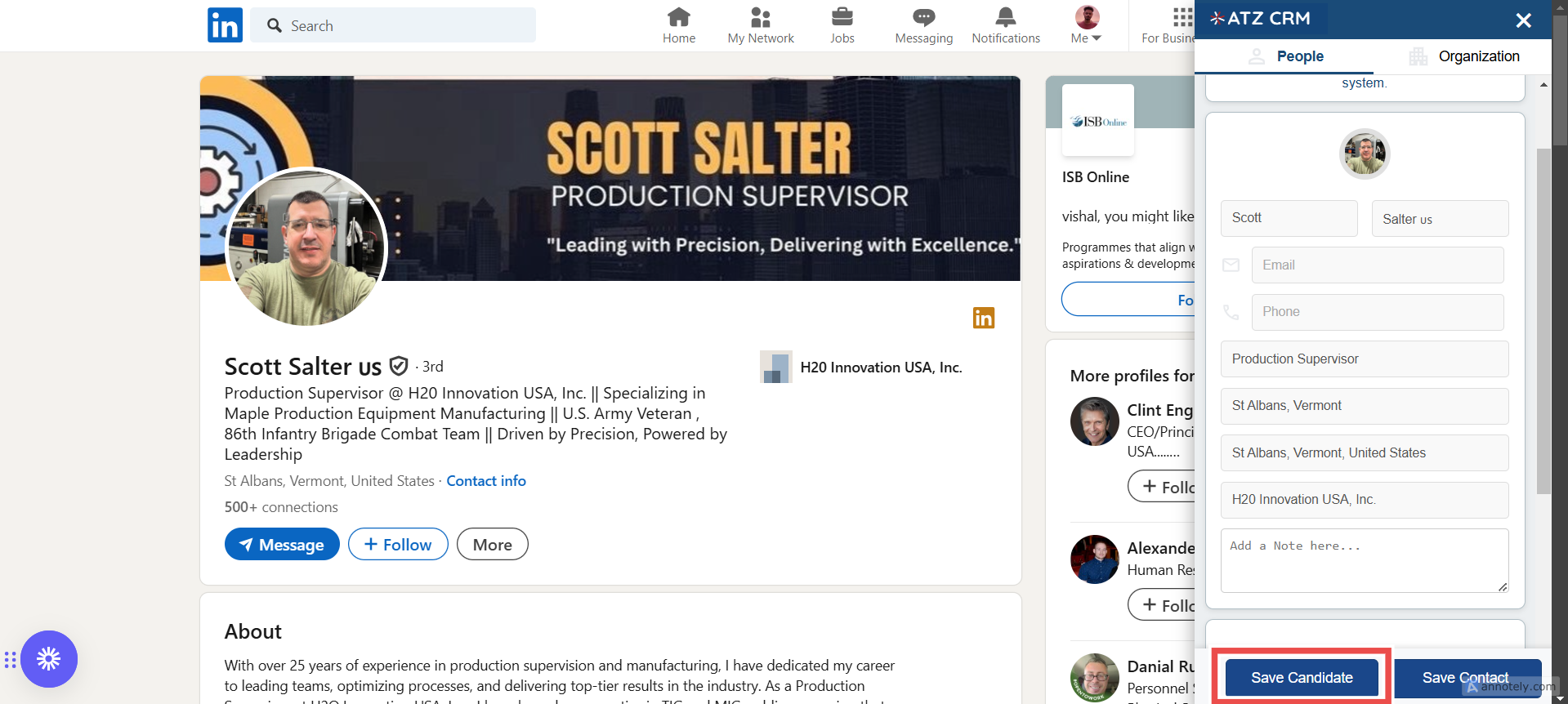 2. A confirmation message will appear indicating that the candidate has been successfully added to ATZ CRM.