
Managing Contracts, Shifts, Timesheets & Invoicing (For Temp Recruiters)
This guide explains how recruitment agencies can manage day-rate contractors, monthly timesheets, and client billing using ATZ CRM.
The workflow mirrors how most temp agencies already operate – just digitised.
1. Core Structure (Understand This First)
Section titled “1. Core Structure (Understand This First)”ATZ CRM uses five layers:
Job → Contract → Shifts → Daily Timesheets → Monthly Timesheets → Invoice
Each layer has one clear purpose:
Layer Purpose Job Role + client context Contract Commercial agreement (rates, duration) Shifts Daily work schedule Daily Timesheets Actual hours worked Monthly Timesheets Client approval Invoice Billing document
2. Creating a Contract (Commercial Setup)
Section titled “2. Creating a Contract (Commercial Setup)”A Contract represents the commercial agreement with the client.
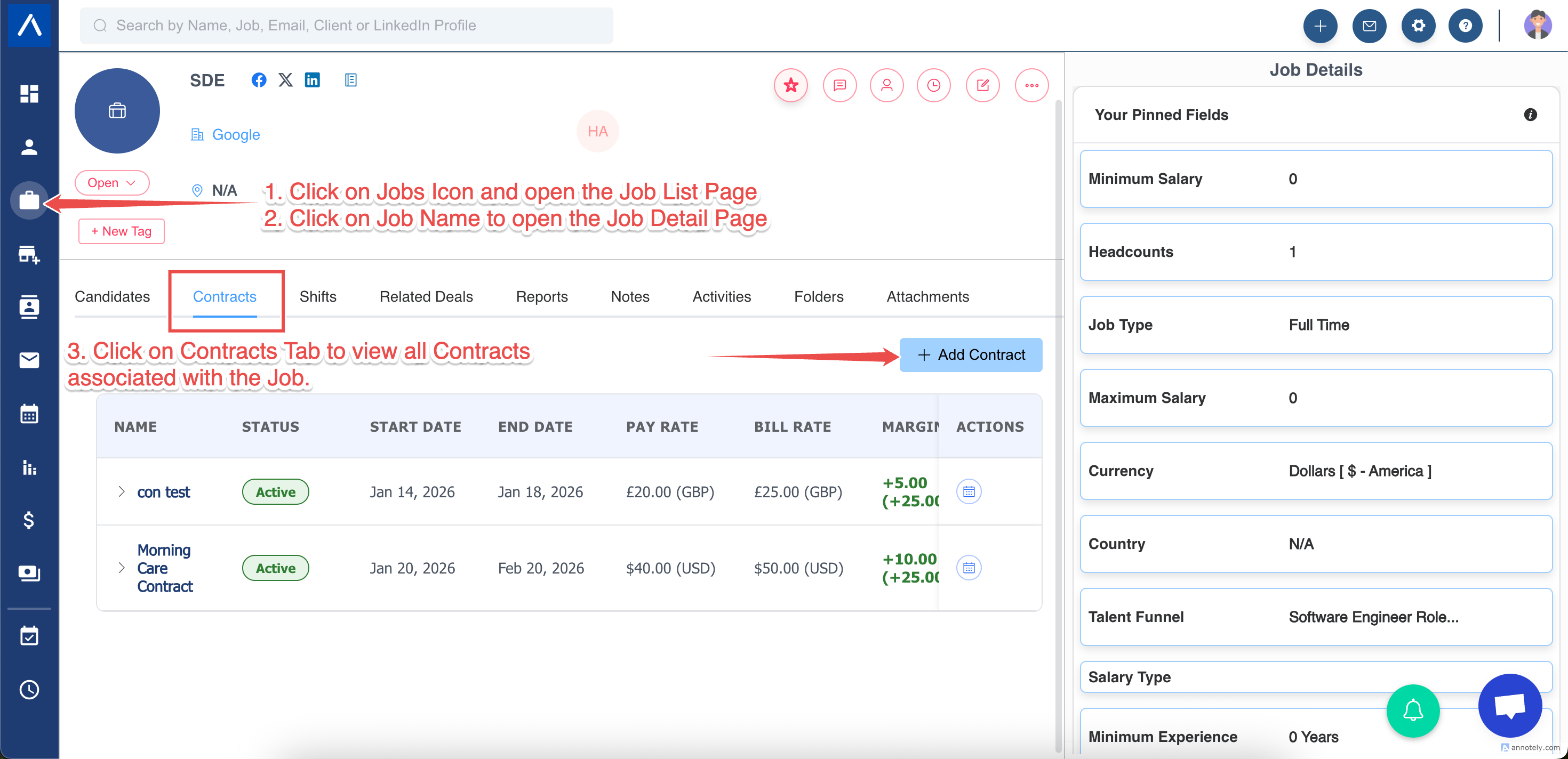
Steps to create a Contract:
a. Create a Job
Related Article: Add a Job Manually in ATZ CRM
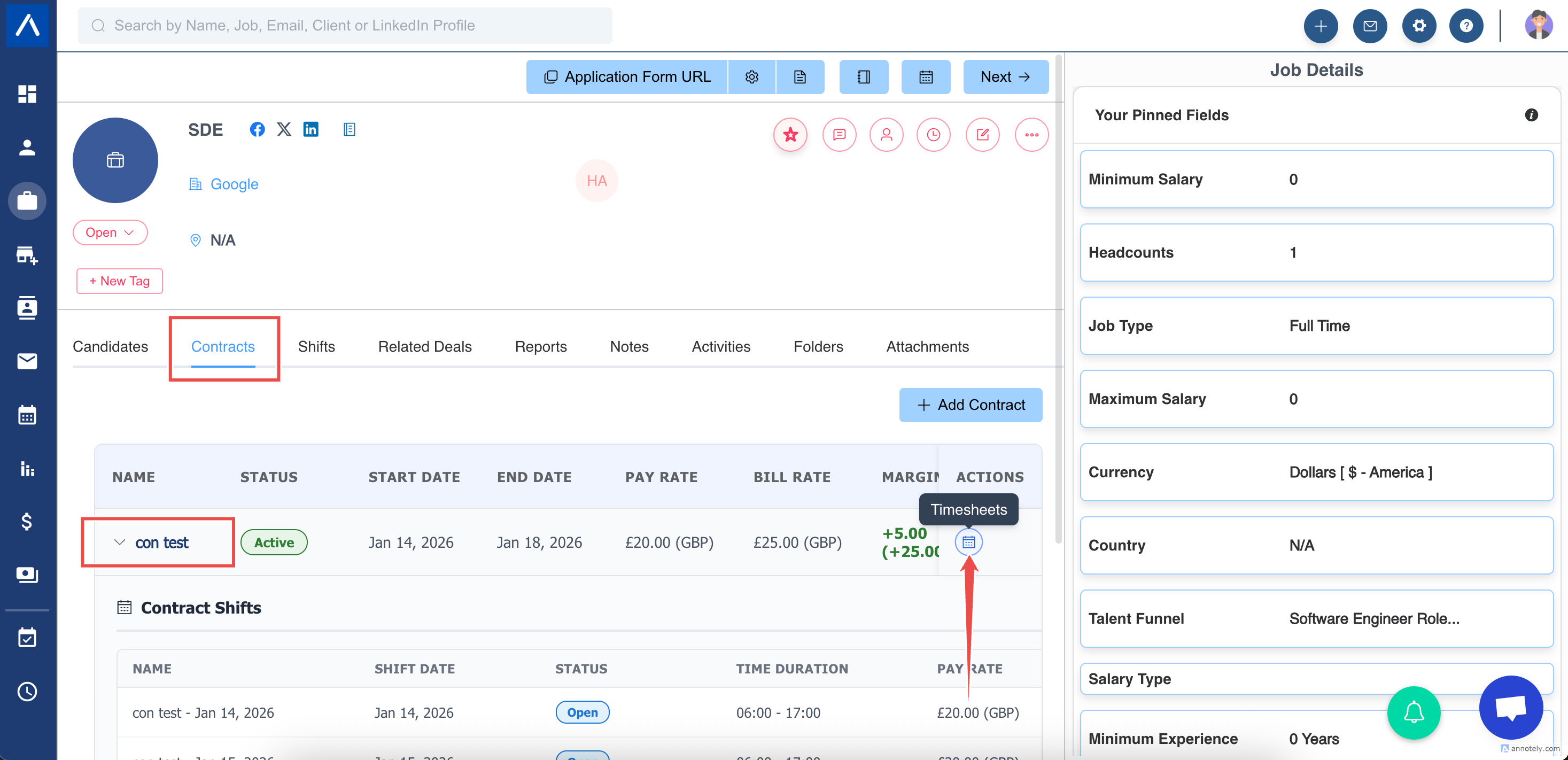
b. Open the Job Detail Page and click on the ” Contracts ” Tab
c. Click on ” Add Contract ” button
What you define
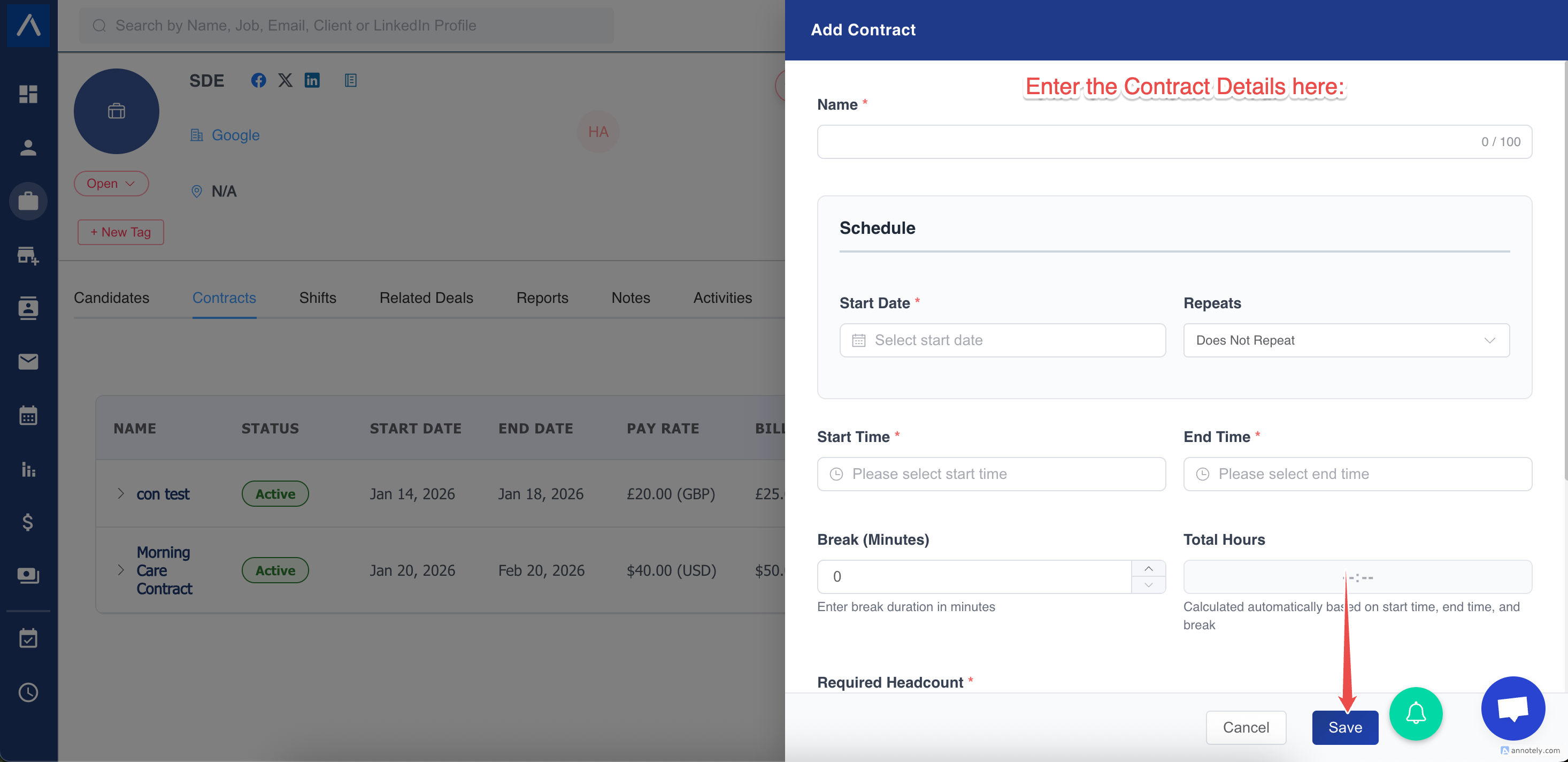
Section titled “What you define”- Name
- Schedule
- Pay rate (what you pay contractor)
- Bill rate (what client pays)
- Currency
- Start & end date
- Working days (e.g. Mon–Fri)
- Start/end time
- Headcount required
Why contracts matter
Section titled “Why contracts matter”- Rates stay consistent
- Margin is calculated automatically
- Monthly billing becomes simple
3. Shifts (Daily Work Planning)
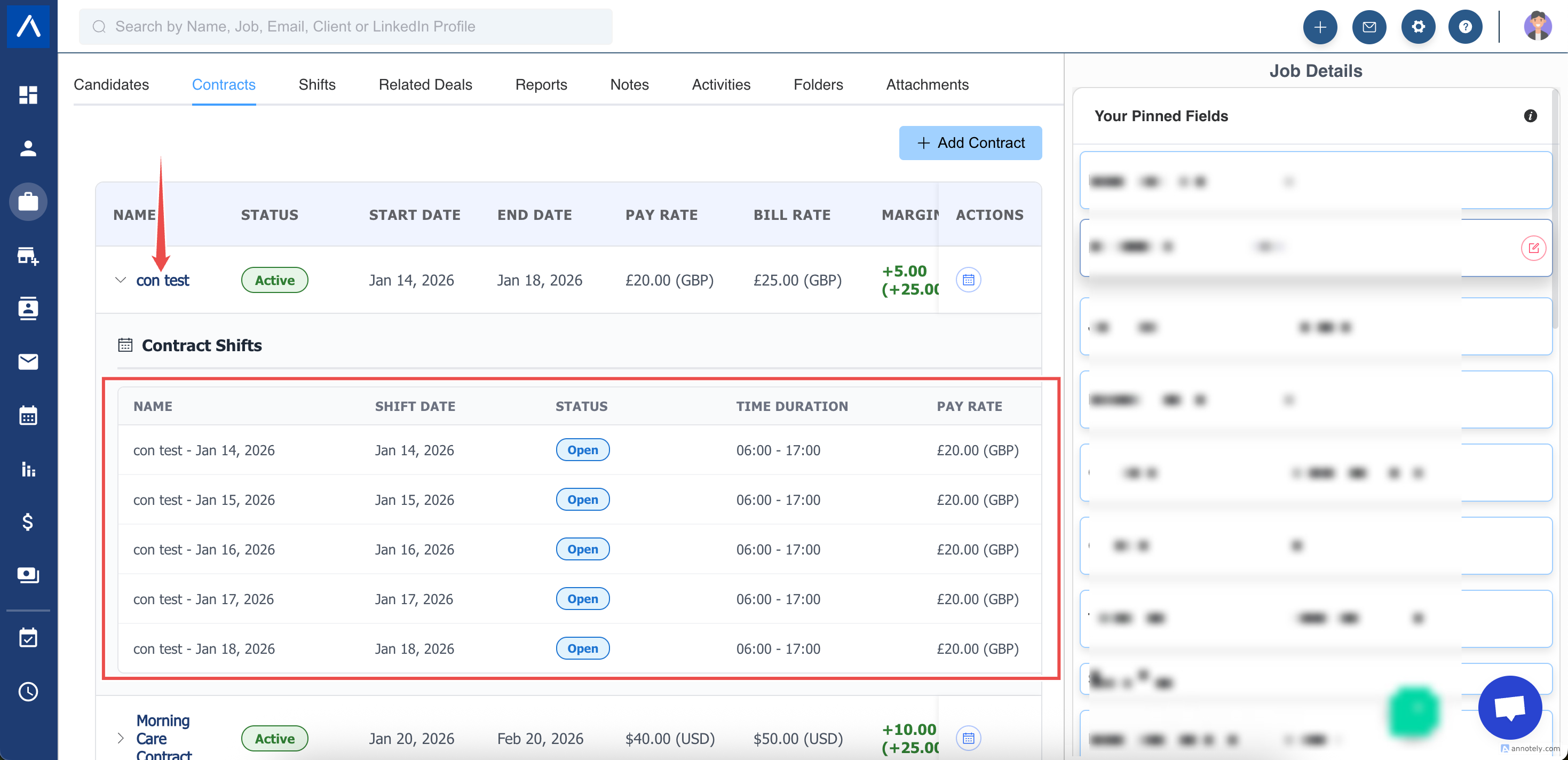
Section titled “3. Shifts (Daily Work Planning)”Shifts are automatically generated from the contract.
Example
Section titled “Example”Contract says:
- Mon–Fri
- 9am–6pm
System generates:
- One shift per working day
Each shift:
-
Belongs to the contract
-
Can have multiple candidates booked
-
Has its own status (Open / Completed)
-
You can click on Contract Name to view all the Shifts
Check this article to know more about Job Shifts, Booking Candidates and Daily Timesheets:
Managing Shifts & Timesheets for Temporary & Contract Recruitment
4. Booking Candidates to Shifts
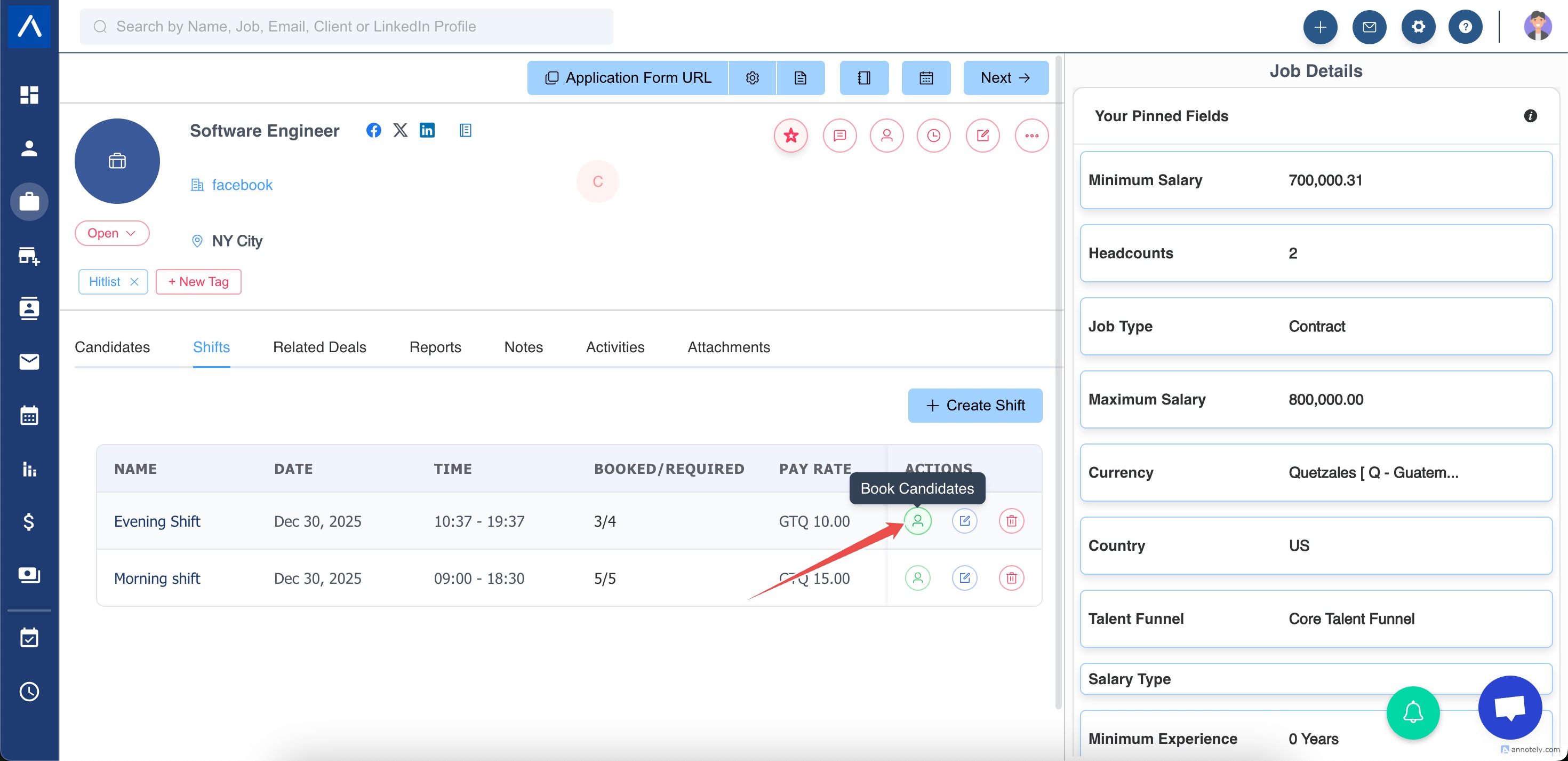
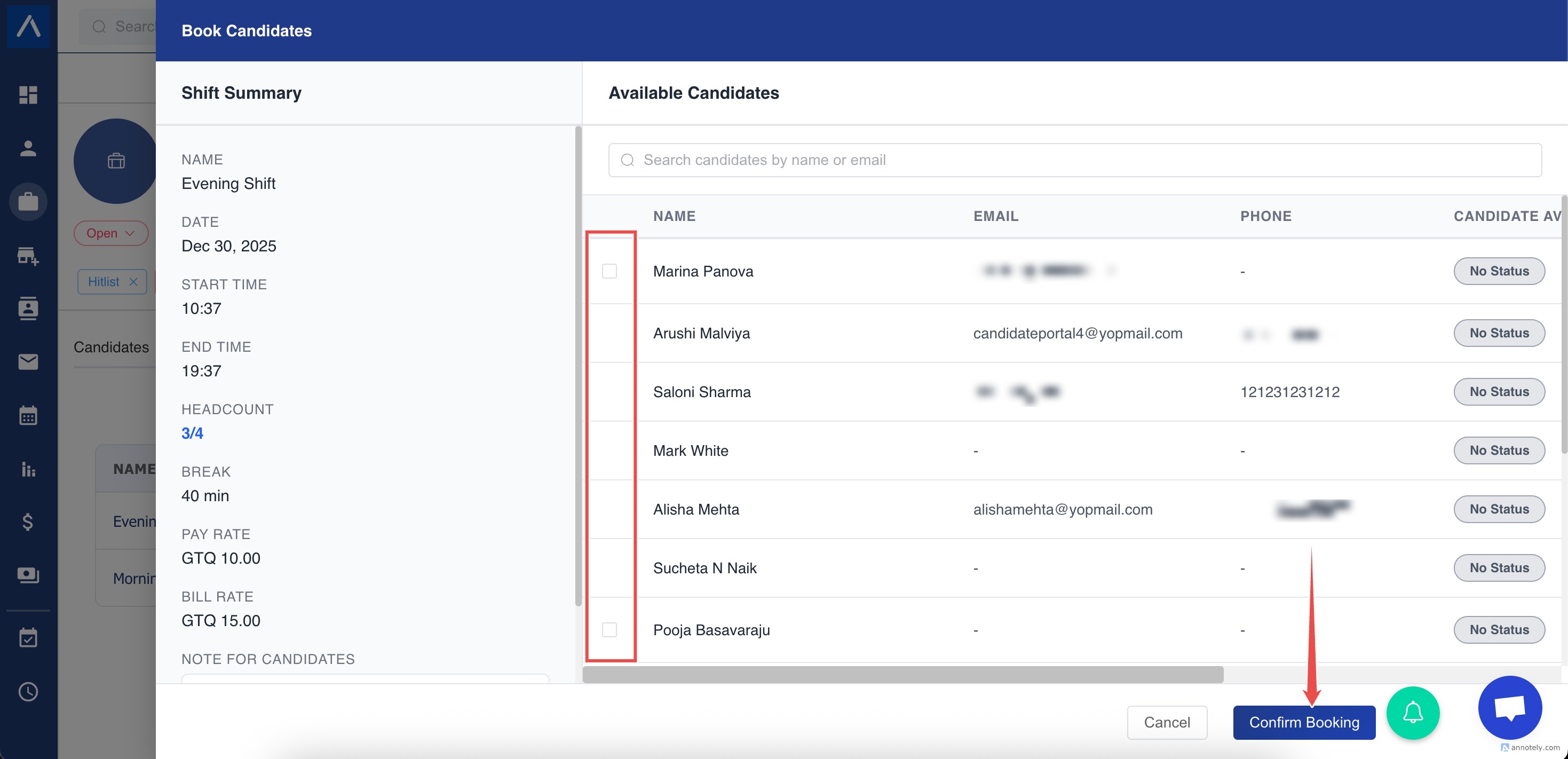
Section titled “4. Booking Candidates to Shifts”Recruiter:
- Opens a shift
- Books one or more candidates
Rules:
- No double booking
- Headcount enforced
- One shift → multiple candidates allowed
5. Completing a Shift
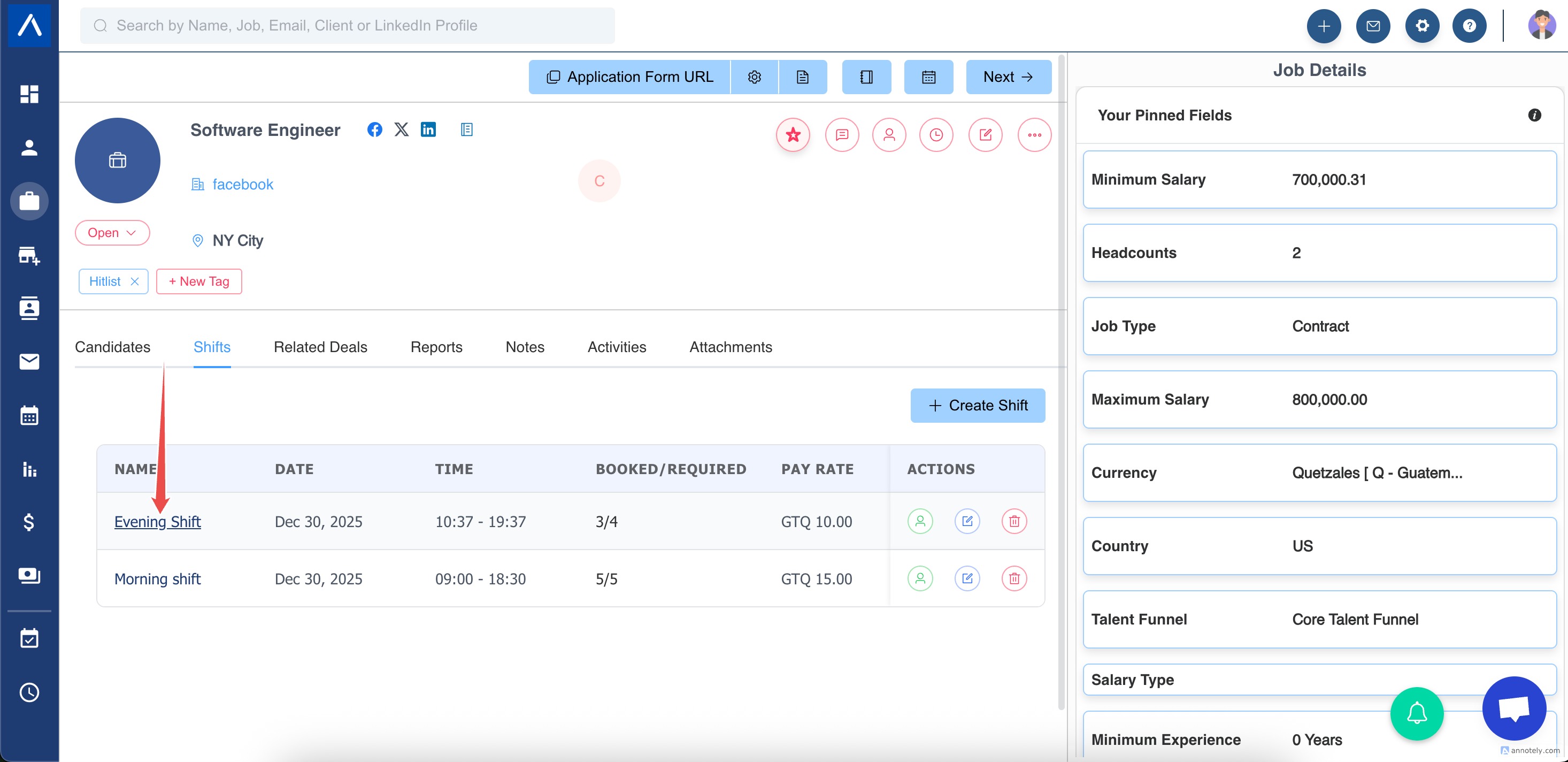
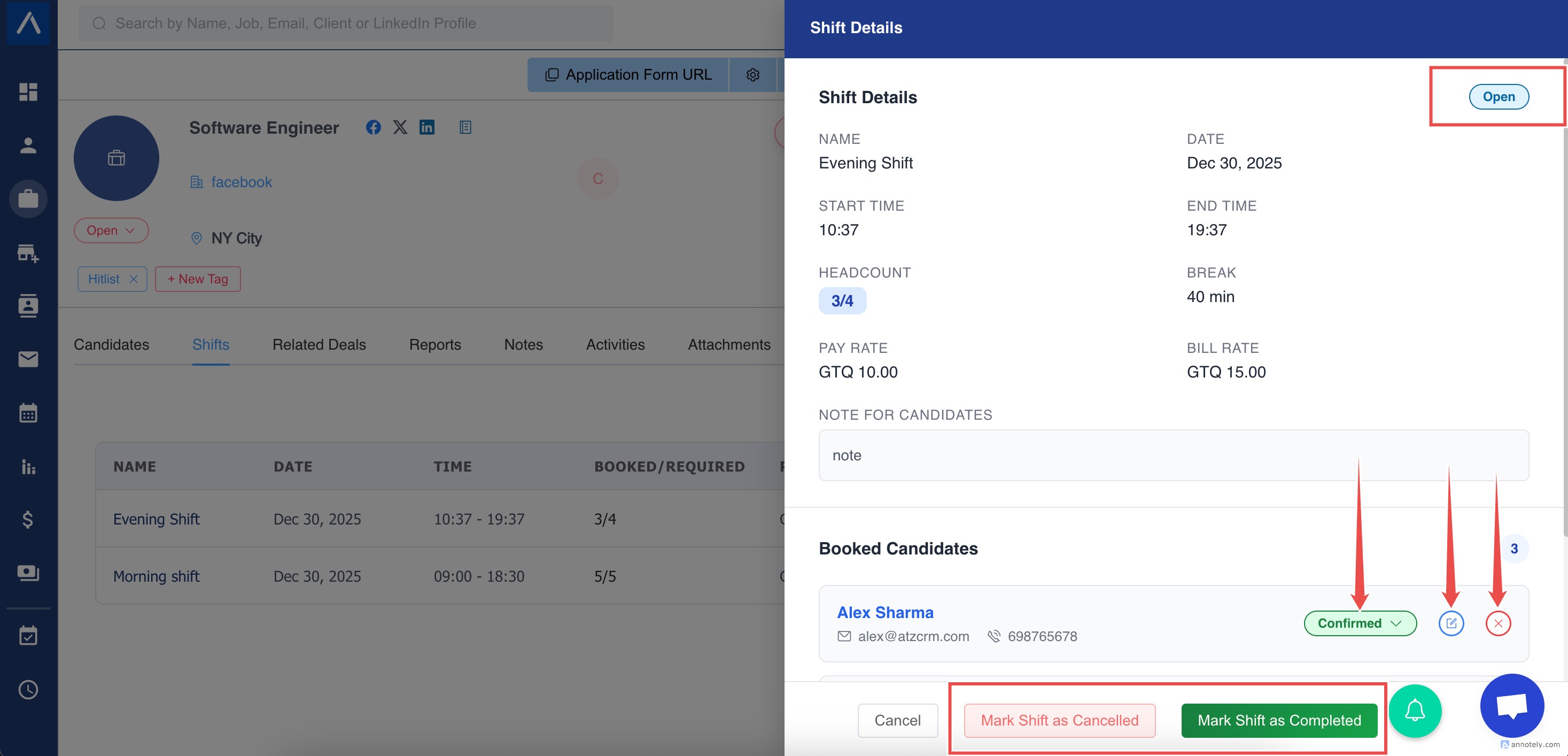
Section titled “5. Completing a Shift”After work is done:
- Recruiter marks shift Completed
- This creates ” Draft ” timesheets
Why:
- Prevents early submissions
- Confirms work happened
6. Daily Timesheets (Candidate Entry)
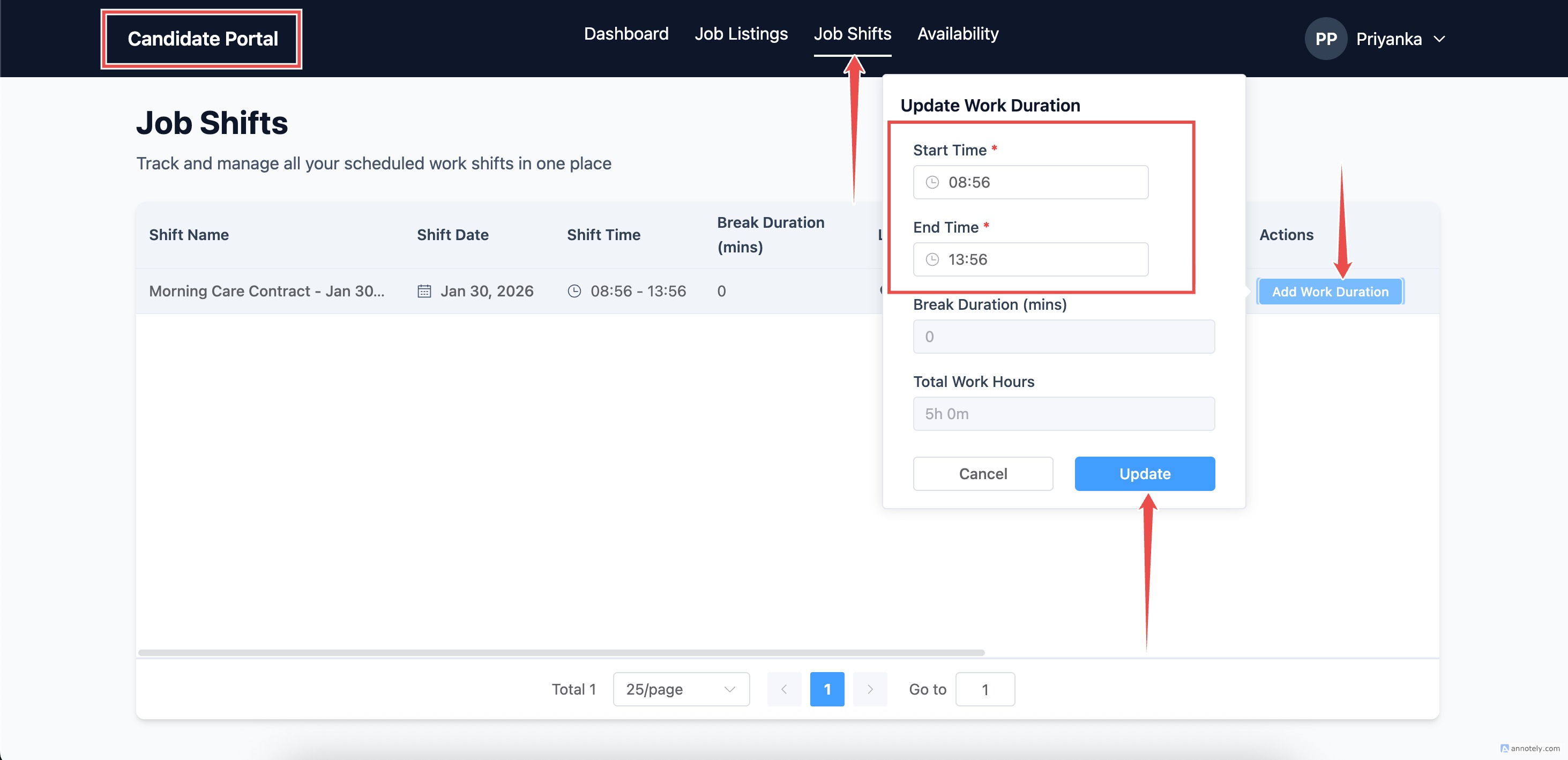
Section titled “6. Daily Timesheets (Candidate Entry)”Once shift is completed:
- System creates draft timesheets
- Candidate logs into Candidate Portal
- Enters:
- Actual start time
- End time
- Total hours
- Clicks Submit
Controls:
- Candidate cannot submit before completion
- Cannot edit after submission unless rejected
7. Monthly Timesheets (Client Approval View)
Section titled “7. Monthly Timesheets (Client Approval View)”Instead of approving 20 daily sheets, clients approve one monthly summary.
What a Monthly Timesheet Shows
Section titled “What a Monthly Timesheet Shows”Per candidate:
- Days worked
- Work dates
- Bill rate
- Total bill amount
- Status
Recruiter View
Section titled “Recruiter View”Contract → Monthly Timesheets tab
Table:
- Candidate
- Period
- Days worked
- Bill amount
- Status
- To open Monthly Timesheet Summary for a Contract:
a. Visit the Contracts Tab in Job Detail Page.
b. Click on the ” Timesheets ” button for a Contract.
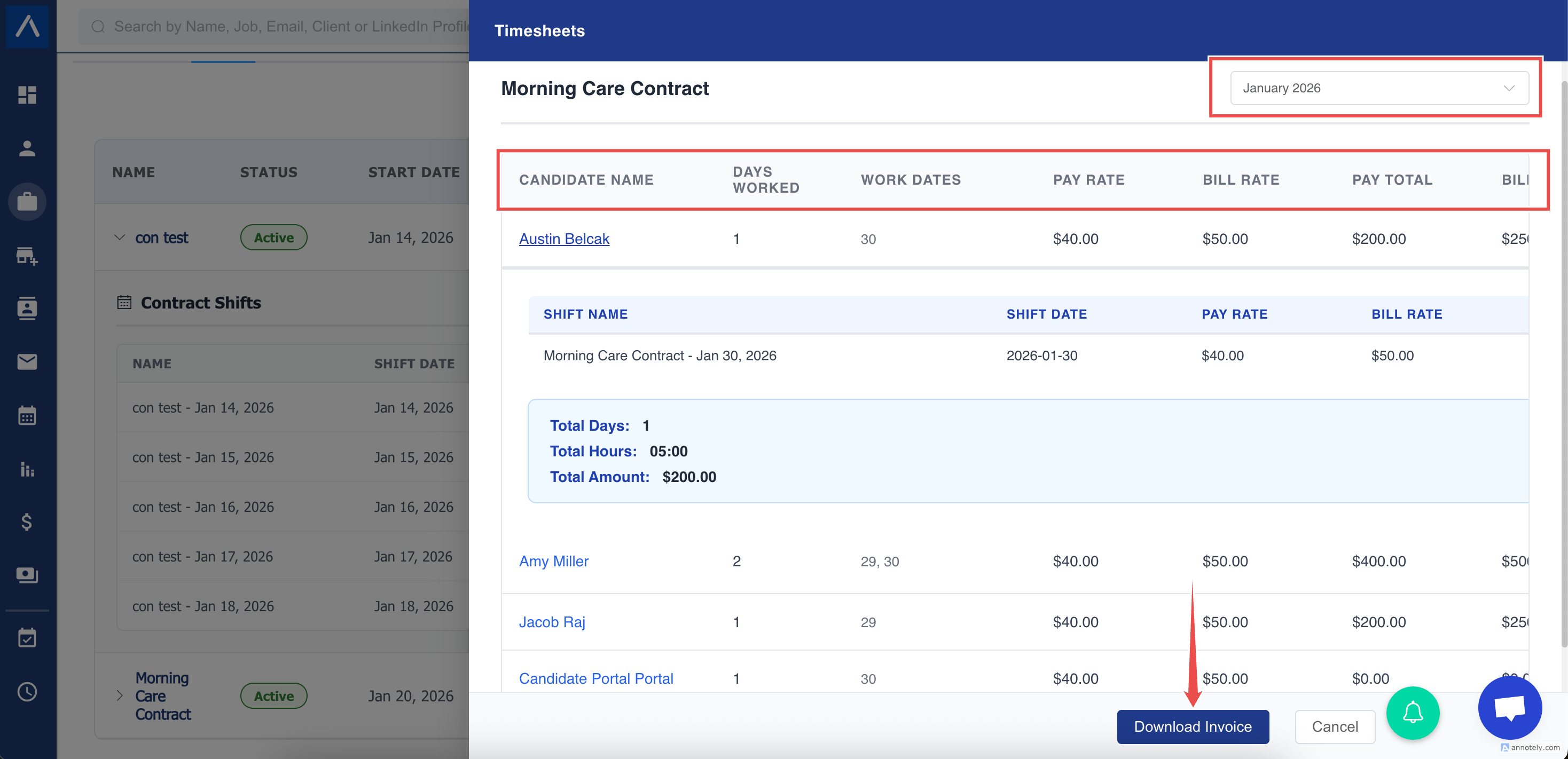
c. All completed Job Shift Bookings will be displayed for a month.
-
You can filter booking via Month.
-
For a candidate, you can Approve/Reject all the timesheets for a month
-
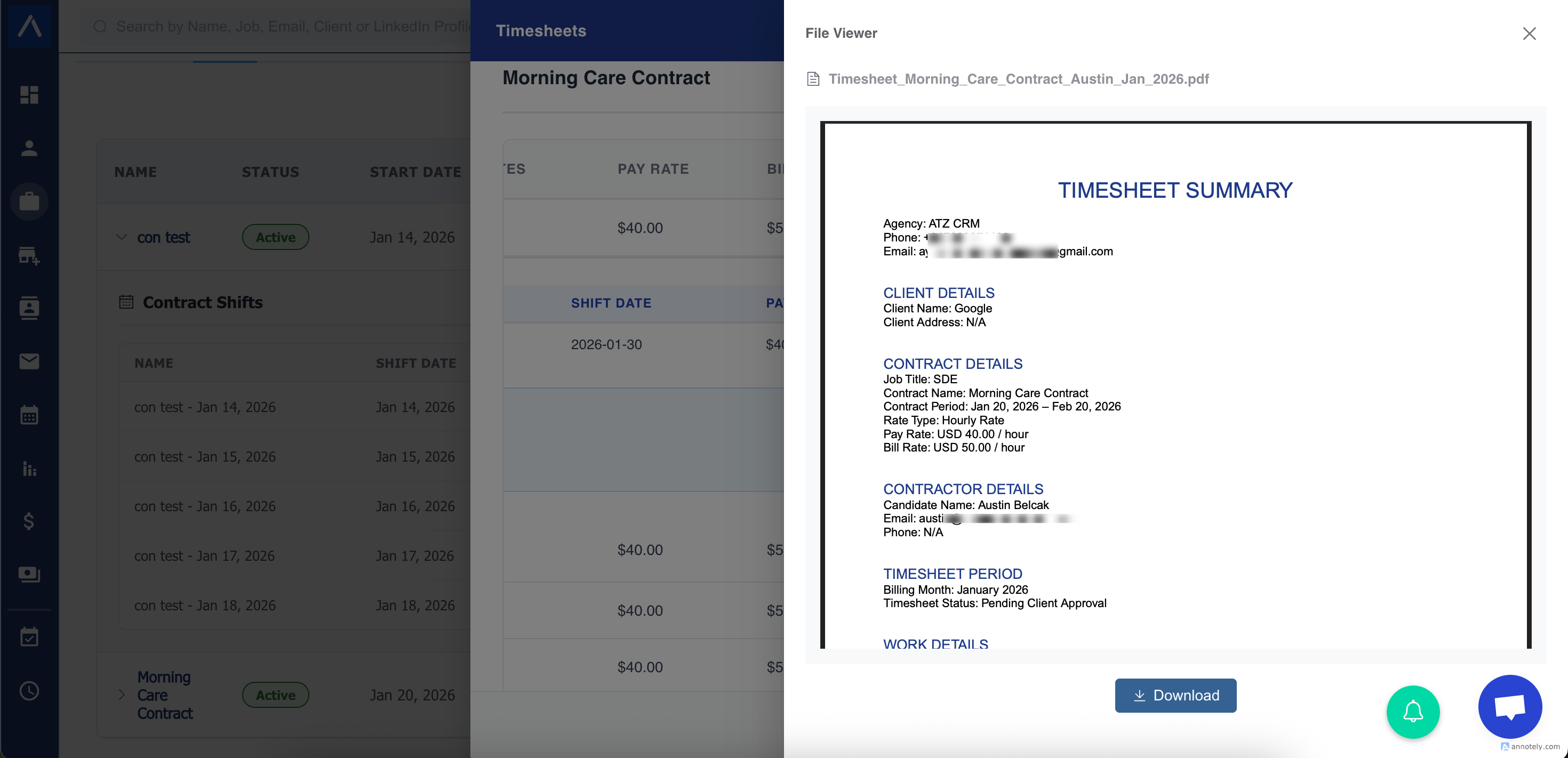
You can download the Timesheet Summary for a Candidate.
-
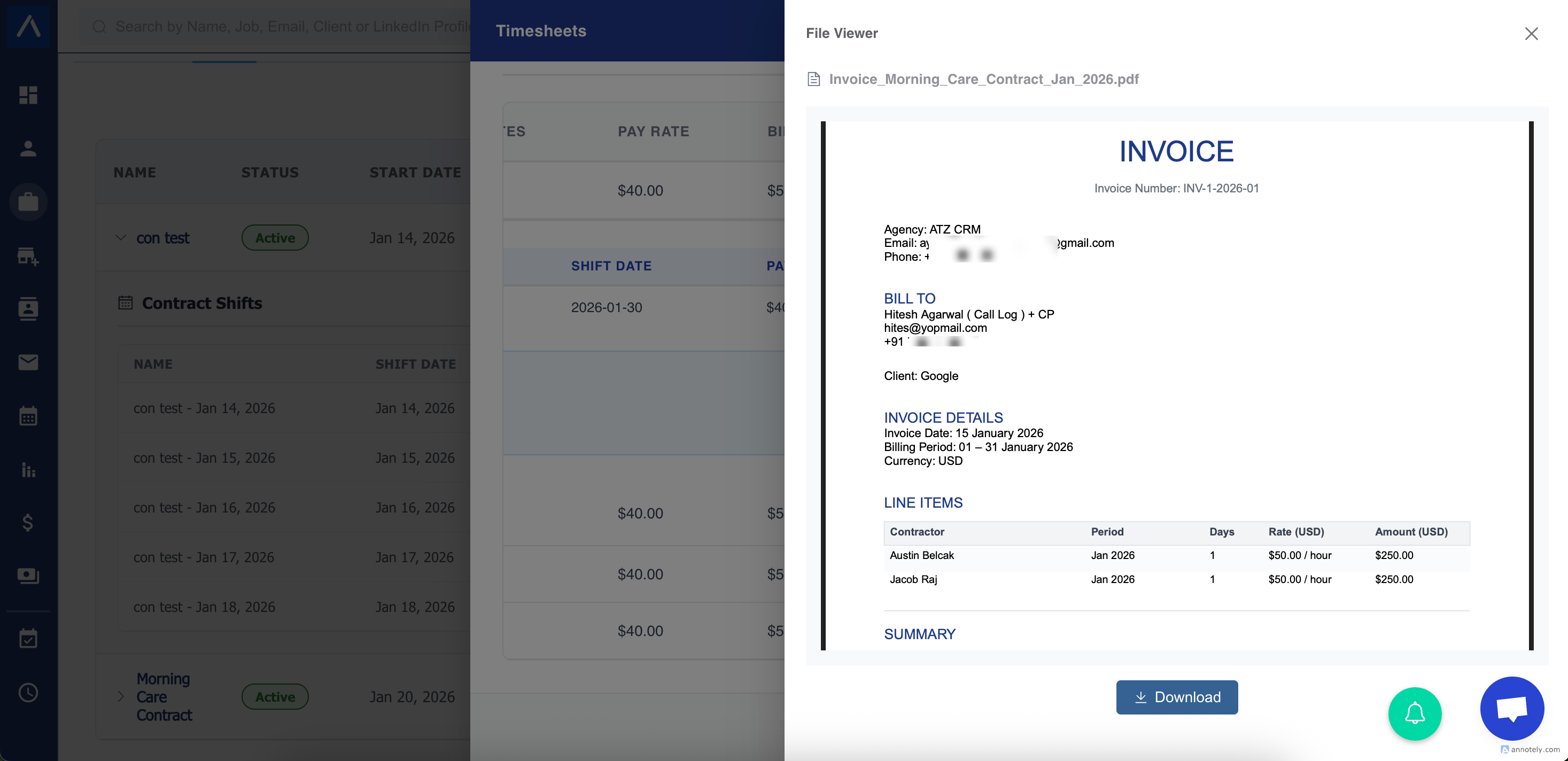
For all the Approved Timesheets, you can Download an Invoice.
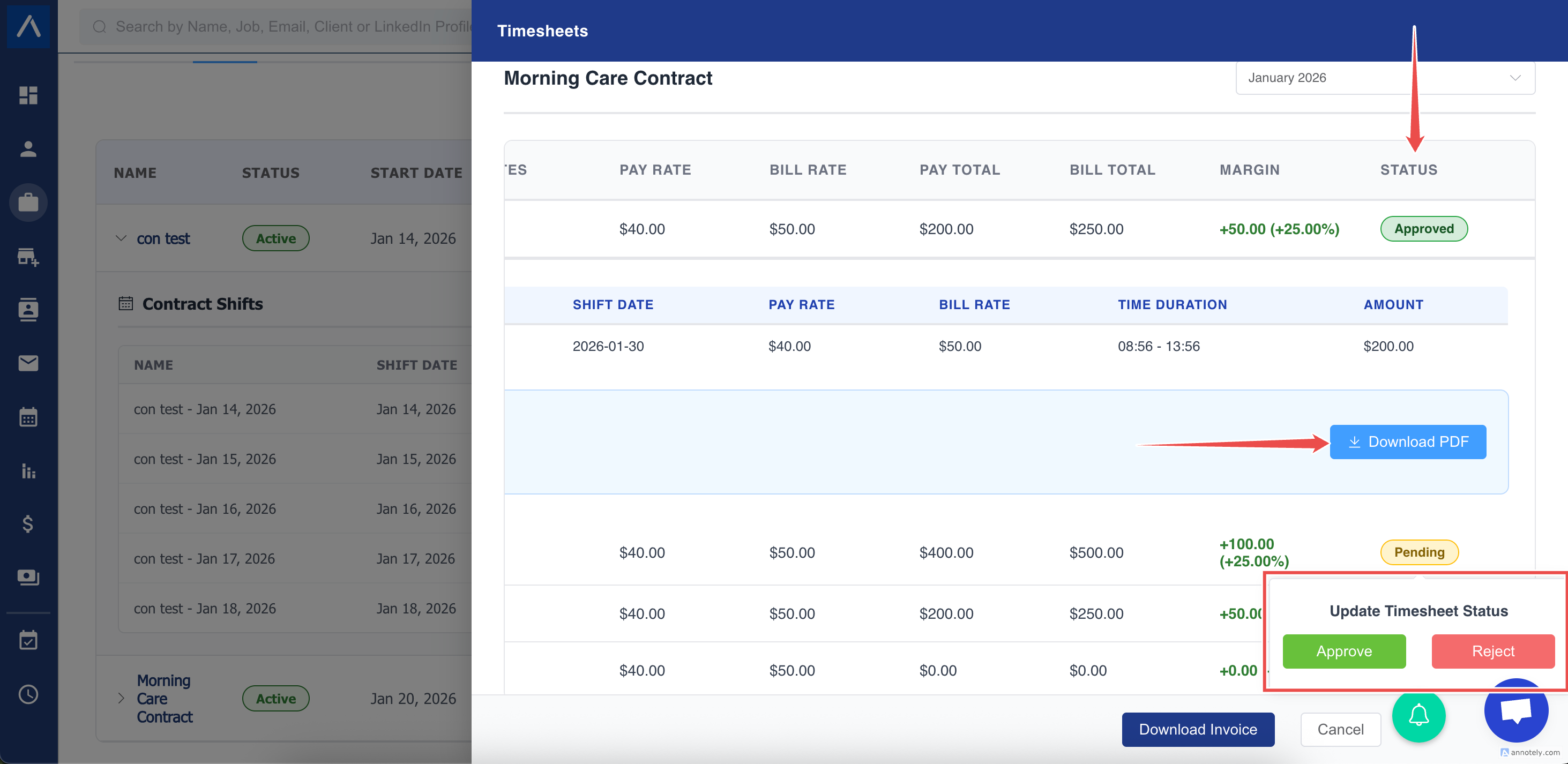
Timesheet Summary:
Invoice:
8. Client Approval
Section titled “8. Client Approval”When ready:
- System emails client
- Includes:
- Monthly summary
- Approve / Reject buttons
- No login required
Client can approve:
- From phone
- From anywhere
- Even if different person signs each month
Status updates:
- Pending → Approved / Rejected
9. Downloadable Timesheet PDF
Section titled “9. Downloadable Timesheet PDF”Recruiters can download:
- Timesheet Summary PDF per candidate
Used for:
- Audit
- Client records
- Back-office uploads
⚠️ This is NOT an invoice. It is proof of work.
10. Monthly Invoicing
Section titled “10. Monthly Invoicing”Once monthly timesheets are approved:
- Recruiter generates one invoice per contract
- Invoice includes:
- All candidates
- All approved time
- Rate × days calculation
Standard Invoice Includes
Section titled “Standard Invoice Includes”- Client details
- Billing period
- Line items per contractor
- Subtotal
- Tax
- Total payable
- Payment terms
11. Margin Visibility
Section titled “11. Margin Visibility”System automatically calculates:
- Pay total
- Bill total
- Gross margin
- Margin %
Visible at:
- Contract level
- Monthly level
No spreadsheets needed.
12. Common Scenarios & How ATZ Handles Them
Section titled “12. Common Scenarios & How ATZ Handles Them”Multiple candidates on same contract
Section titled “Multiple candidates on same contract”✔ Each candidate tracked separately ✔ Approved individually ✔ Billed together
No-show
Section titled “No-show”✔ Mark no-show ✔ No timesheet ✔ No billing
Candidate leaves early
Section titled “Candidate leaves early”✔ Candidate enters actual hours ✔ Client approves adjusted amount
Client rejects timesheet
Section titled “Client rejects timesheet”✔ Status → Rejected ✔ Candidate resubmits ✔ Full audit trail
13. Why This Works for Temp Agencies
Section titled “13. Why This Works for Temp Agencies”- Mirrors paper workflow
- Monthly approval (industry standard)
- No forced portals
- Strong audit trail
- Clear margin tracking
- Built specifically for contract staffing
Final Summary
Section titled “Final Summary”With ATZ CRM you:
- Create a contract
- System generates shifts
- Candidates submit hours
- Client approves monthly
- You generate invoice
- Margin calculated automatically
No spreadsheets. No paper. No confusion.